# Creating a landing page for your partner program
> Create an effective and compelling landing page to attract high-quality partners to join your program and promote your product.
import { ImageLink } from "/snippets/components/image-link.jsx";
import { ImageCarousel } from "/snippets/components/image-carousel.jsx";
This feature is only available on [Business plans and
above](https://dub.co/pricing/partners).
On Dub, you can also create a branded landing page with details about your [partner program](/help/article/dub-partners):
## What is the program landing page?
The program landing page gives your applicants information about your program and the rewards offered. This also includes brand or marketing files, FAQ sections, and any other content you want to add that will help an applicant understand your program, what your product is, and why they should apply.
On Dub, you can create a custom landing page for each [partner
group](/help/article/partner-groups) in your program. This is helpful for
showcasing different information about your program tailored to different
partner types – e.g. influencers vs affiliates vs resellers.
By default, when you create a new partner group, it reuses the landing page
details from your default partner group, but you can always edit them
afterwards.
## Where to find the landing page builder?
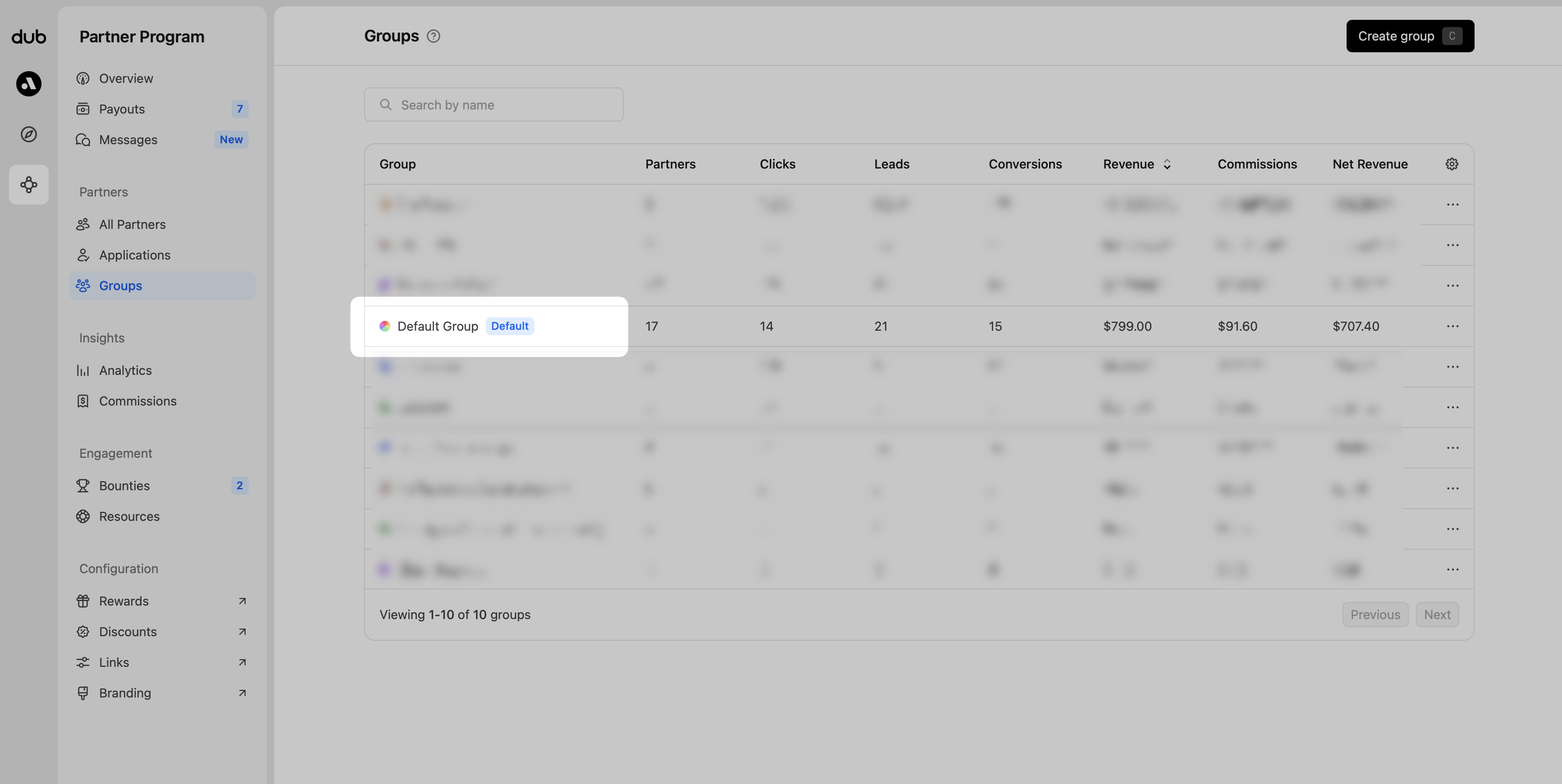
From your **Groups** page, open the group you want to customize the landing page for:
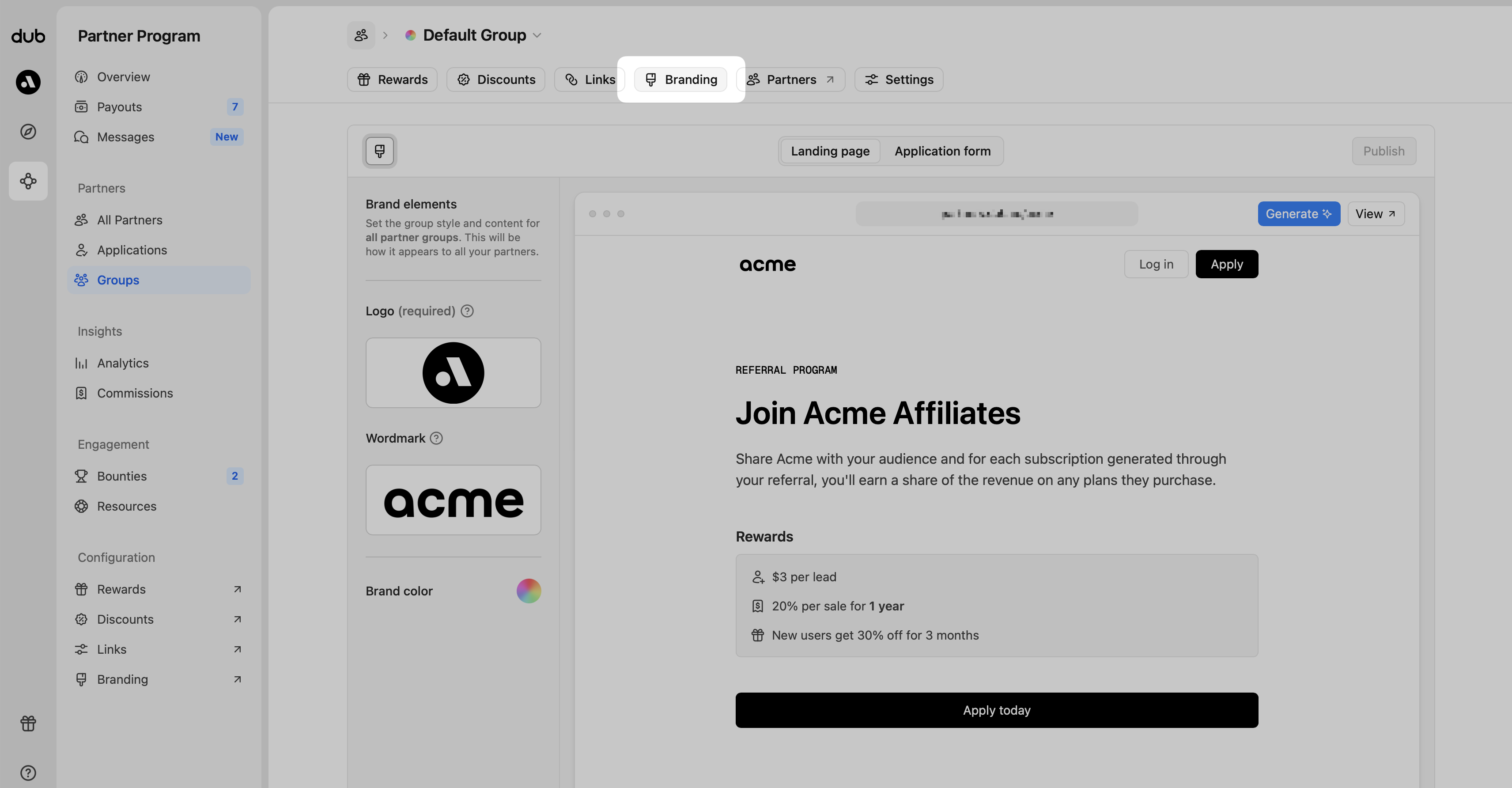
 From the tab navigation, click **Branding,** then in the content panel, choose **Landing page** to open the editor.
 ## Editing and adding content
As you hover over the landing page content in the builder, you'll notice that actions will show, allowing you to add, edit, delete, and reorder content blocks within the page.
## Editing and adding content
As you hover over the landing page content in the builder, you'll notice that actions will show, allowing you to add, edit, delete, and reorder content blocks within the page.
 Content above the reward section can only be edited. This is to maintain content
consistency. Content below the **"Apply today"** button can be added, edited,
removed, and reordered. ## Content types Clicking on "Insert block" allows you
to select the content type you want to add.
Content above the reward section can only be edited. This is to maintain content
consistency. Content below the **"Apply today"** button can be added, edited,
removed, and reordered. ## Content types Clicking on "Insert block" allows you
to select the content type you want to add.
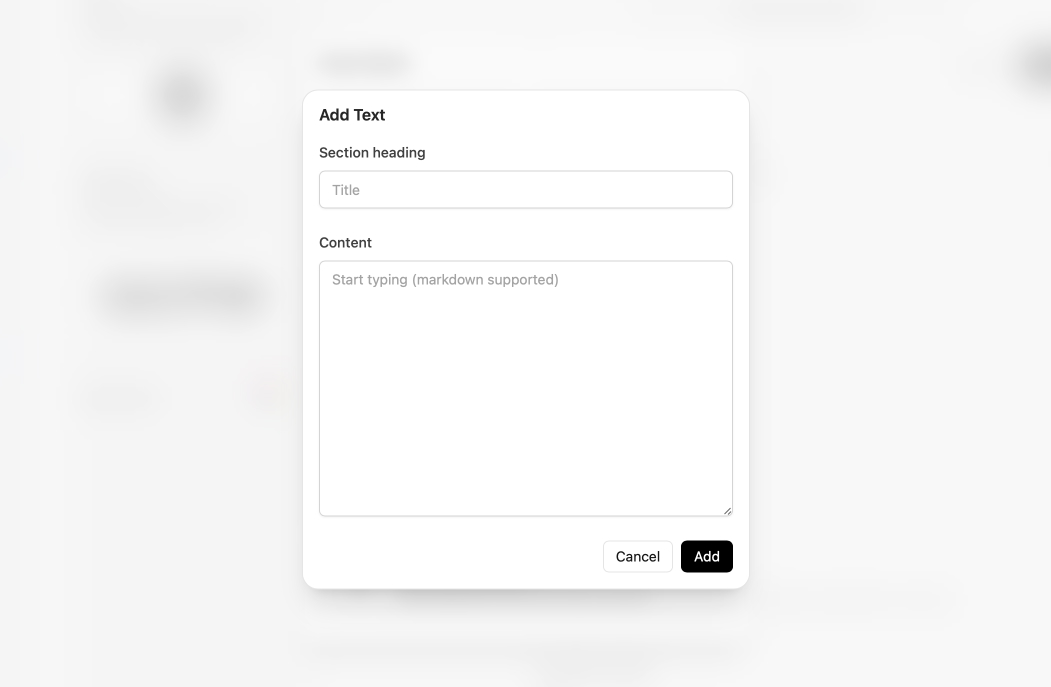
 ### Text
Best used for text and paragraph content. This section also uses markdown formatting when editing.
### Text
Best used for text and paragraph content. This section also uses markdown formatting when editing.
 ### Image
For adding product screenshots and other complementary visuals to the program.
### Image
For adding product screenshots and other complementary visuals to the program.
 Images follow your landing page’s content width by default, keeping visuals aligned without extra layout controls.
 ### Files
For adding product screenshots and other complementary visuals to the program.
### Files
For adding product screenshots and other complementary visuals to the program.
 ### Accordion
Best used for FAQ sections and other collapsible related content.
This section also uses markdown formatting when editing.
### Accordion
Best used for FAQ sections and other collapsible related content.
This section also uses markdown formatting when editing.
 ### Earnings calculator
Give your partners a sense of how much they can earn, based on your default rewards.
### Earnings calculator
Give your partners a sense of how much they can earn, based on your default rewards.
 ## Generating your landing page with AI
You can also use our AI landing page generator to quickly scaffold a landing page for your affiliate program.
Our AI will scrape your website, retrieve all relevant information, and craft a compelling landing page with your company's details, pricing information, features, and more.
To get started, simply click the "Generate" button and enter your website URL (it should already be prefilled from your program settings):
## Generating your landing page with AI
You can also use our AI landing page generator to quickly scaffold a landing page for your affiliate program.
Our AI will scrape your website, retrieve all relevant information, and craft a compelling landing page with your company's details, pricing information, features, and more.
To get started, simply click the "Generate" button and enter your website URL (it should already be prefilled from your program settings):
 Here's a quick demo of how it looks:
AI can make mistakes – make sure to review all generated content for accuracy
and style before publishing your changes.
## Publishing your changes
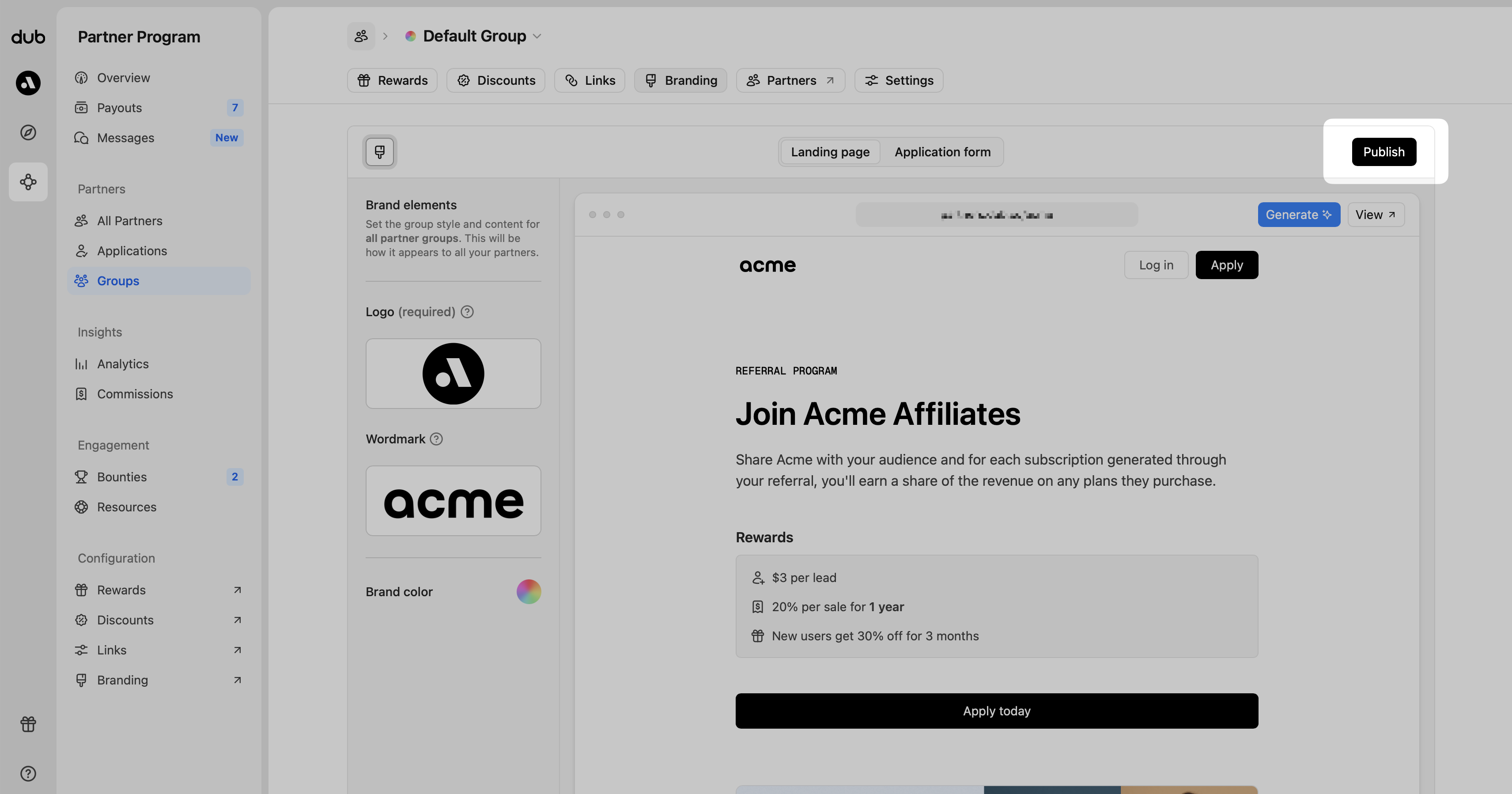
Once you're finished making your content changes, click the Publish button in the top right corner to make sure the changes go live.
Here's a quick demo of how it looks:
AI can make mistakes – make sure to review all generated content for accuracy
and style before publishing your changes.
## Publishing your changes
Once you're finished making your content changes, click the Publish button in the top right corner to make sure the changes go live.
 ## Landing page examples
Get inspired and check out some of these great examples that companies have already created:
## Markdown styles available
| Content | Example |
| ---------- | ---------------------- |
| Headings | `# H1` , `# H2` , `# H3` |
| Bold | `**bold text**` |
| Italic | `*italicized text*` |
| Blockquote | `> blockquote` |
| Horizontal rule | `---` |
| Link | `[title](https://www.example.com)` |
| Ordered list | `1. First item` , `2. Second item` , `3. Third item` |
| Unordered list | `- First item` , `- Second item` , `- Third item` |
## Landing page examples
Get inspired and check out some of these great examples that companies have already created:
## Markdown styles available
| Content | Example |
| ---------- | ---------------------- |
| Headings | `# H1` , `# H2` , `# H3` |
| Bold | `**bold text**` |
| Italic | `*italicized text*` |
| Blockquote | `> blockquote` |
| Horizontal rule | `---` |
| Link | `[title](https://www.example.com)` |
| Ordered list | `1. First item` , `2. Second item` , `3. Third item` |
| Unordered list | `- First item` , `- Second item` , `- Third item` |