Deep link attribution requires a Business plan subscription or higher.
Dub's powerful attribution platform lets you understand how well your deep links are translating to actual users and revenue dollars inside your app.

This feature is currently only available for iOS (Swift) and React Native. Android (Kotlin) support is coming soon. If you'd like early access, please contact us.
Prerequisites#
First, you'll need to enable conversion tracking for your Dub links to be able to start tracking conversions:
If you're using Dub Partners, you can skip this step since partner links will have conversion tracking enabled by default.
Option 1: On a workspace-level
To enable conversion tracking for all future links in a workspace, you can do the following: To enable conversion tracking for all future links in a workspace, you can do the following:
- Navigate to your workspace's Tracking settings page.
- Toggle the Workspace-level Conversion Tracking switch to enable conversion tracking for the workspace.
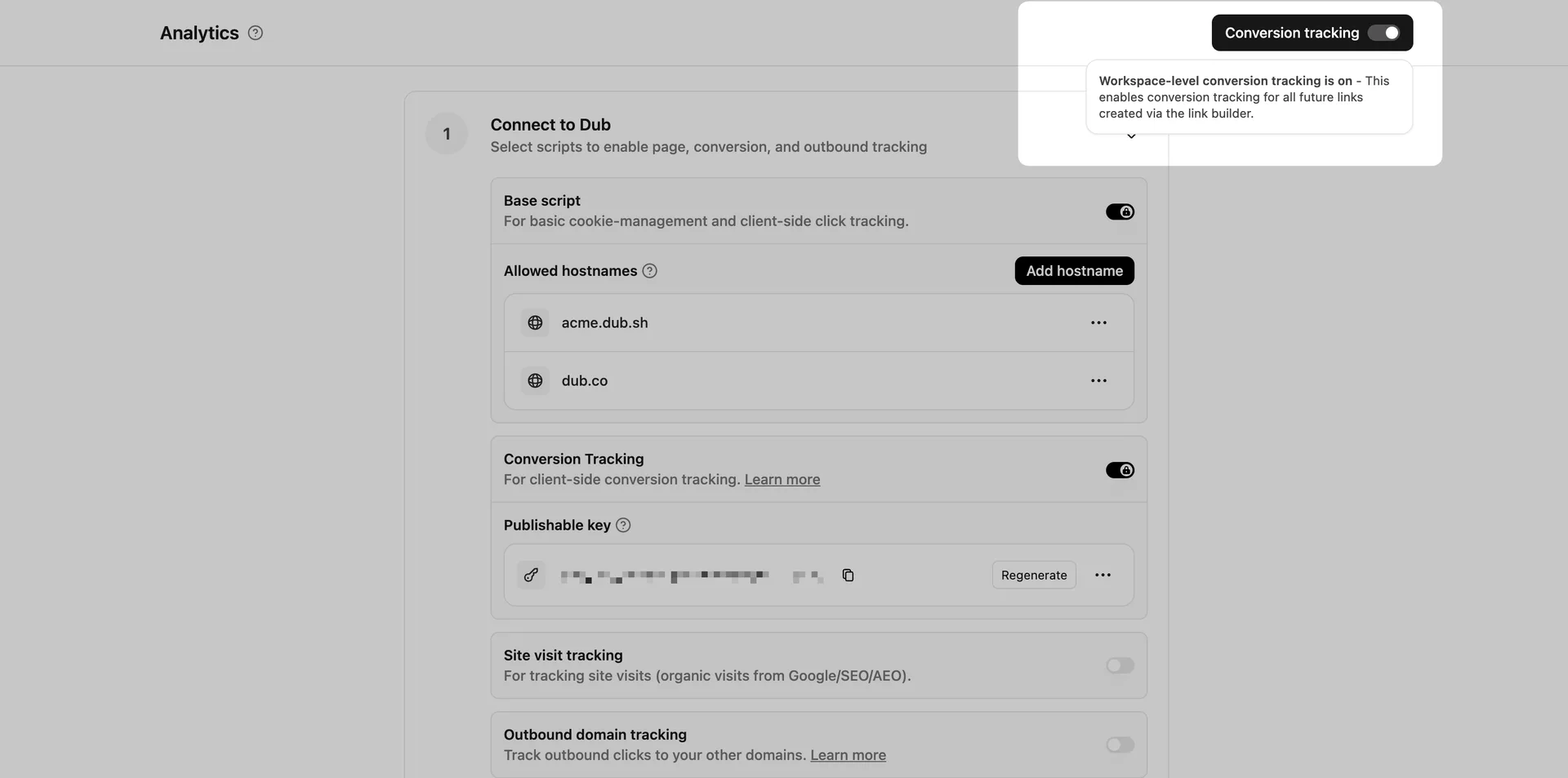
This option will enable conversion tracking in the Dub Link Builder for all future links.
Option 2: On a link-level
If you don't want to enable conversion tracking for all your links in a workspace, you can also opt to enable it on a link-level.
To enable conversion tracking for a specific link, open the Dub Link Builder for a link and toggle the Conversion Tracking switch.
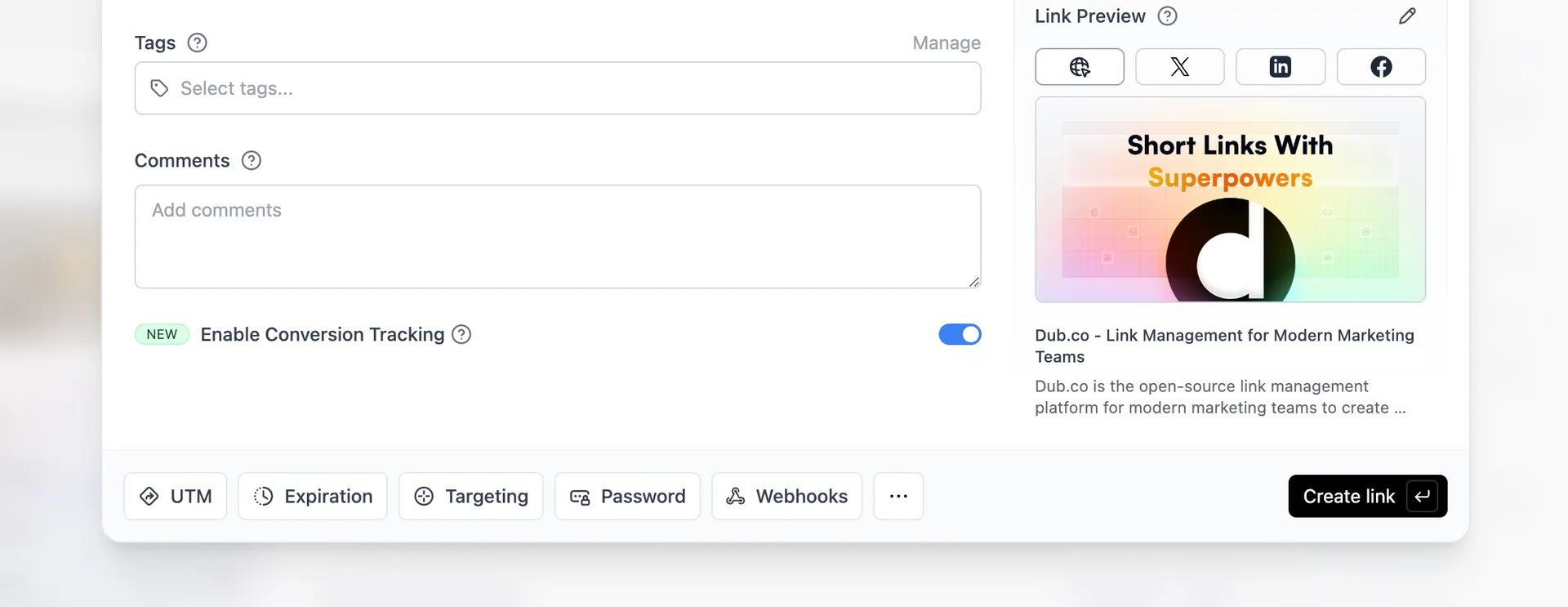
You can also use the C keyboard shortcut when inside the link builder to
quickly enable conversion tracking for a given link.
Option 3: Via the API
Alternatively, you can also enable conversion tracking programmatically via the Dub API. All you need to do is pass trackConversion: true when creating or updating a link:
Then, you'll need generate a publishable key from your Dub workspace to track conversions on the client-side.
To do that, navigate to your workspace's Tracking settings page and generate a new publishable key under the Publishable Key section.
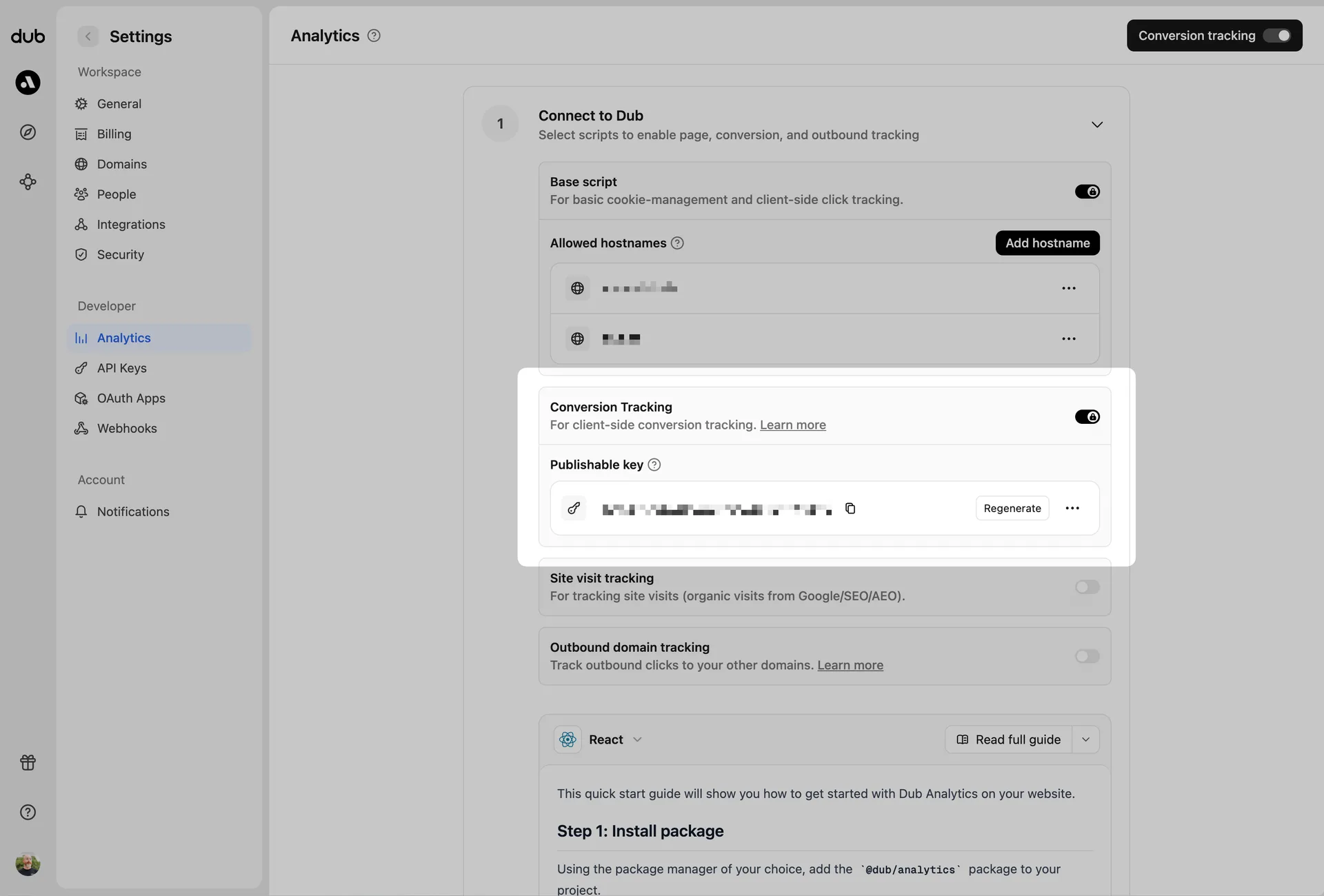
Once these are set up, we can start tracking conversion events for your deep links.
Step 1: Install the client-side Mobile SDK#
Install the Dub React Native SDK and initialize it with your publishable key and short link domain.
Install the Dub React Native SDK
Initialize the SDK
You must call init on your dub instance with your publishable key and domain prior to being able to use the dub instance. We provide two ways to initialize the SDK:
Option 1: Use the DubProvider to wrap your app
Option 2: Manually initialize the Dub SDK
Install the Dub iOS SDK and initialize it with your publishable key and short link domain.
Install the Dub iOS SDK
Before installing, ensure your environment meets these minimum requirements:
Build Tools:
- Xcode 16+
- Swift 4.0+
Platforms:
- iOS 16.0+
- macOS 10.13 (Ventura)+
The Dub iOS SDK can be installed using the Swift Package Manager.
In Xcode, select File > Add Package Dependencies and add https://github.com/dubinc/dub-ios as the repository URL. Select the latest version of the SDK from the release page.
Initialize the SDK
You must call Dub.setup with your publishable key and domain prior to being able to use the dub instance.
Step 2: Track deep link open events#
Once the SDK has been initialized, you can start tracking deep link and deferred deep link events.
Call trackOpen on the dub instance to track deep link and deferred deep link open events. The trackOpen function should be called once without a deepLink parameter on first launch, and then again with the deepLink parameter whenever the app is opened from a deep link.
If the deep link was successfully resolved and correlated to the original click, the response object will contain the destination URL, which you can use to navigate the user to the appropriate screen.
It will also contain the clickId, which the dub instance will persist internally.
Step 3: Track conversion events#
You may track conversion events directly in your app with the trackLead and trackSale methods.
Alternatively, you can track conversion events server-side by sending the clickId resolved from the deep link to your backend and then calling off to either:
Step 4: View your conversions#
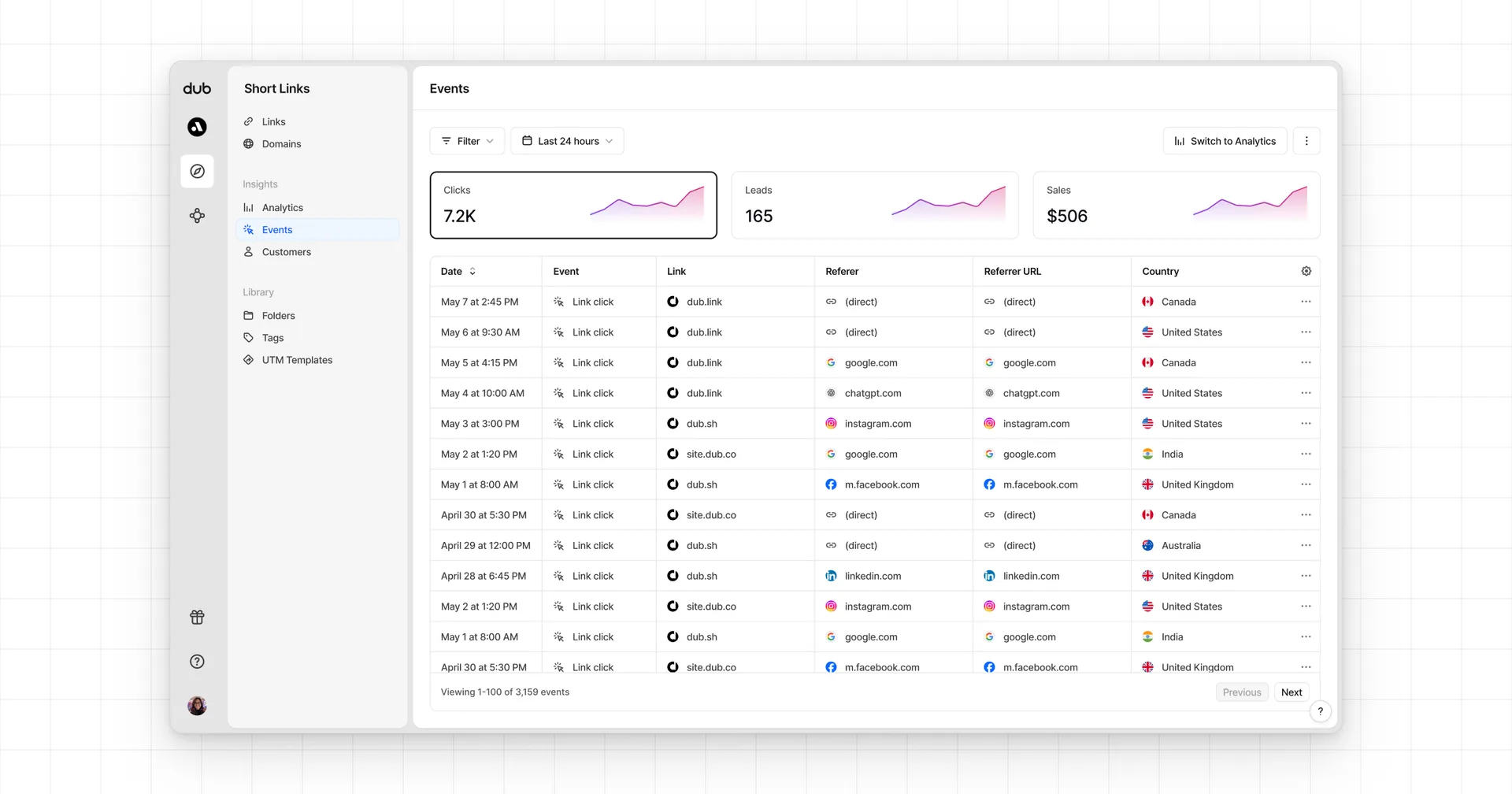
Once you've enabled conversion tracking for your links, all your tracked conversions will show up on your Analytics dashboard. We provide 3 different views to help you understand your conversions:
- Time-series: A time-series view of the number clicks, leads and sales.
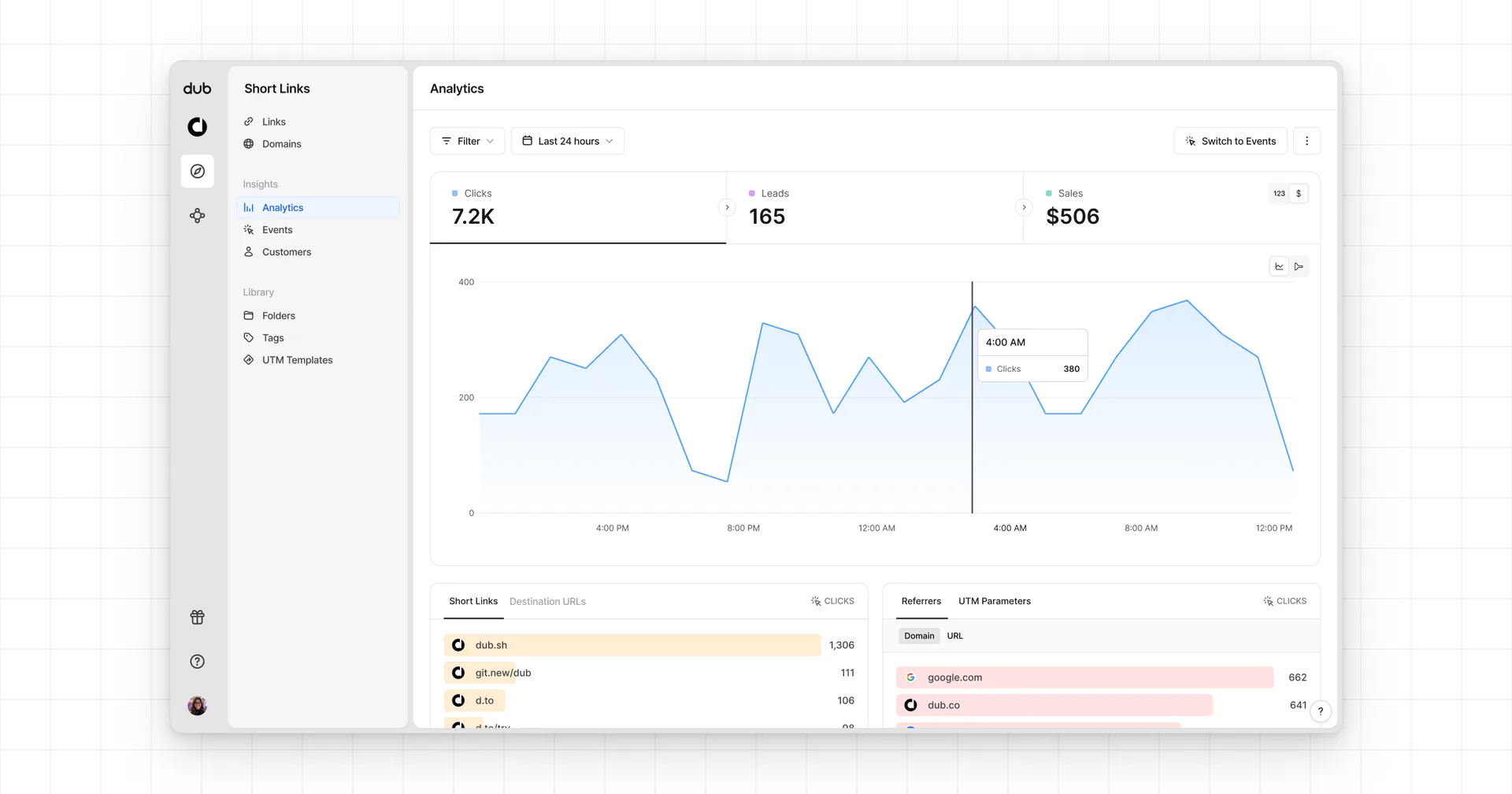
- Funnel chart: A funnel chart view visualizing the conversion & dropoff rates across the different steps in the conversion funnel (clicks → leads → sales).
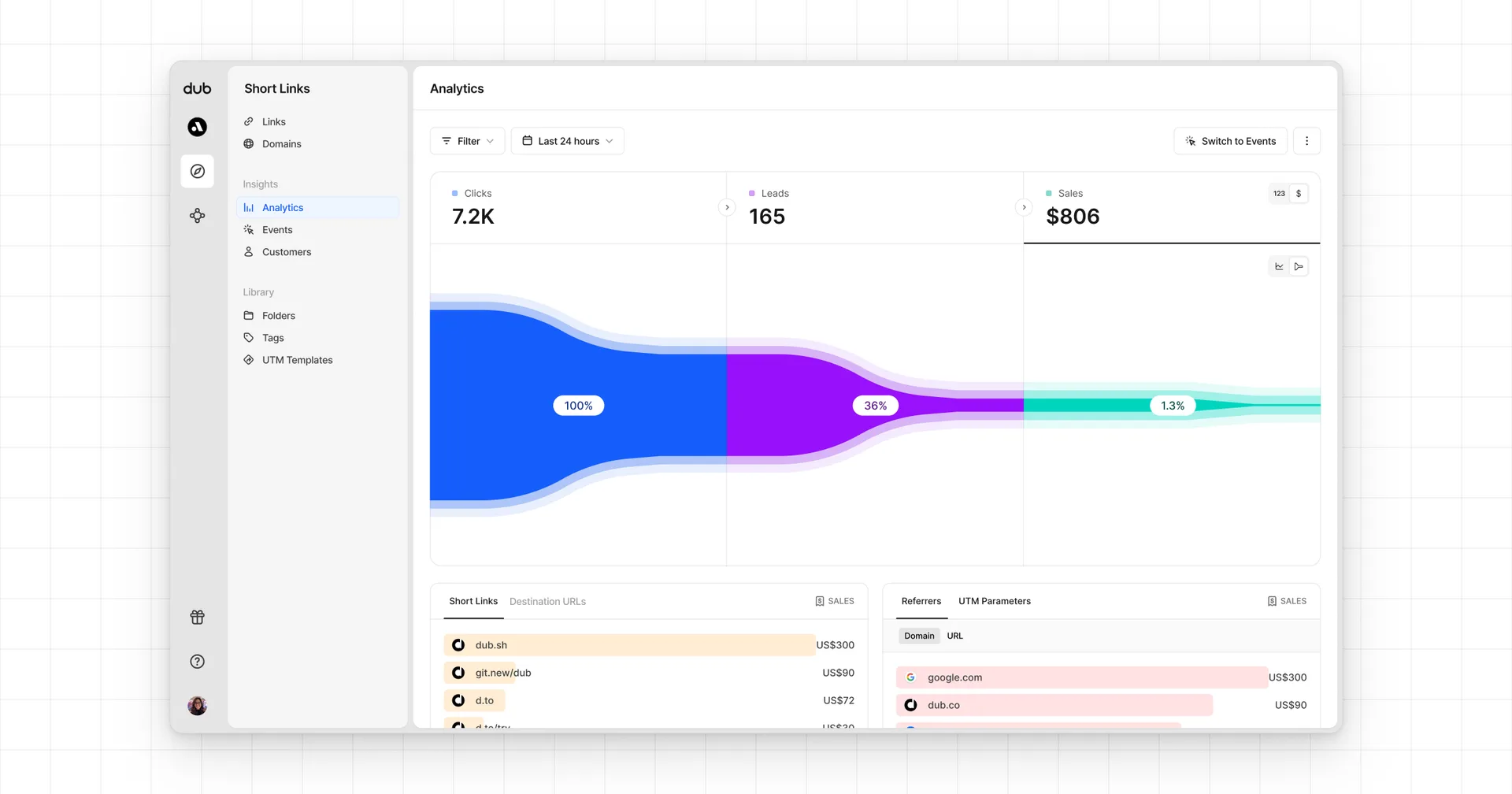
- Real-time events stream: A real-time events stream of every single conversion event that occurs across all your links in your workspace.