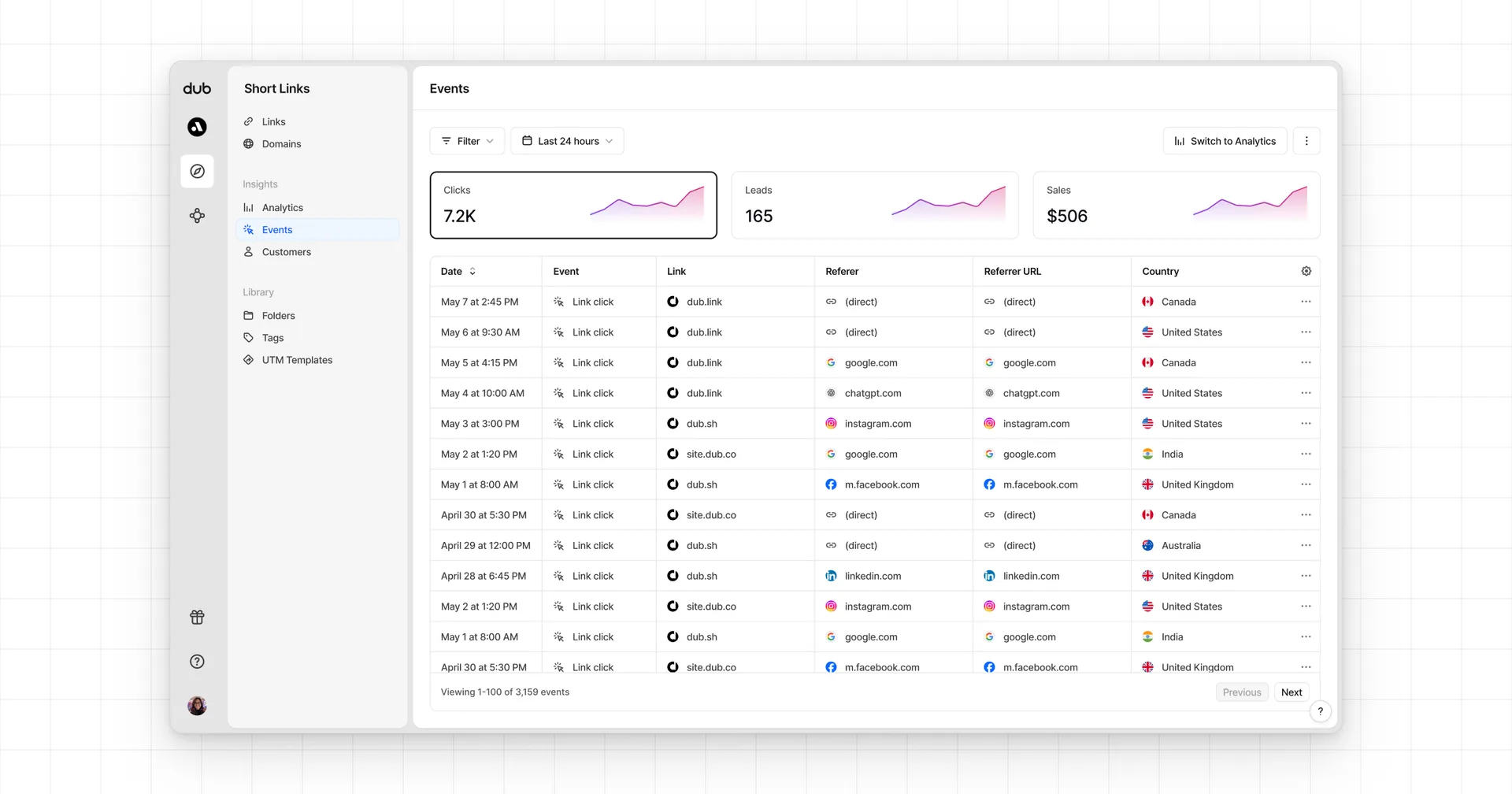
This feature is only available on Business plans and above.
When it comes to conversion tracking, a lead event happens when a user performs an action that indicates interest in your product or service. This could be anything from:
- Signing up for an account
- Booking a demo meeting
- Joining a mailing list

In this guide, we will be focusing on tracking new user sign-ups for a SaaS application that uses Better Auth for user authentication.
Prerequisites#
First, you'll need to enable conversion tracking for your Dub links to be able to start tracking conversions:
If you're using Dub Partners, you can skip this step since partner links will have conversion tracking enabled by default.
Option 1: On a workspace-level
To enable conversion tracking for all future links in a workspace, you can do the following: To enable conversion tracking for all future links in a workspace, you can do the following:
- Navigate to your workspace's Tracking settings page.
- Toggle the Workspace-level Conversion Tracking switch to enable conversion tracking for the workspace.
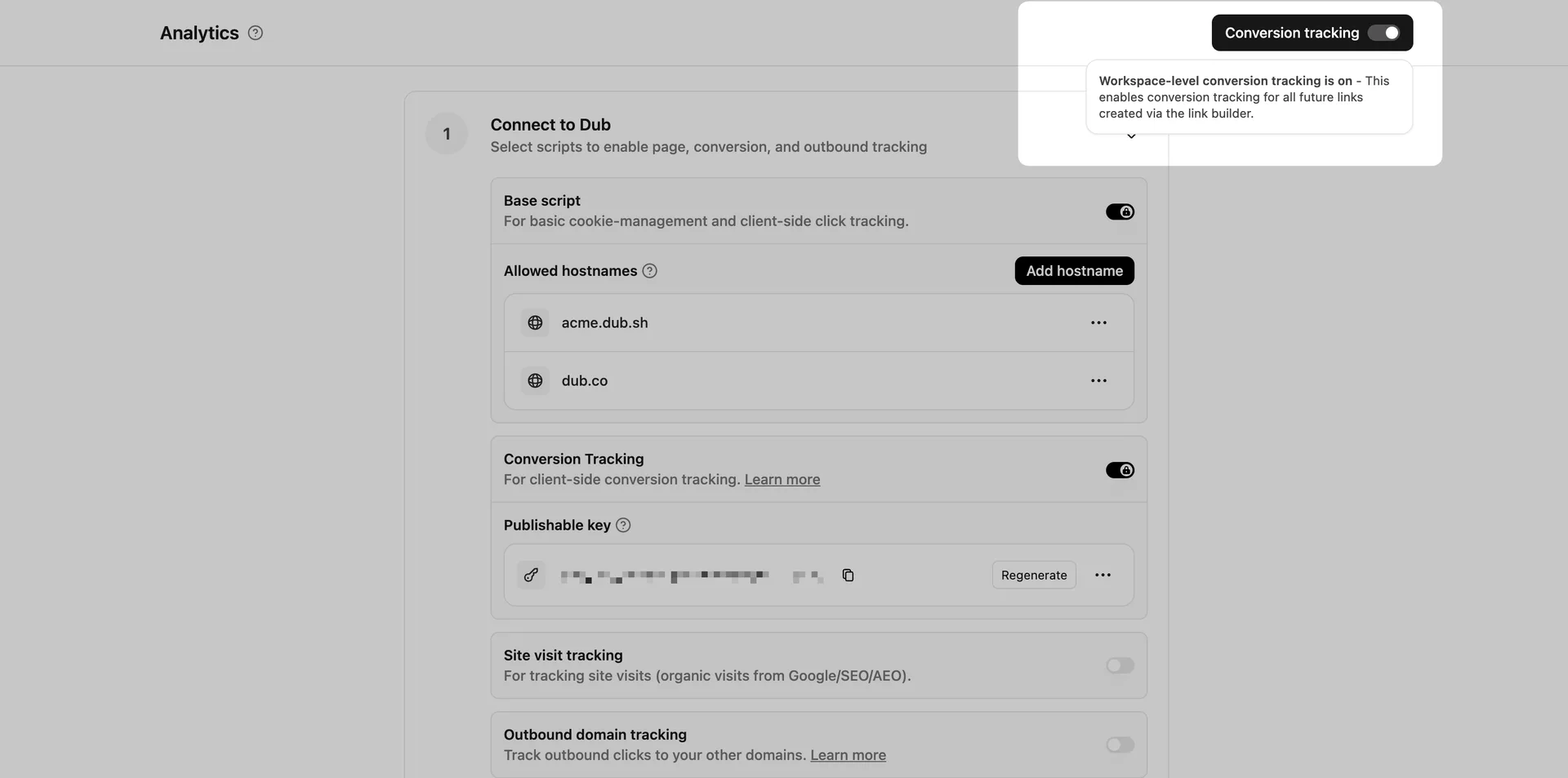
This option will enable conversion tracking in the Dub Link Builder for all future links.
Option 2: On a link-level
If you don't want to enable conversion tracking for all your links in a workspace, you can also opt to enable it on a link-level.
To enable conversion tracking for a specific link, open the Dub Link Builder for a link and toggle the Conversion Tracking switch.
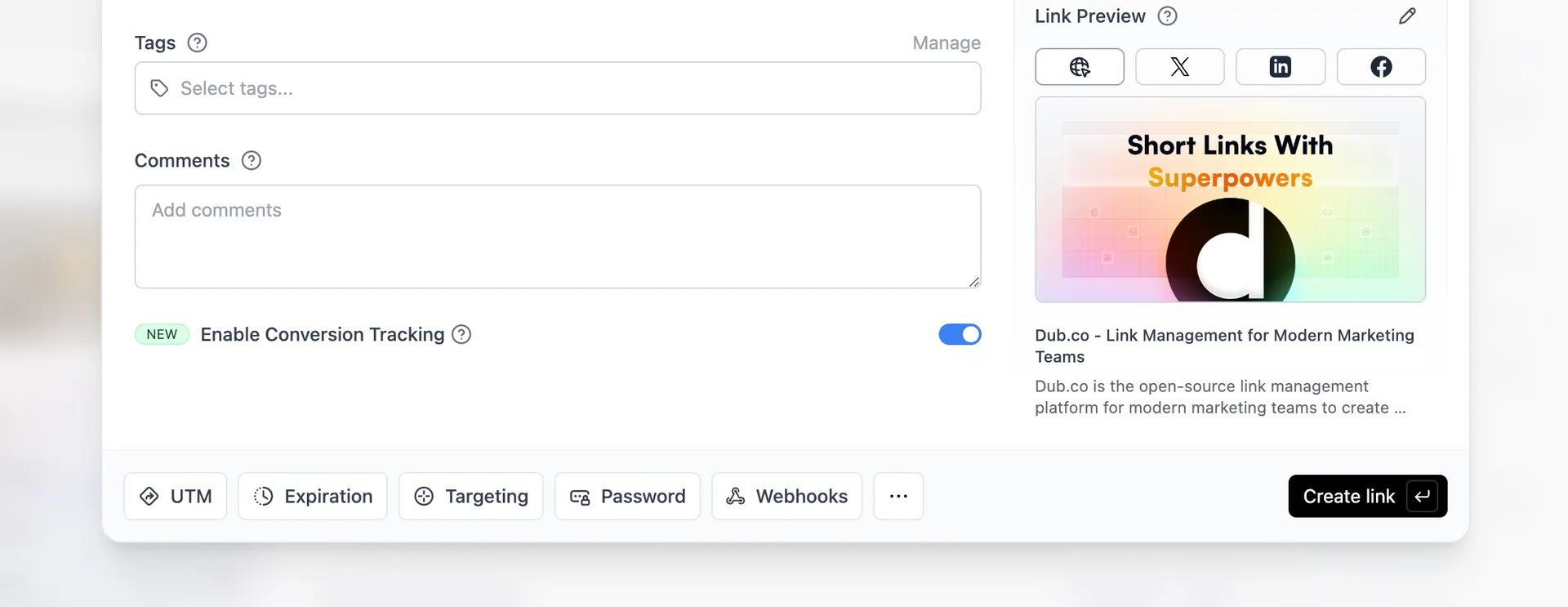
You can also use the C keyboard shortcut when inside the link builder to
quickly enable conversion tracking for a given link.
Option 3: Via the API
Alternatively, you can also enable conversion tracking programmatically via the Dub API. All you need to do is pass trackConversion: true when creating or updating a link:
Then, you'd want to install the Dub Analytics script to your website to track conversion events.
You can install the Dub Analytics script in several different ways:
You can verify the installation with the following tests:
- Open the browser console and type in
_dubAnalytics– if the script is installed correctly, you should see the_dubAnalyticsobject in the console. - Add the
?dub_id=testquery parameter to your website URL and make sure that thedub_idcookie is being set in your browser.
If both of these checks pass, the script is installed correctly. Otherwise, please make sure:
- The analytics script was added to the
<head>section of the page - If you're using a content delivery network (CDN), make sure to purge any cached content
Installation#
Install the @dub/better-auth plugin
To get started, simply install the @dub/better-auth plugin via your preferred package manager:
Configure the plugin
Then, add the plugin to your better-auth config file:
View your conversions#
Once you've completed the setup, all your tracked conversions will show up in Dub Analytics. We provide 3 different views to help you understand your conversions:
- Time-series: A time-series view of the number clicks, leads and sales.
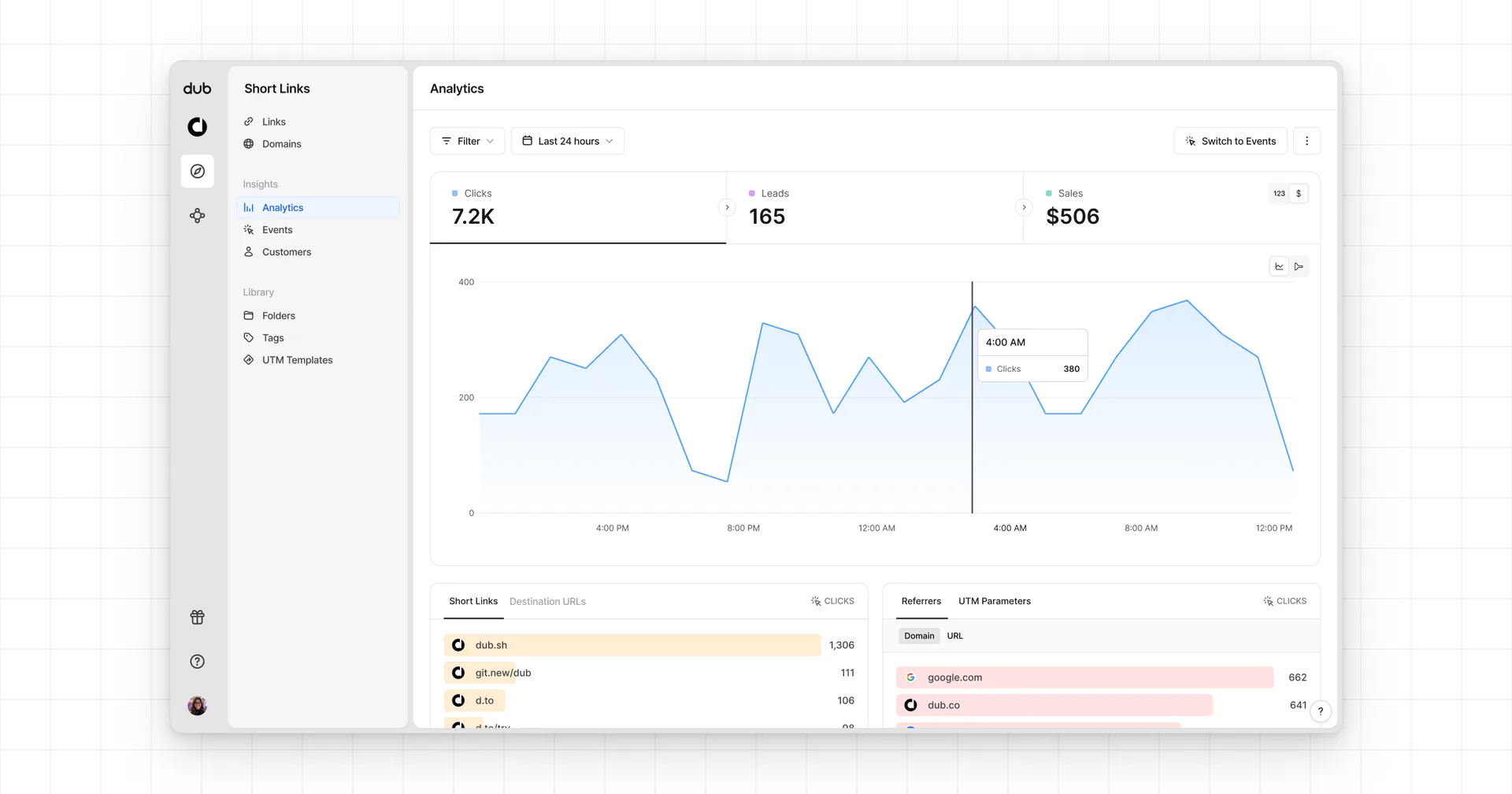
- Funnel chart: A funnel chart view visualizing the conversion & dropoff rates across the different steps in the conversion funnel (clicks → leads → sales).
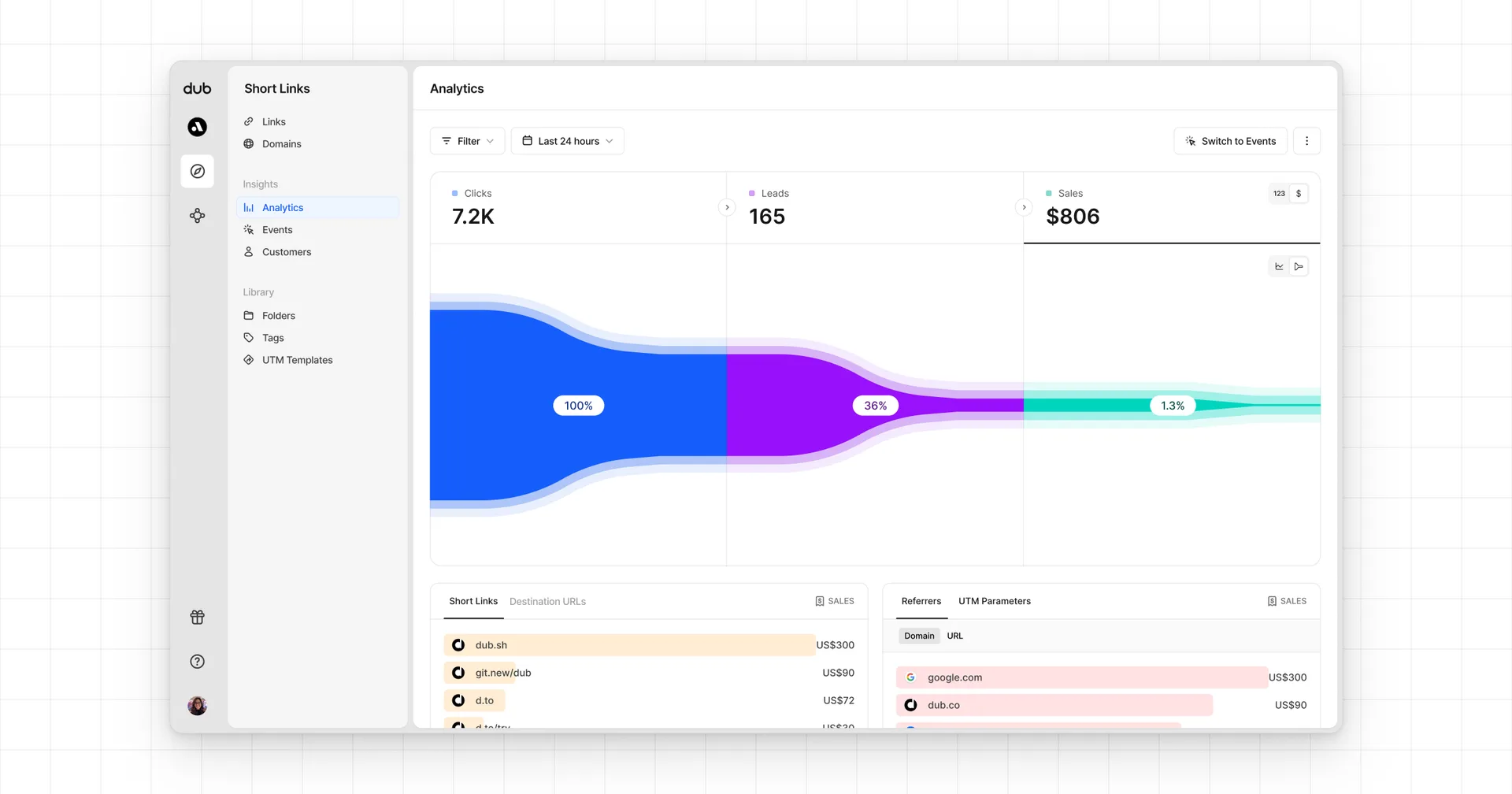
- Real-time events stream: A real-time events stream of every single conversion event that occurs across all your links in your workspace.