This feature is only available on Business plans and above.
When it comes to conversion tracking, a lead event happens when a user performs an action that indicates interest in your product or service. This could be anything from:
- Signing up for an account
- Booking a demo meeting
- Joining a mailing list

However, there are times where signups alone might not be the clearest indicator of a lead conversion event. For instance, you might want to track a more meaningful lead event such as:
- A user completing their first meeting on Granola
- A user making their first search query on Perplexity
- A user dictating their first 2,000 words on Wispr Flow
In these cases, you can use deferred lead tracking to defer the actual lead event creation to a subsequent request:
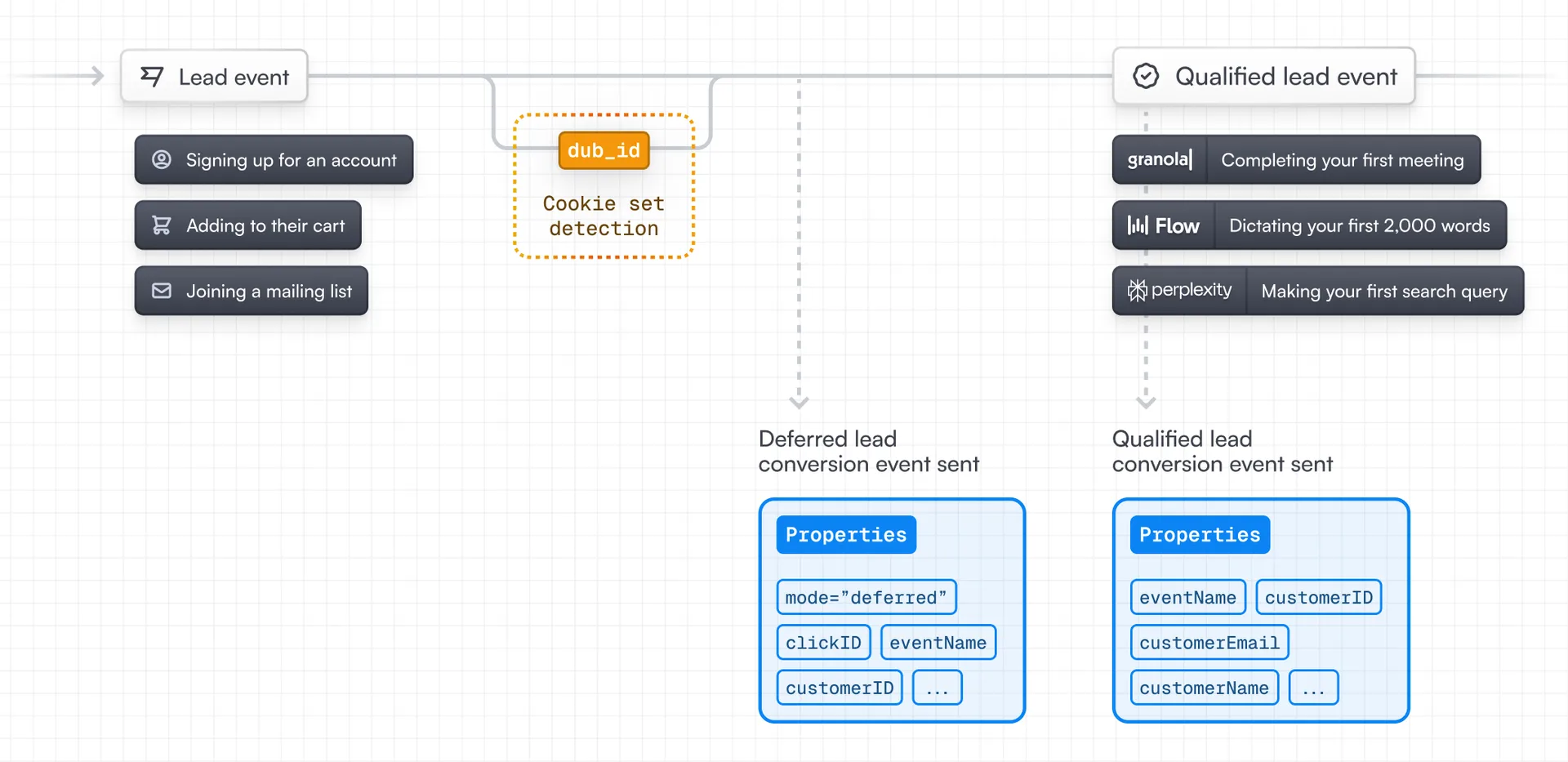
Deferred lead tracking is particularly useful for tracking sales-qualified leads (SQLs) – both for marketing attribution purposes, as well as to make sure that you're rewarding partners for qualified leads (instead of just pure signups) with Dub Partners.
Prerequisites#
First, you'll need to enable conversion tracking for your Dub links to be able to start tracking conversions:
If you're using Dub Partners, you can skip this step since partner links will have conversion tracking enabled by default.
Option 1: On a workspace-level
To enable conversion tracking for all future links in a workspace, you can do the following: To enable conversion tracking for all future links in a workspace, you can do the following:
- Navigate to your workspace's Tracking settings page.
- Toggle the Workspace-level Conversion Tracking switch to enable conversion tracking for the workspace.
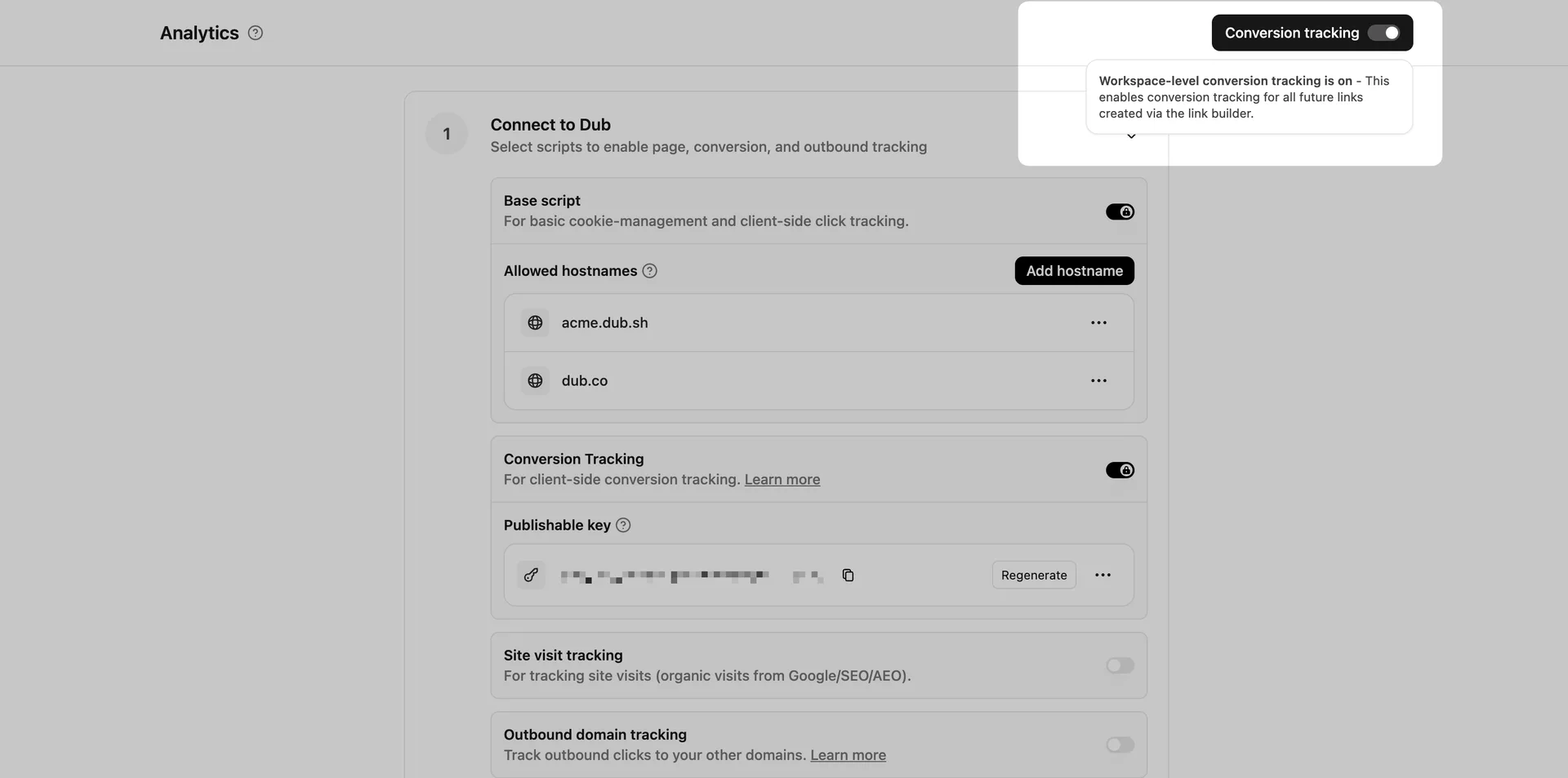
This option will enable conversion tracking in the Dub Link Builder for all future links.
Option 2: On a link-level
If you don't want to enable conversion tracking for all your links in a workspace, you can also opt to enable it on a link-level.
To enable conversion tracking for a specific link, open the Dub Link Builder for a link and toggle the Conversion Tracking switch.
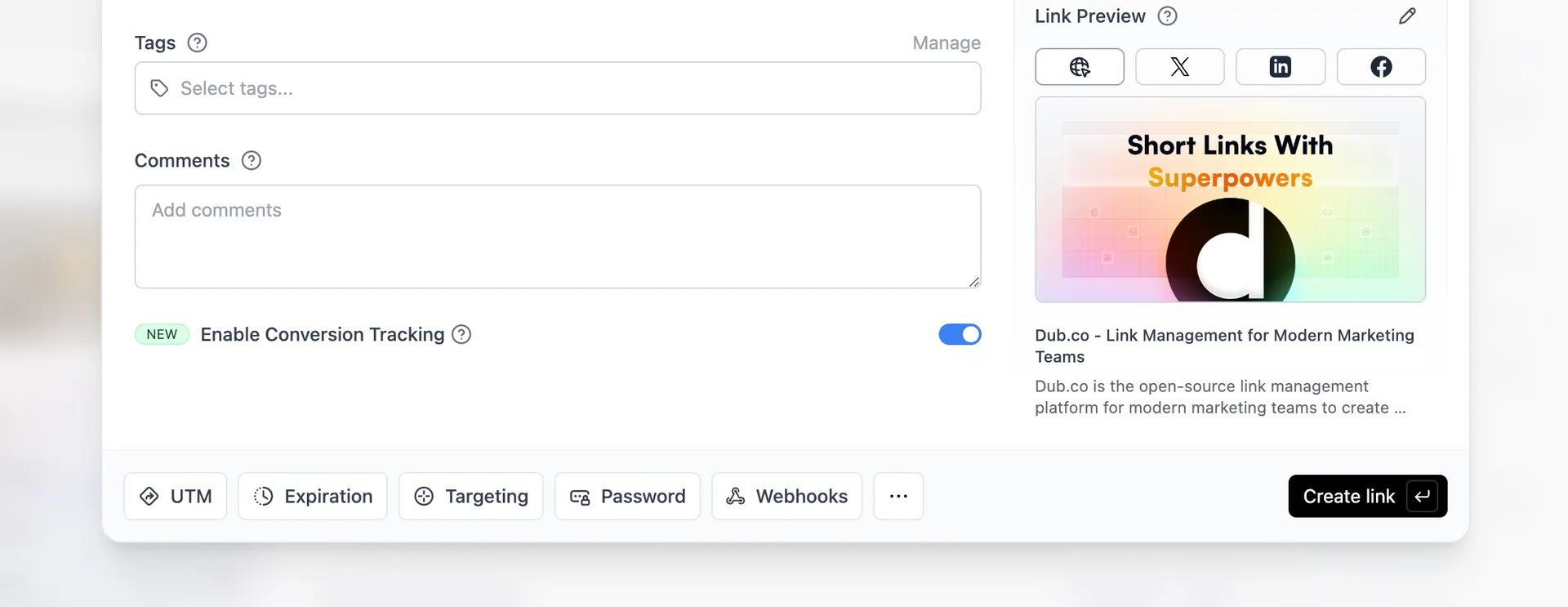
You can also use the C keyboard shortcut when inside the link builder to
quickly enable conversion tracking for a given link.
Option 3: Via the API
Alternatively, you can also enable conversion tracking programmatically via the Dub API. All you need to do is pass trackConversion: true when creating or updating a link:
Then, you'd want to install the Dub Analytics script to your website to track conversion events.
You can install the Dub Analytics script in several different ways:
You can verify the installation with the following tests:
- Open the browser console and type in
_dubAnalytics– if the script is installed correctly, you should see the_dubAnalyticsobject in the console. - Add the
?dub_id=testquery parameter to your website URL and make sure that thedub_idcookie is being set in your browser.
If both of these checks pass, the script is installed correctly. Otherwise, please make sure:
- The analytics script was added to the
<head>section of the page - If you're using a content delivery network (CDN), make sure to purge any cached content
Step 1: Track a deferred lead event#
First, when the user completes the action that indicates interest in your product or service, you'll need to track a deferred lead event. Examples include:
- Signing up for an account
- Booking a demo meeting on HubSpot
- Joining a mailing list
To do this, you'll need to set the mode property to deferred when tracking the lead event. With this, Dub will still track the customer and the click ID they came from, but defer the actual lead event creation to a subsequent request.
Step 2: Track a qualified lead event#
Once the user completes the action that makes them a qualified lead, you can then track a qualified lead event. To do this, you'll repeat the same lead tracking request as before, but without the mode property and by setting the clickId property to an empty string.
View your conversions#
Once you've completed the setup, all your tracked conversions will show up in Dub Analytics. We provide 3 different views to help you understand your conversions:
- Time-series: A time-series view of the number clicks, leads and sales.
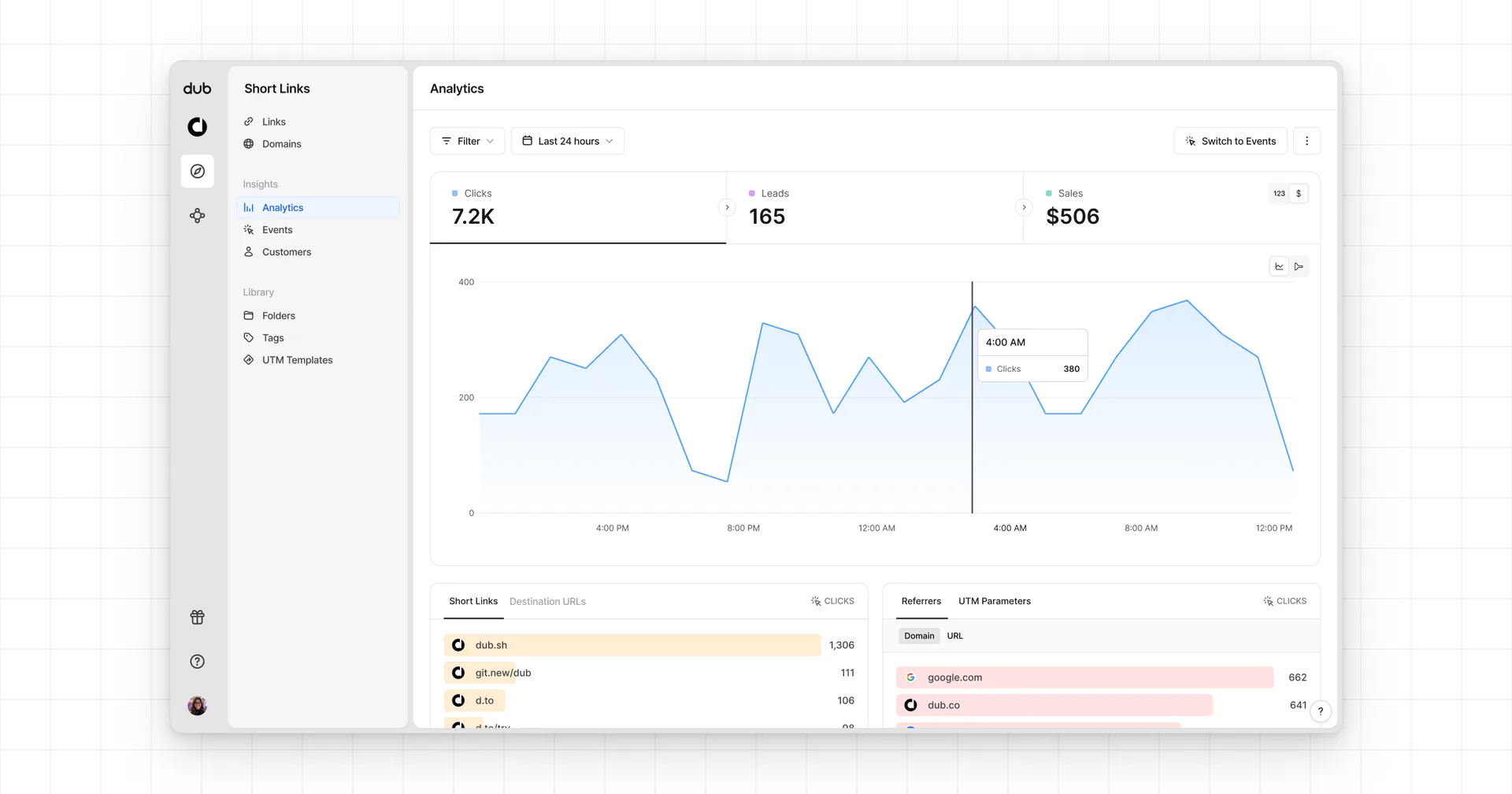
- Funnel chart: A funnel chart view visualizing the conversion & dropoff rates across the different steps in the conversion funnel (clicks → leads → sales).
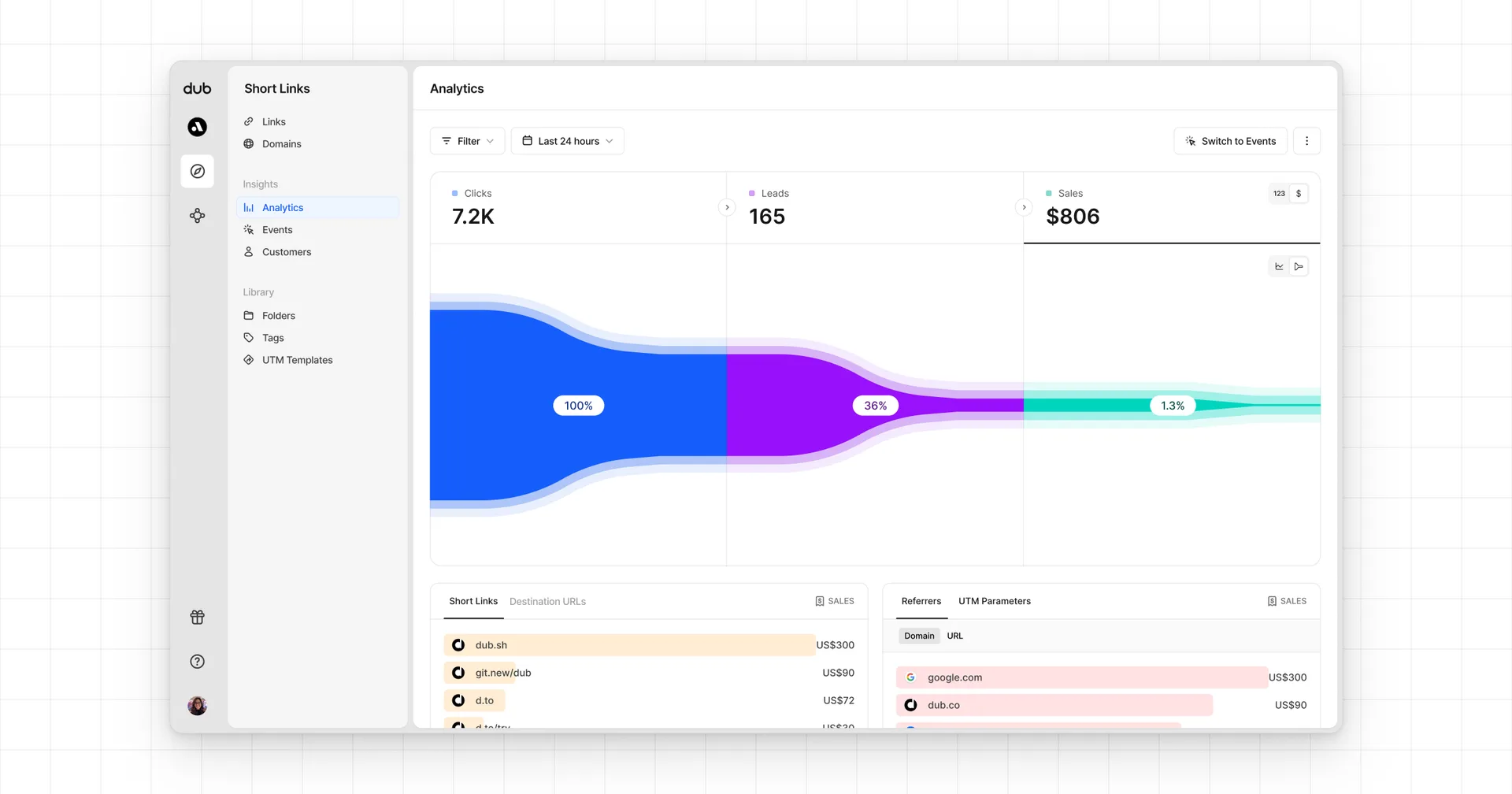
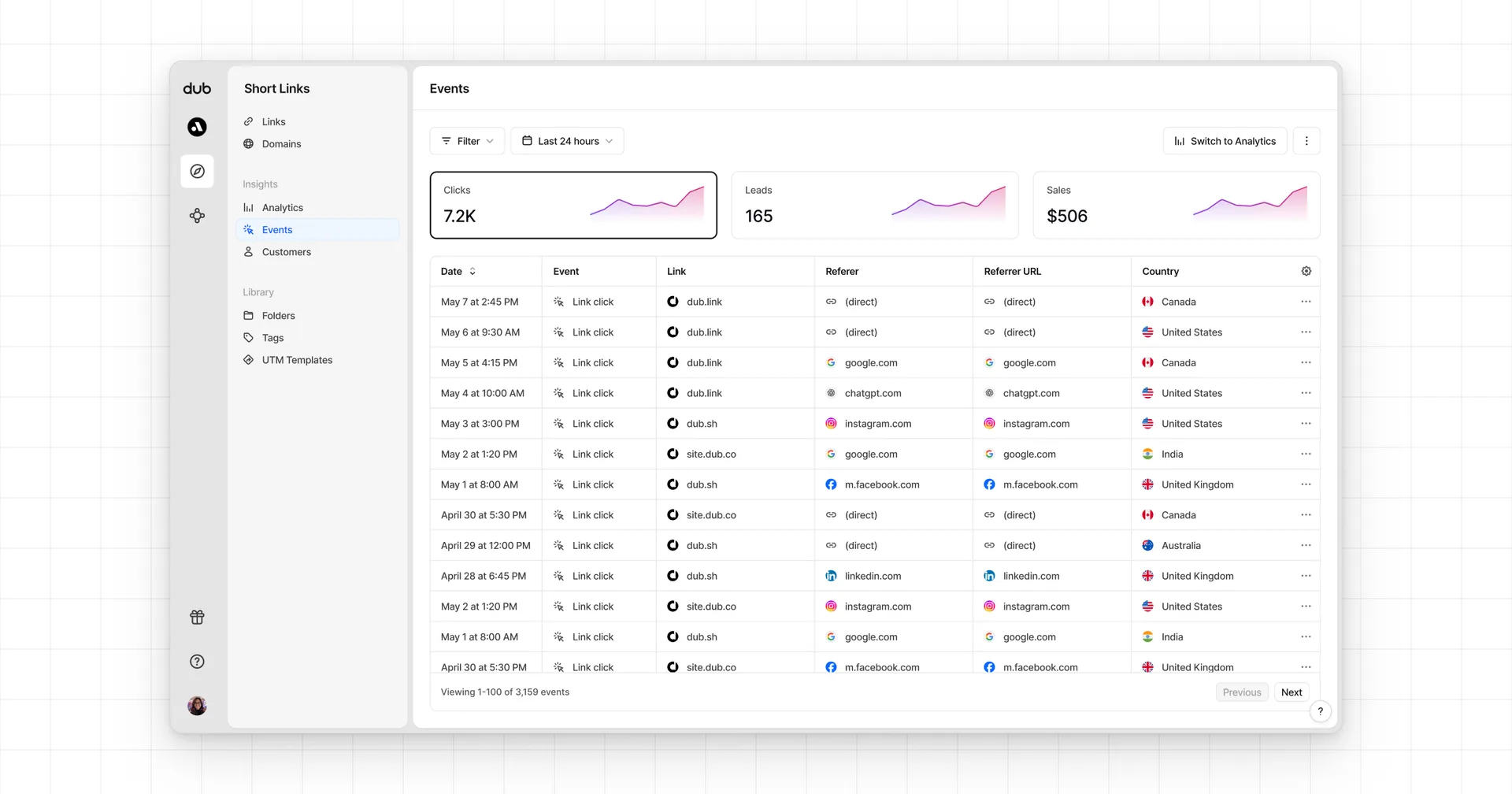
- Real-time events stream: A real-time events stream of every single conversion event that occurs across all your links in your workspace.