

This feature is only available on Advanced plans and above.
On Dub, you can send marketing and transactional emails to your partners to boost partner engagement and increase conversions.
In this guide, we'll learn how to set up your email domain on Dub and start sending emails to your partners.
Sending partner emails with your own domain (e.g. partners.acme.com) is not
only good for branding, but will also drastically improve deliverability and
help avoid the dreaded spam folder.
Email domain setup#
To send emails to your partners in Dub, you’ll need to connect an email domain that you own. We recommend using a subdomain (e.g. partners.acme.com) to improve trust and deliverability.
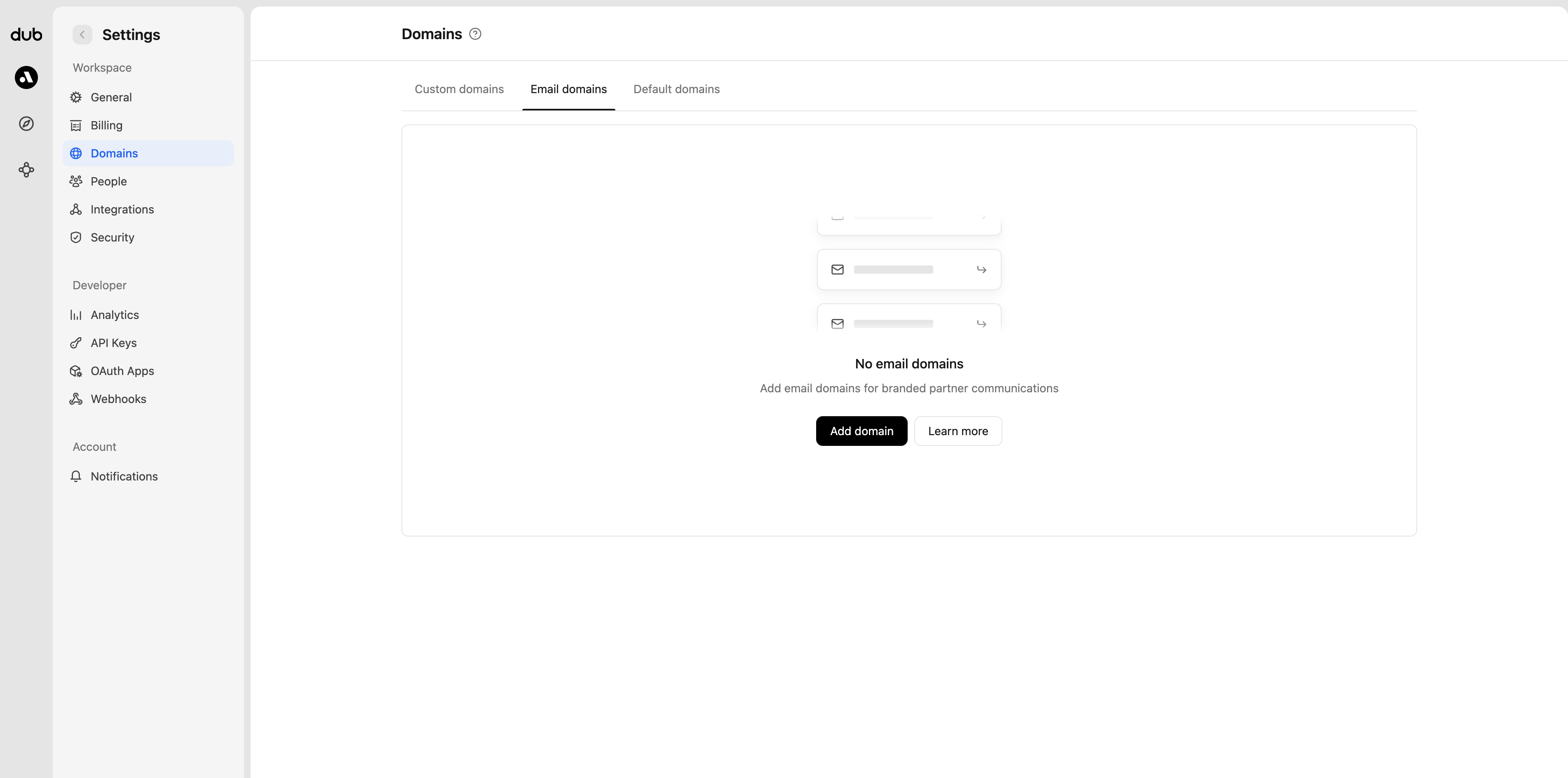
To set up your email domain, go to the "Email domains" tab in your workspace domain settings: app.dub.co/settings/domains/email
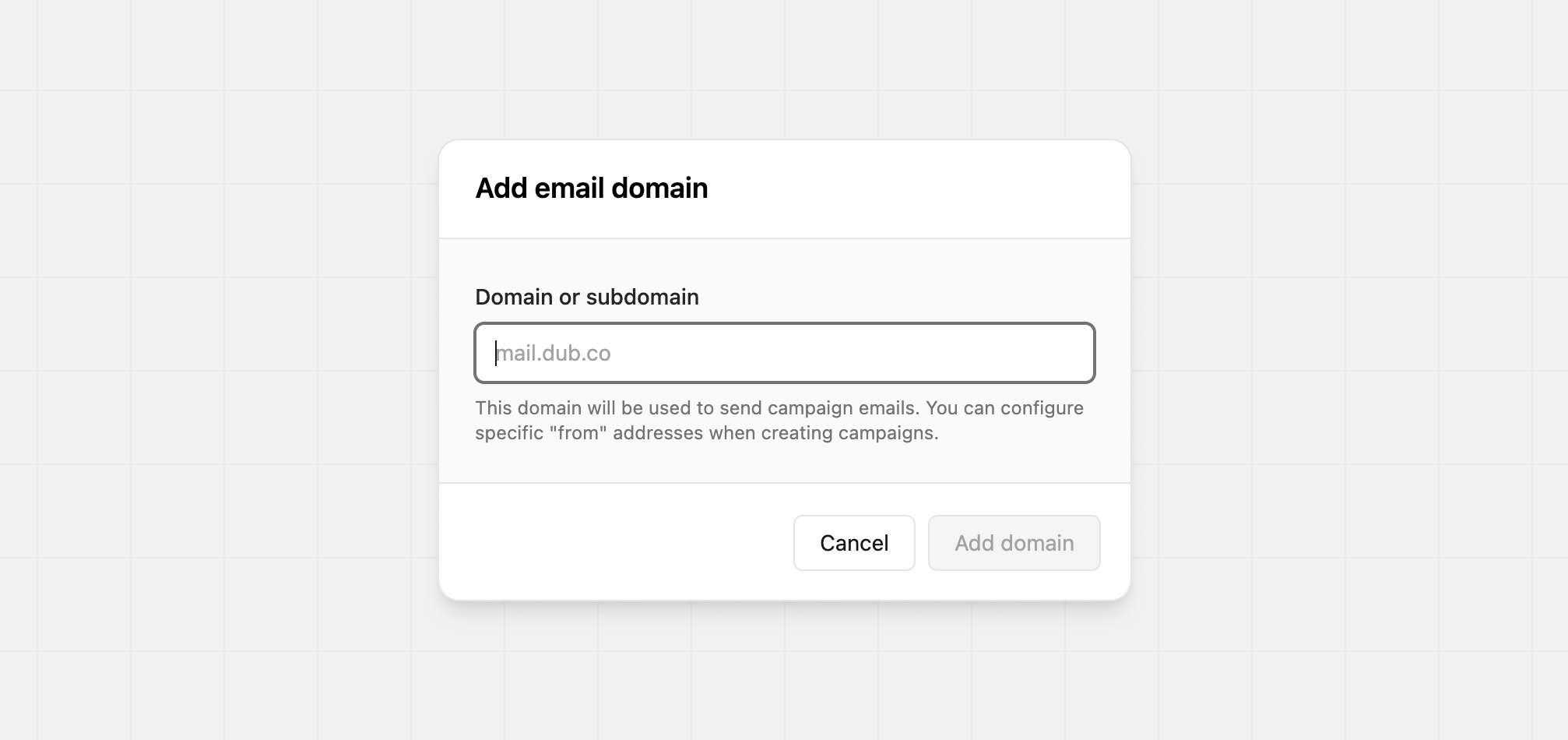
Click Add domain, and enter the domain you want to send emails from.
You’ll receive DNS setup instructions and values to connect the domain. A DMARC record will also be provided — we strongly recommend adding it to help prevent email spoofing.
If your email domain's DNS is hosted on Vercel or Cloudflare, you can skip manual DNS setup entirely. Click Auto configure with Vercel or Auto configure with Cloudflare on the DNS records screen, approve the request on your provider's side, and the correct MX, SPF, DKIM, and DMARC records will be added for you automatically.
If you don't have access to your domain's DNS settings yourself, click Forward instructions to email the exact records needed straight to whoever manages your DNS (e.g. your IT team or domain registrar) - no manual copy/pasting required.
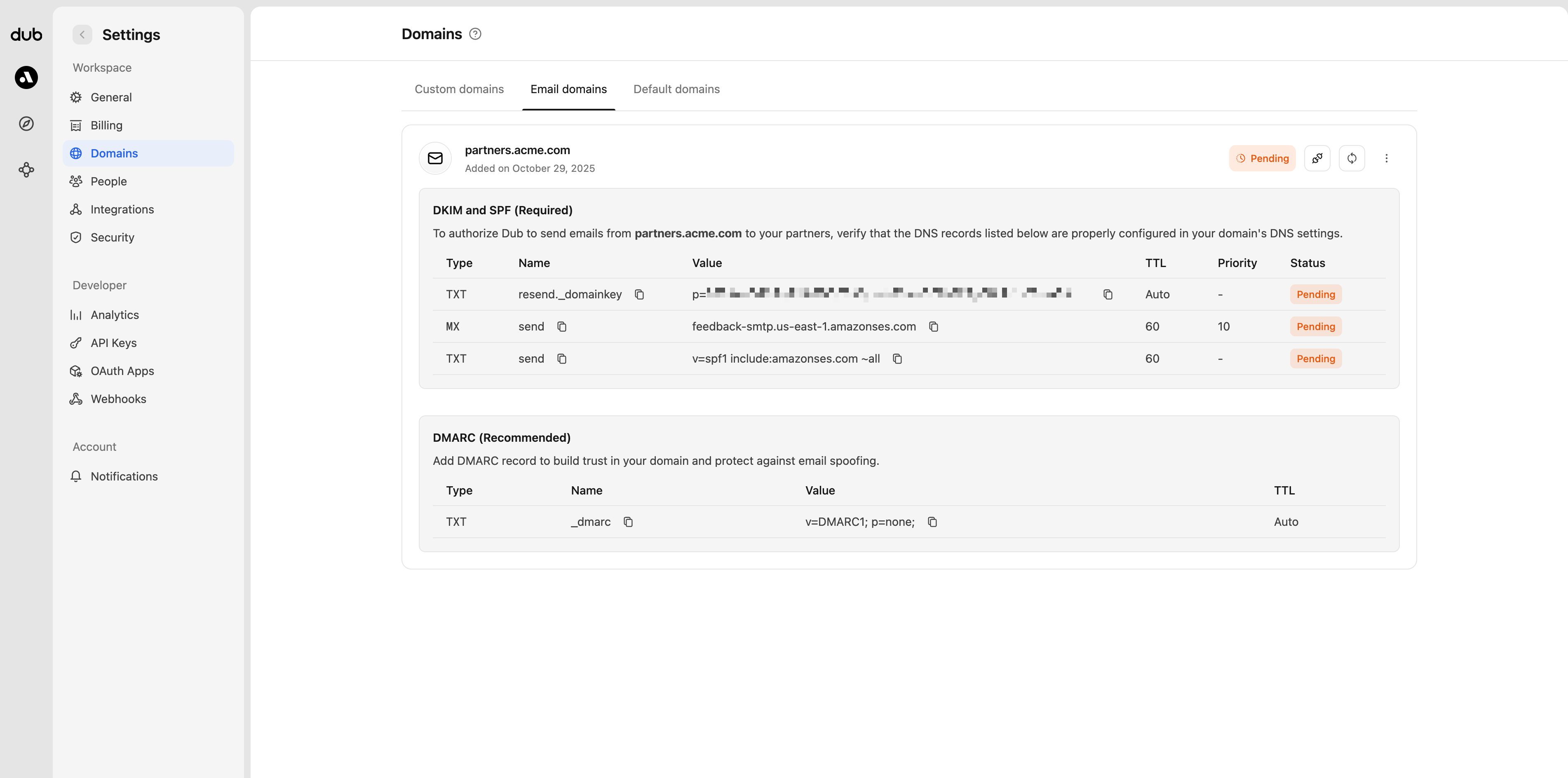
While verifying your domain, you can still create and plan emails, but they won’t be sent until the domain is fully connected and active.
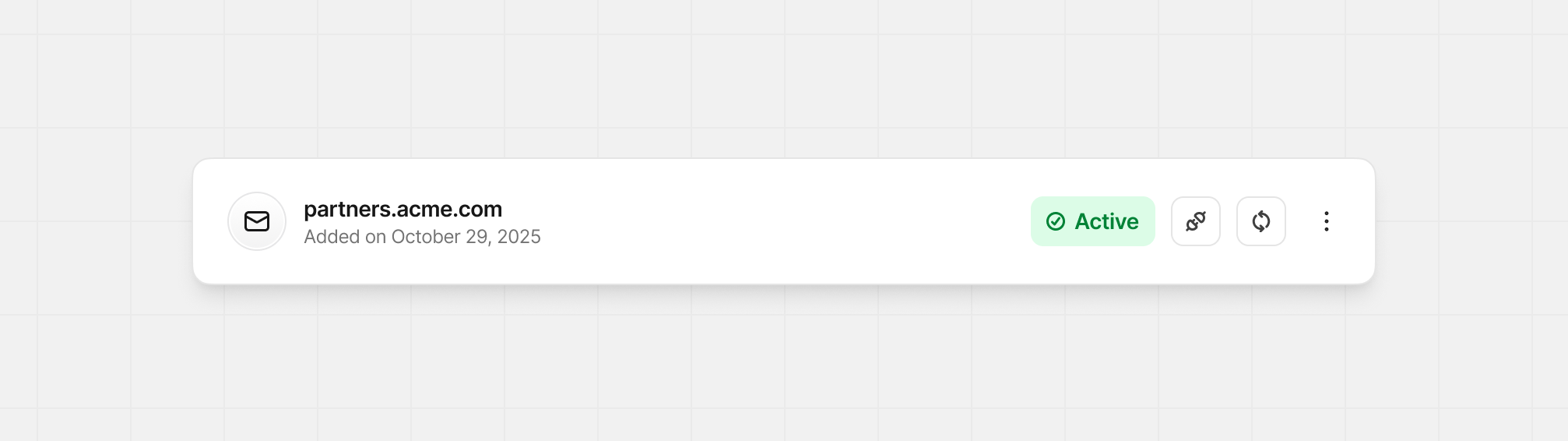
Once the connection is complete, the status will update to Active, and you’ll be ready to send partner emails.
Warming up your email domain#
“Warming up” your domain means gradually increasing your email-sending volume to build trust and improve deliverability. The goal is to send consistently without sudden spikes that might look suspicious to inbox providers.
Any time you start using a new domain or expect a large increase in sending volume, you should warm up your domain. A thoughtful warm-up plan helps prevent greylisting, throttling, and spam filtering, while building a solid sender reputation.
Keep an eye on your bounce rate, as it should stay below 4%. If it rises above that, slow down your sending and review the cause.
Example warm-up plan:
- Add your custom domain and start sending transactional emails to warm it up.
- After 2–3 days, send a small marketing campaign to your smallest group (e.g., “VIP Group”), then a slightly larger one (“Silver Group”).
- Once your domain is fully warmed up, you can send marketing campaigns regularly to all groups (e.g., “Default Group”).
Where to find email campaigns#
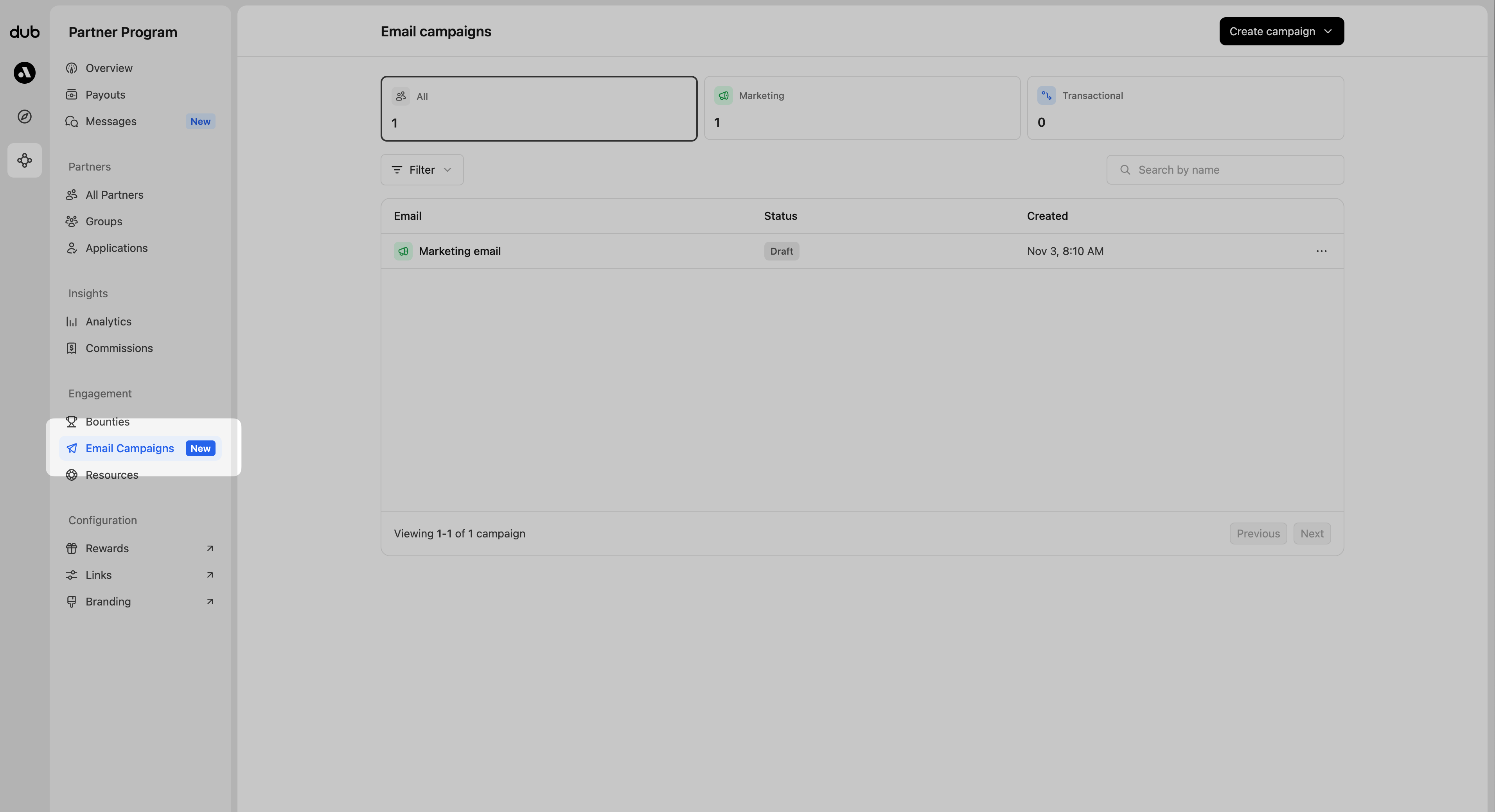
In your partner program's navigation, click Email Campaigns under the Engagement section.
Creating a new campaign#
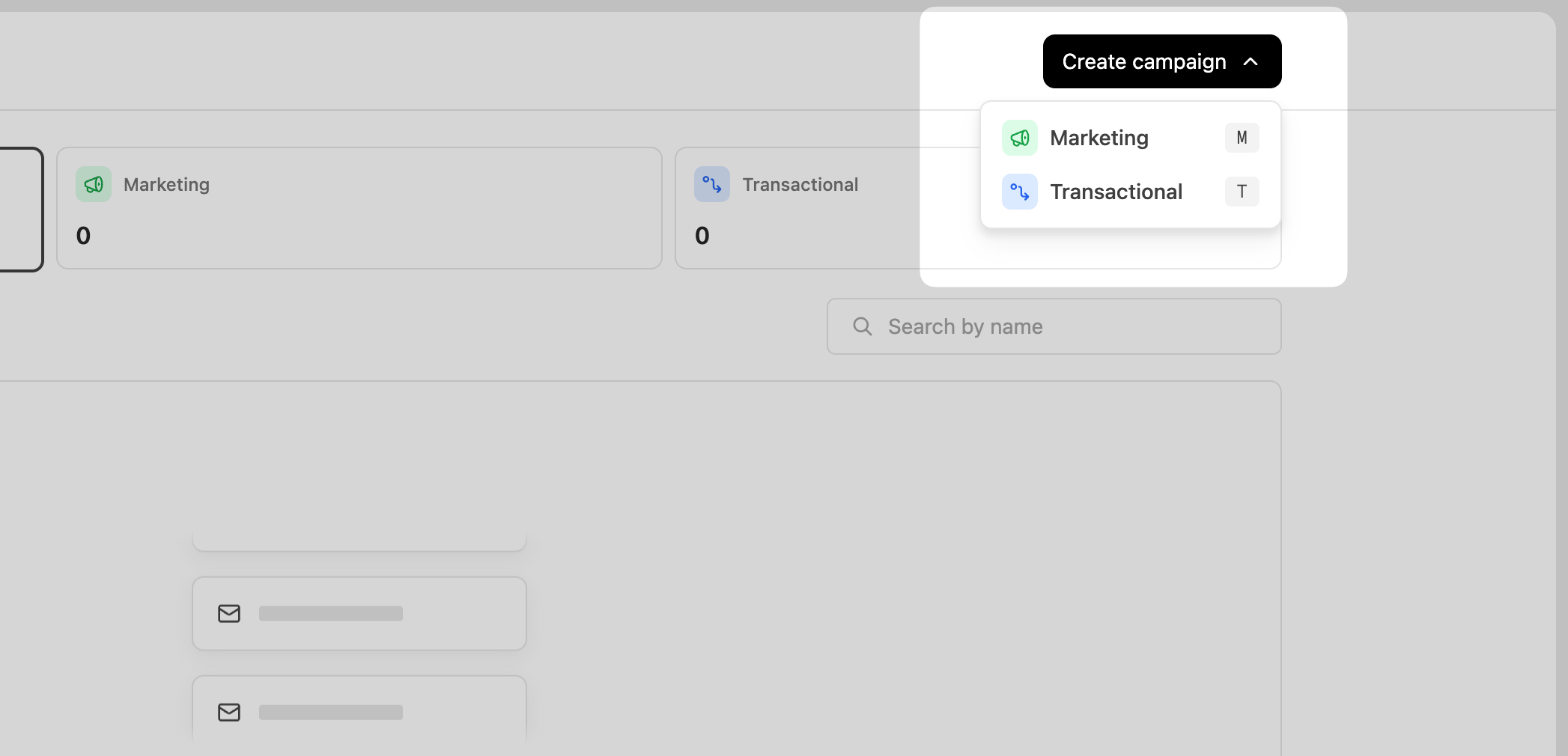
Click Create Campaign in the top-right corner, then select the type of email you want to send.
Marketing#
Marketing emails are one-off messages you send manually. They're great for announcements, product updates, and promotions.
Examples:
- “Introducing our newest feature”
- “Black Friday / Cyber Monday promotion”
- “Check out our latest blog post or promo video”
Transactional#
Transactional emails are automated messages triggered by specific partner actions – like joining your program, reaching a milestone, or staying active for a certain period.
Examples:
- “Welcome to the program! Here’s how to start earning.”
- “Congrats on your first conversion — here’s how to reach your next 10.”
- “You’ve crossed $10,000 in commissions! You’re now among our top earners.”
Email builder#
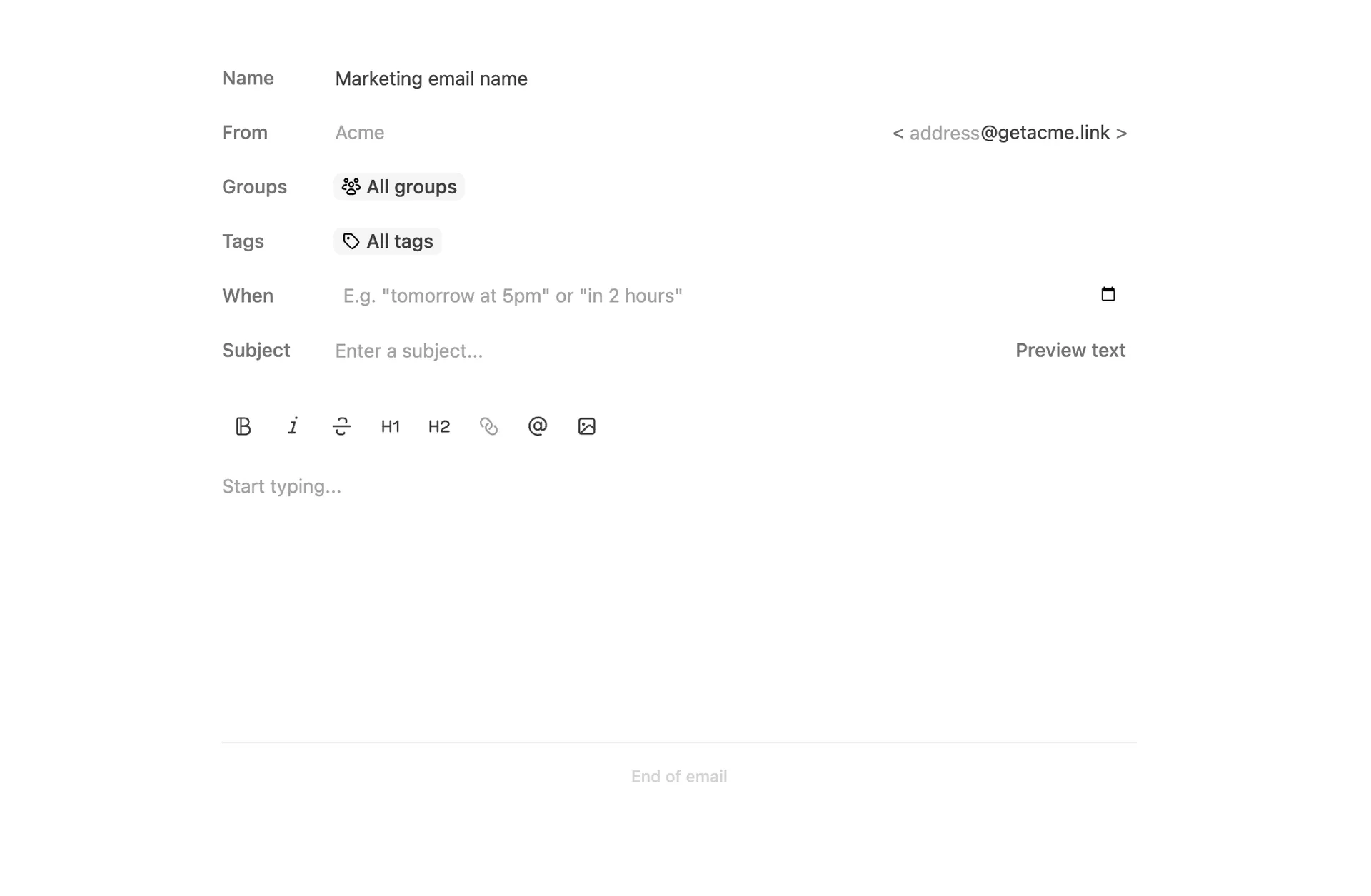
Both Marketing and Transactional emails include:
- Name: Internal name of your campaign
- From: The sender's name and email address. You can customize the username (the part before the
@). Replies are sent to your program's support email address. - Groups: Choose specific partner groups or send to
All Groups - Tags: Choose specific partner tags, or send to
All Tags - Subject: The subject line of the email
- Preview: The short text shown next to or below the subject line in the recipient’s inbox
- Body: The main content of your email — include text, images, or links
Marketing fields#
For your marketing campaigns, select the date and time for when you want the email to be sent. This is helpful when planning email campaigns for the future.
Transactional fields#
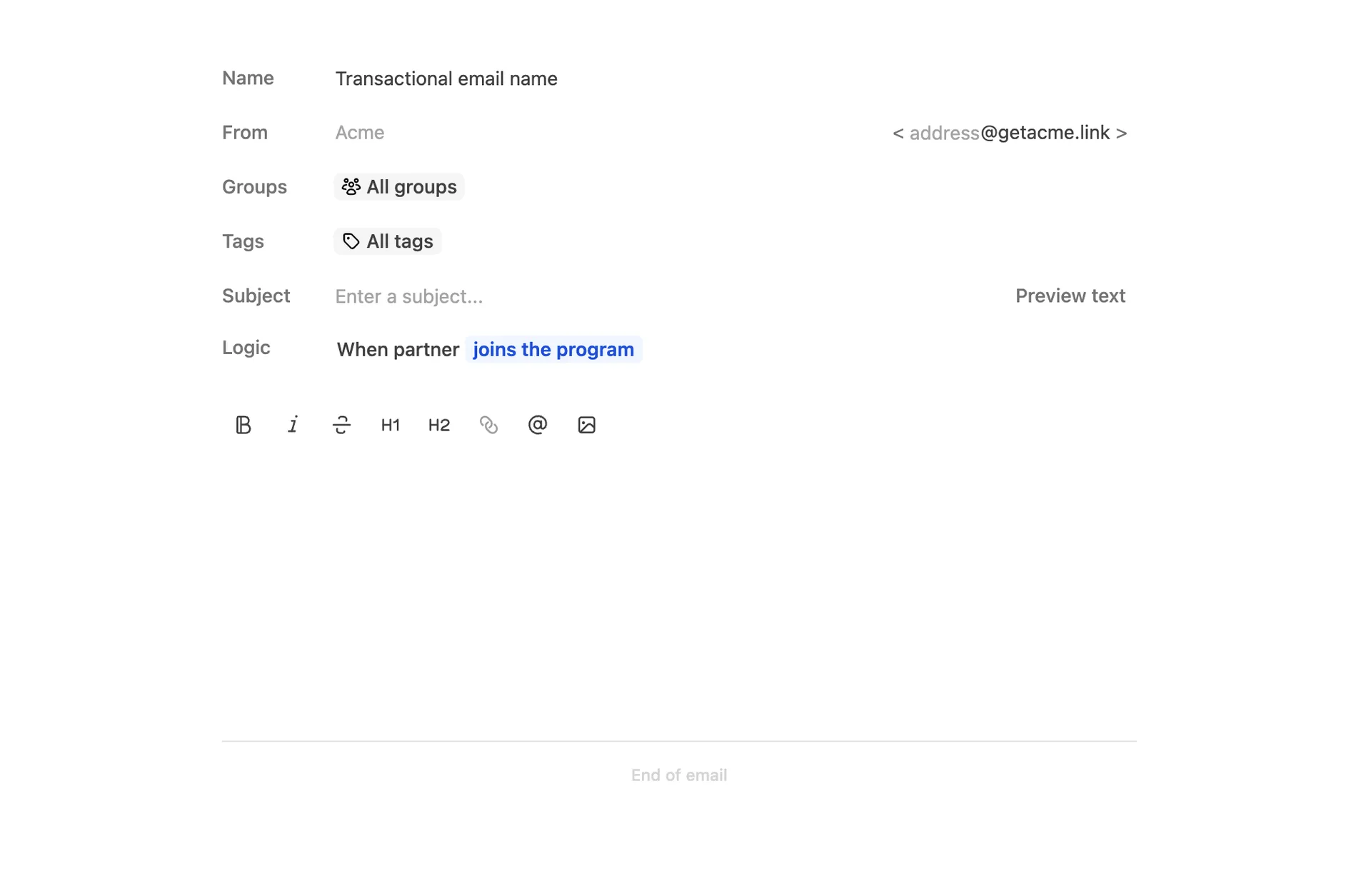
Transactional campaigns include trigger settings instead of a date selector since they send automatically based on partner activity.
| Logic | Description |
|---|---|
| Joins the program | Sends an email when a partner enrolls in your program |
| Enrollment duration | Sends an email when a partner has been enrolled for a set number of days |
| Total leads | Sends an email when a partner reaches a specific number of leads |
| Total conversions | Sends an email when a partner reaches a specific number of conversions |
| Total revenue | Sends an email when a partner earns a specific amount in revenue |
| Total commissions | Sends an email when a partner earns a specific amount in commissions |
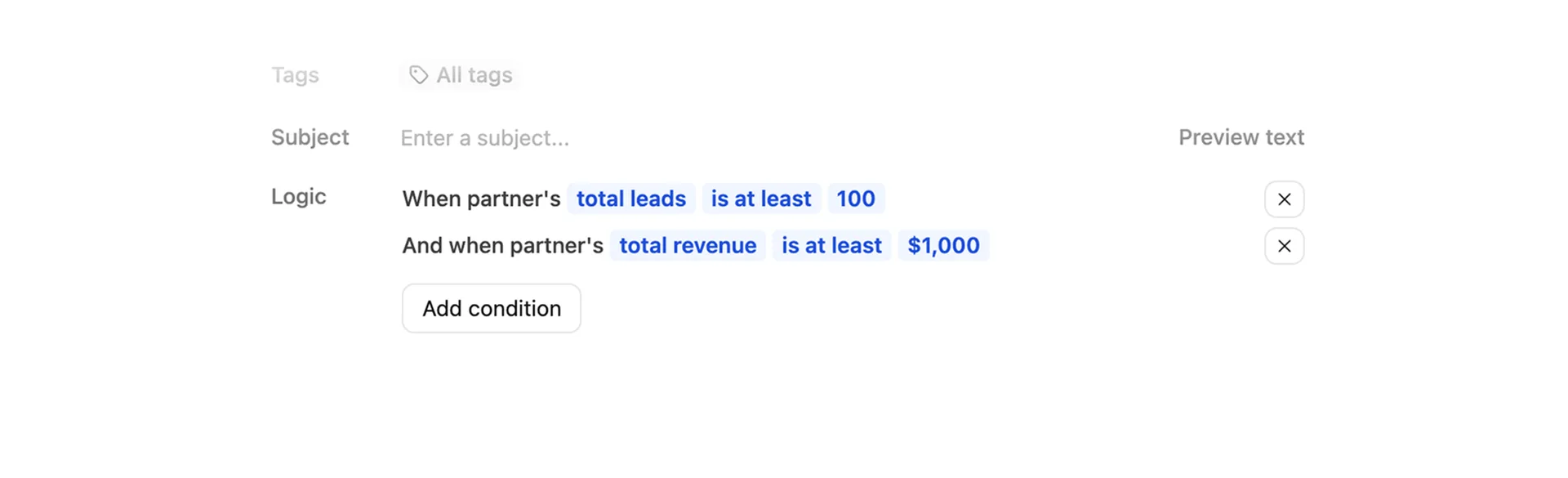
Click Add condition to add additional logic conditions. You're able to add one condition of each logic type, targeting the exact partners you need for the campaign.
Joins the program logic cannot be combined with other conditions, as the partner will never have additional stats at that time.
Text content#
The email builder supports a wide variety of styling and content, including markdown support. In the control area above the content, you can use these buttons to change the styling of the content or add partner variables using the @ button.
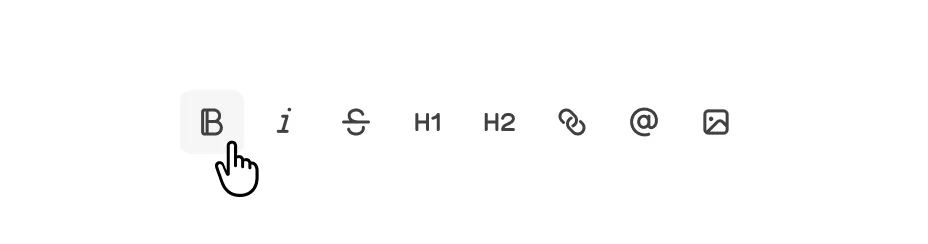
As you're creating content, you can use markdown for the following content styles and types:
| Type | Markdown |
|---|---|
| Bold | **Bold text** |
| Italic | *italic text* |
| Strikethrough | ~~Strikethrough text~~ |
| Inline Hyperlinks | [Dub](https://dub.co) |
| Ordered lists | 1. First item 2. Second item |
| Bulleted lists | - First item - Second item |
| Headings | # Heading level 1 and ## Heading level 2 |
| Partner variables | @PartnerName, @PartnerEmail, @PartnerLink, @SaleReward, @LeadReward, @ClickReward, @ReferralReward, Learn more |
Partner Variables#
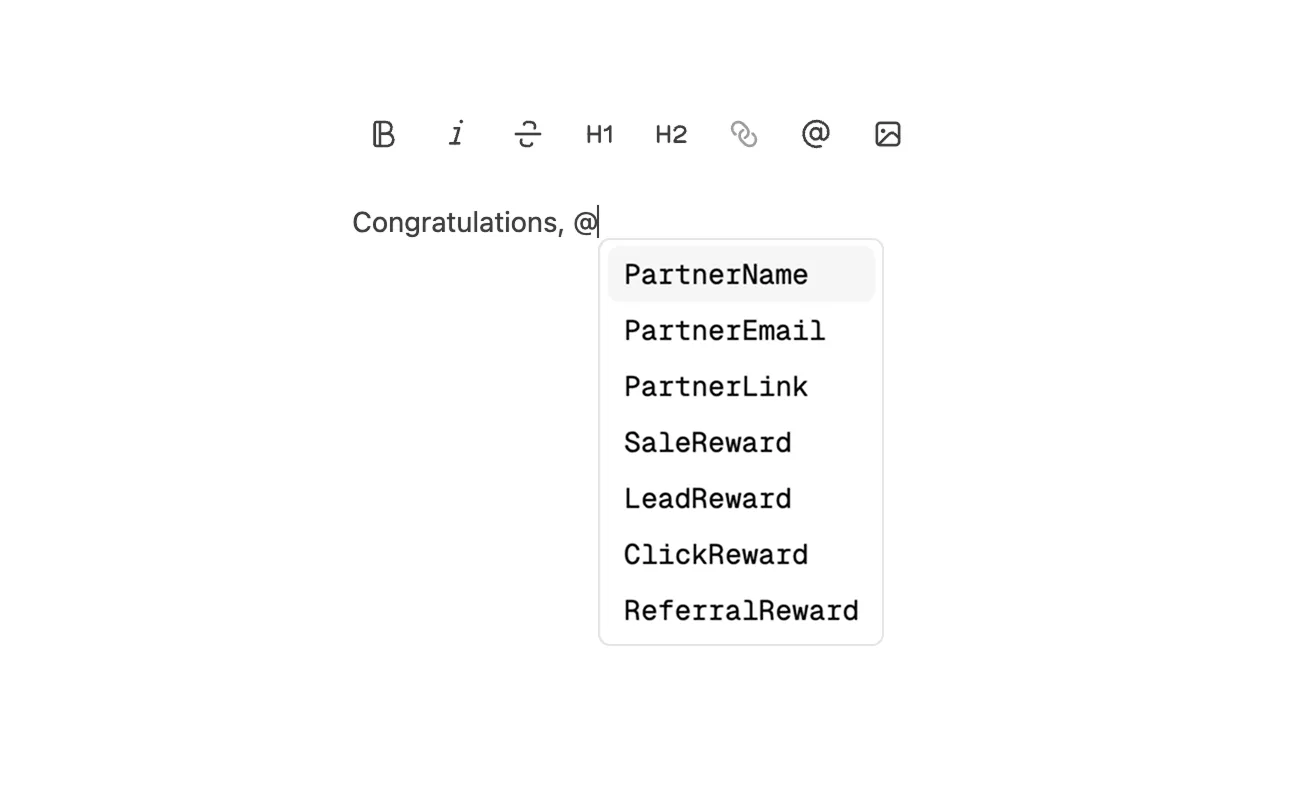
Use the @ button in the email editor to insert personalized partner information and reward details. Dub replaces these variables with the corresponding values when the email is sent.
| Variable | Output | Example |
|---|---|---|
PartnerName | The partner’s name | Alex Johnson |
PartnerEmail | The partner’s email address | alex@email.com |
PartnerLink | The partner’s first enrollment referral link | getacme.link/alex |
SaleReward | A simplified description of the partner’s sale reward | 30% per sale for 6 months |
LeadReward | A simplified description of the partner’s lead reward | $10 per lead |
ClickReward | A simplified description of the partner’s click reward | $0.50 per click |
ReferralReward | A simplified description of the partner’s referral reward. Learn more about partner referrals | 10% per referred partner’s commission for 1 year |
If you're using a custom description for your rewards, the custom description will show instead of the simplified version.
Images#
You can also enrich your emails with images by clicking the Insert image button in the content editor.

Clicking will open your system file browser to select an image to use. It will be uploaded in the email where your cursor is located. You can also drag and drop images directly into the content area.
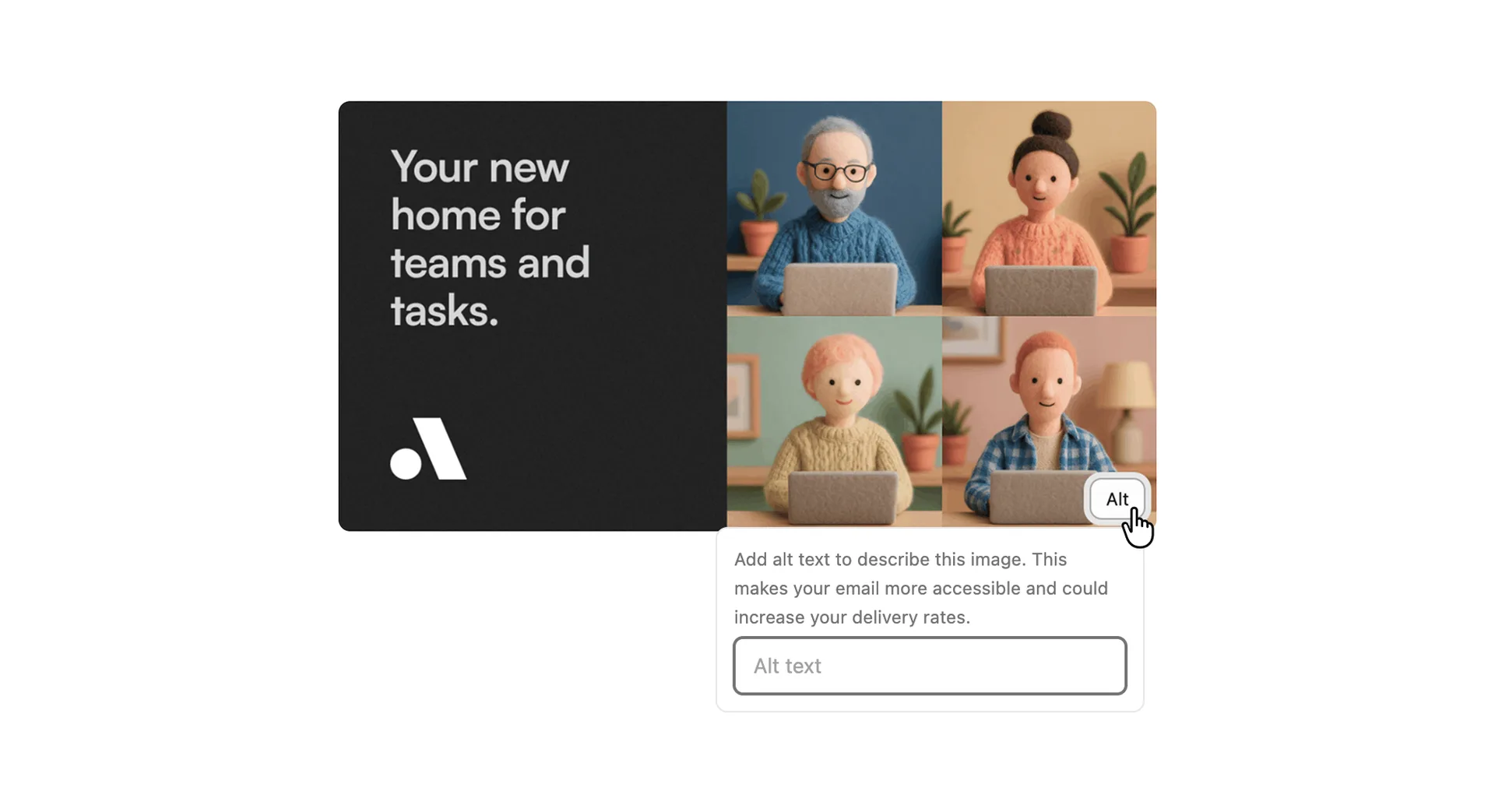
To add alternative text to images, hover over the added image and click the Alt button in the bottom-right corner. Then you can add a short description of the image for accessibility and SEO purposes.
Email previews#
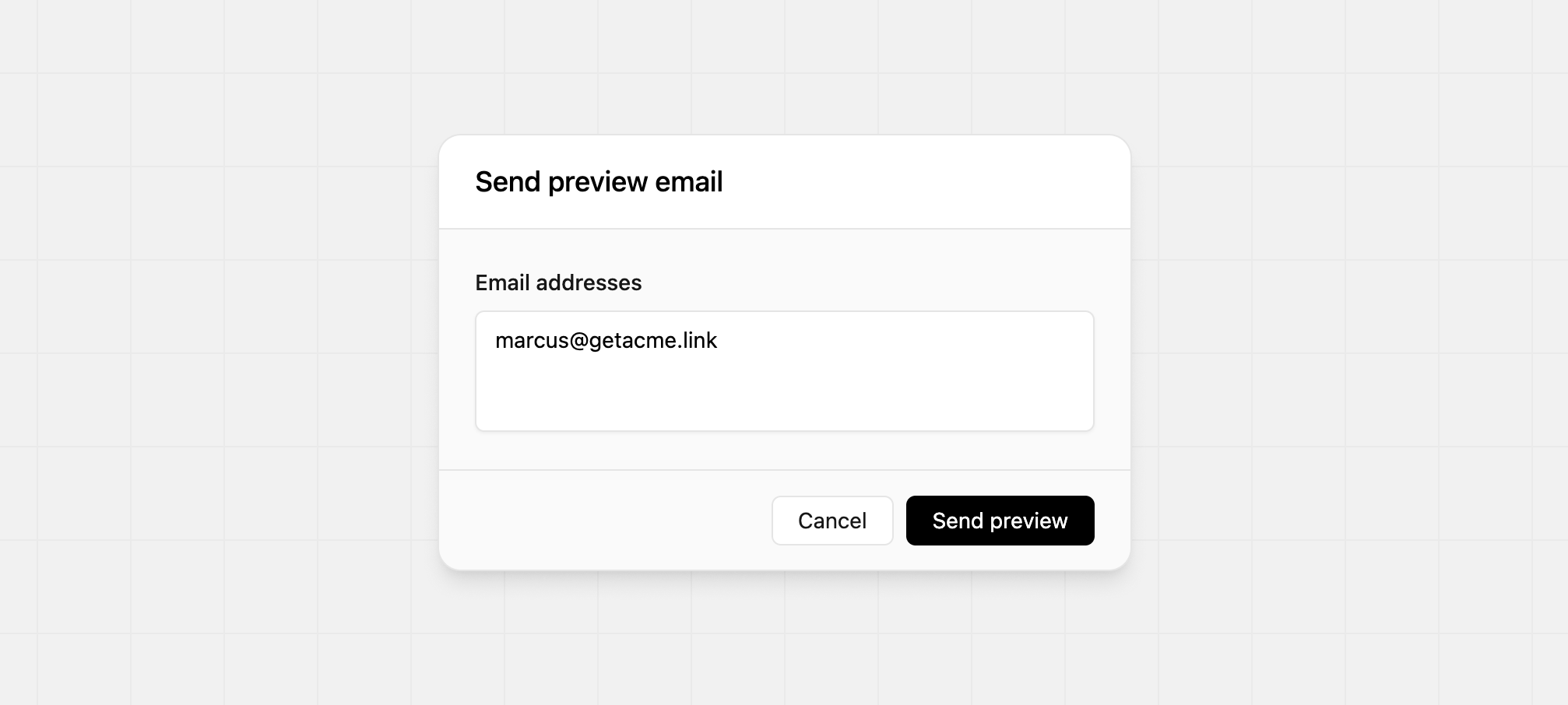
Before launching a campaign, you can send a test version to yourself or teammates for review. Click the ⋮ in the top-right corner and select Send Preview. You can enter multiple email addresses separated by commas.
Email analytics#
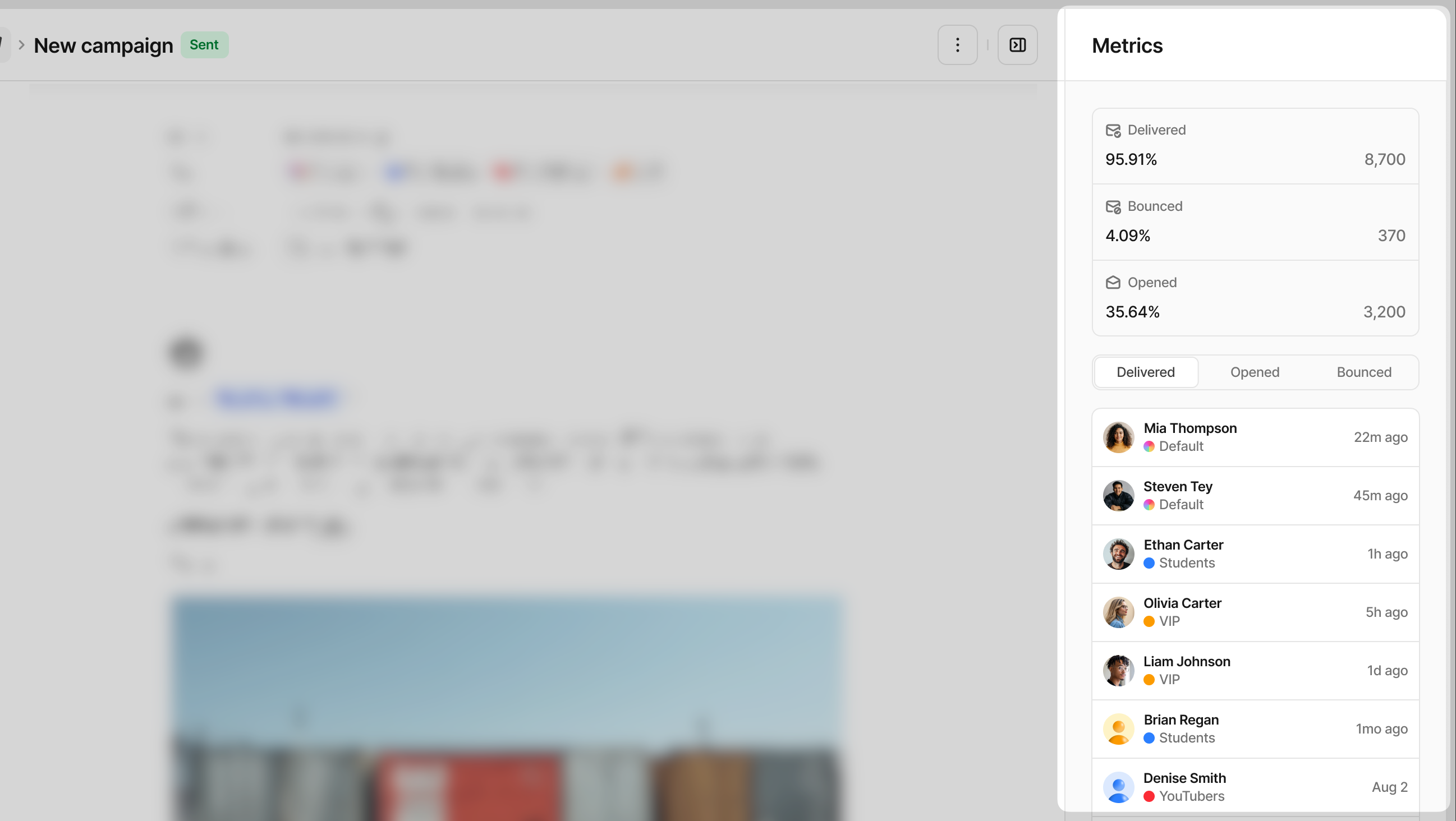
After sending a Marketing email or setting up a Transactional email, click the campaign to open its analytics view.
You’ll see key metrics like delivered, bounced, and opened rates, along with a list of which partners opened the email. This is helpful to measure engagement and performance.
Partner replies#
When a partner replies to any email you send through Dub, their message is always delivered to the support email address you set when creating your program. You can also view or update that address in your resources page.
This means that even if you change your sending domain later, all partner replies will continue to arrive in the same inbox.