This feature is only available on Business plans and above.
Where to find your program applications#
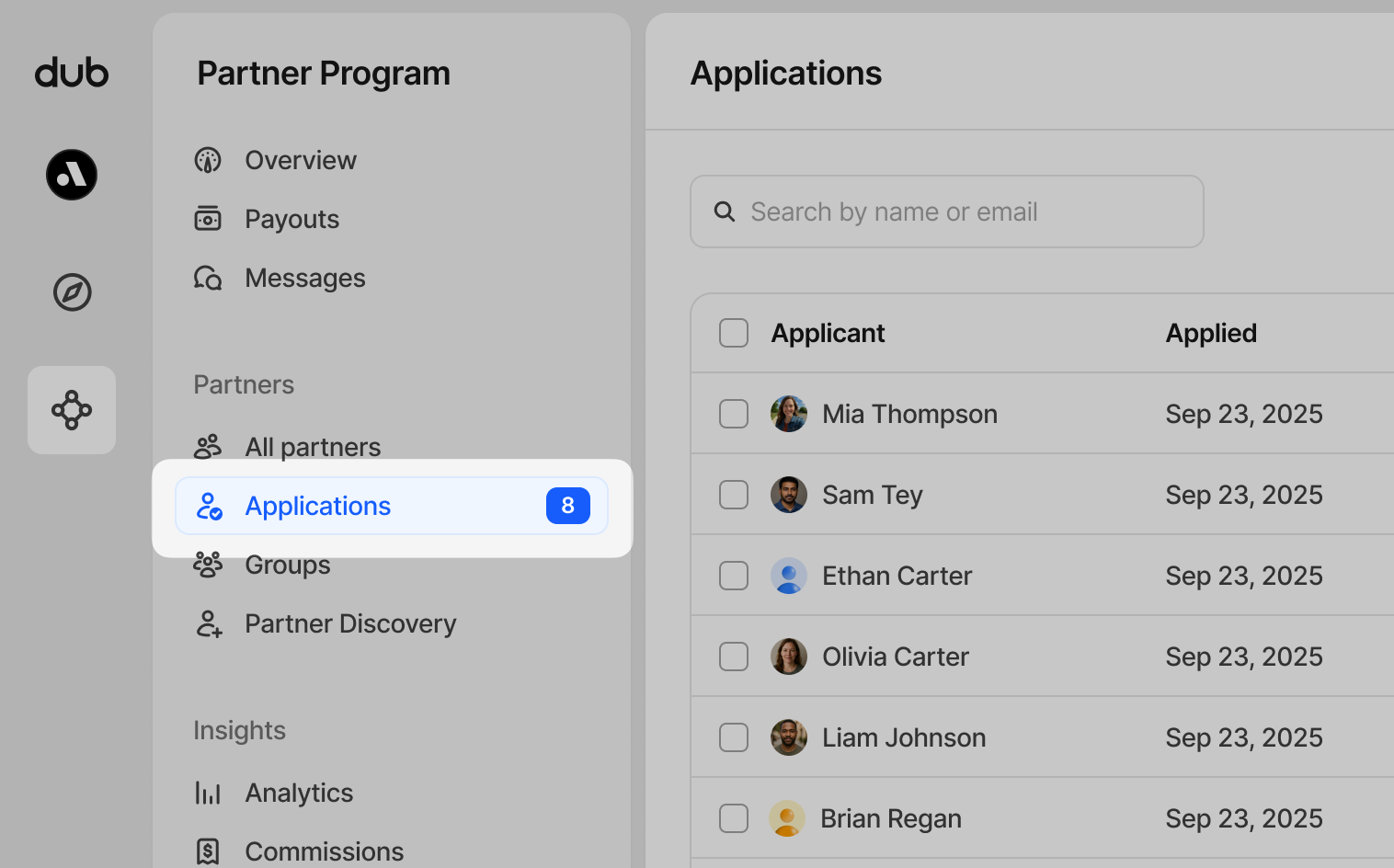
In the Partner Program menu, click Applications to view your pending applications. We also show you a count badge, so you can see how many pending applicants you have at all times.
Applicant table#
On your applications table, you'll be able to view key information, including:
- The applicant's name
- When they applied
- Their provided location
- Their website and social media profiles
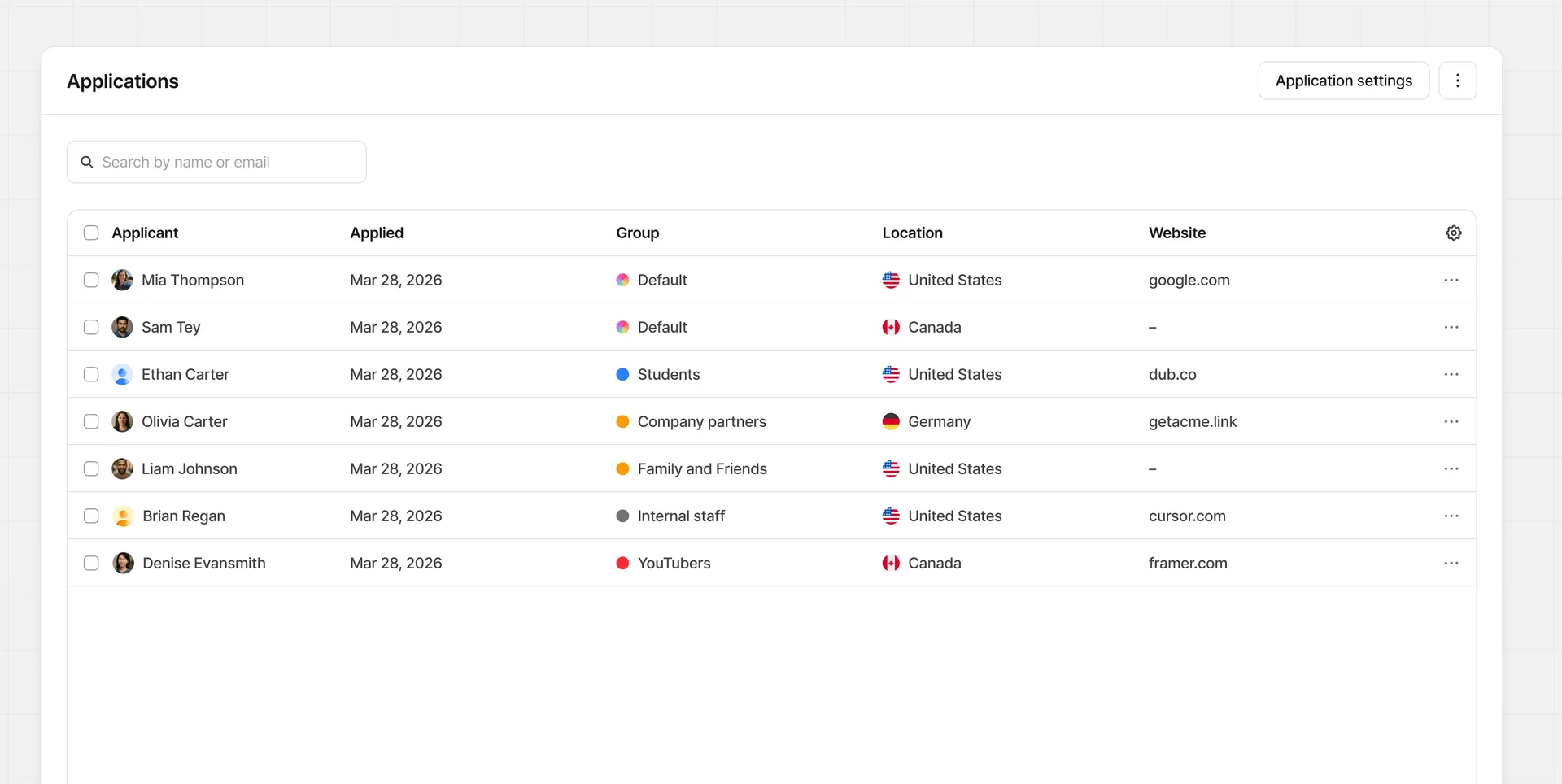
Click on any of the rows to view their profile and application form.
Application settings#
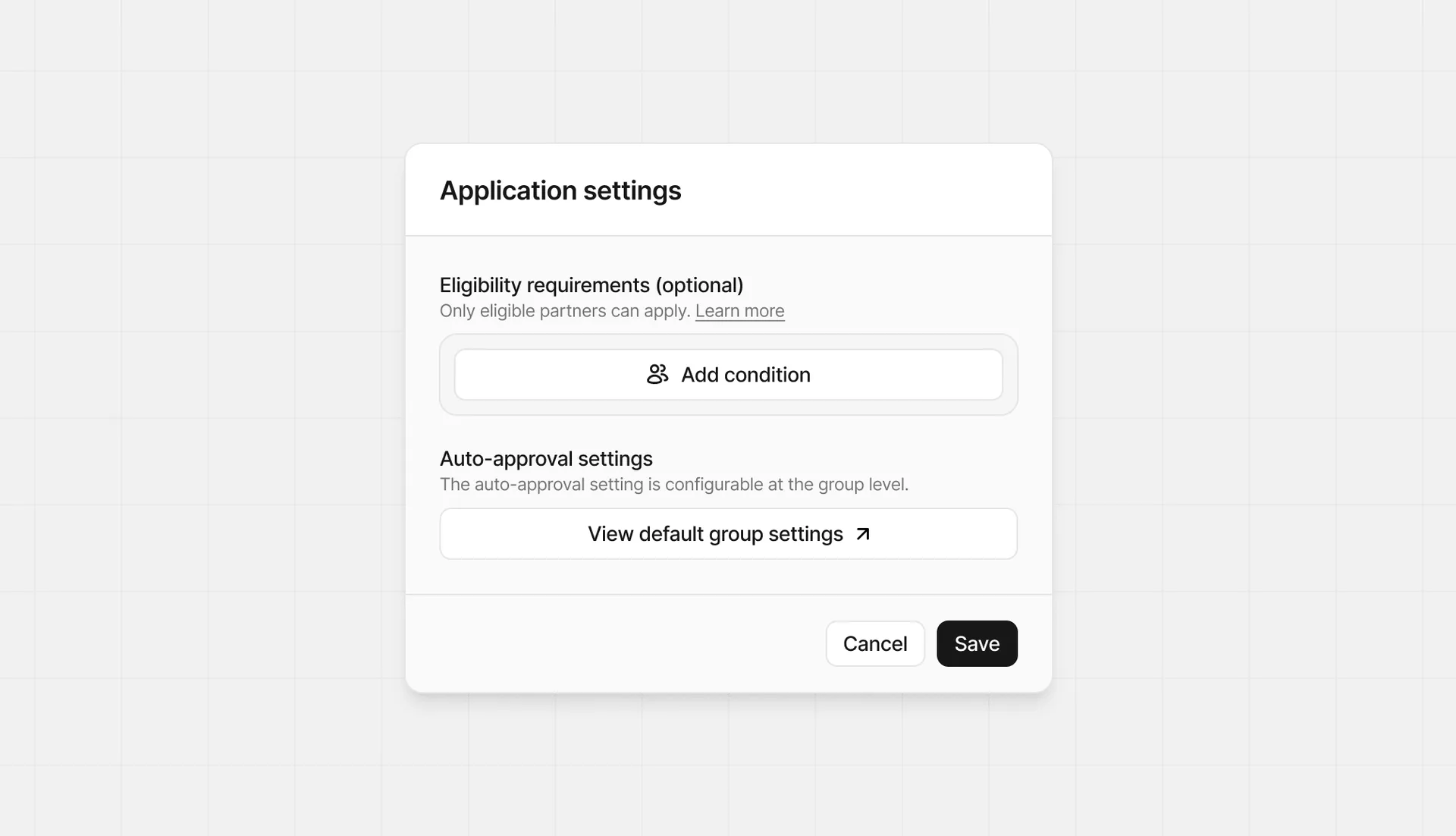
Click the Application settings button in the top right corner to configure your application and marketplace settings.
Eligibility requirements#
Adding eligibility criteria allows you to define the conditions that must be satisfied for an applicant to apply. Click Add condition to start defining your criteria.
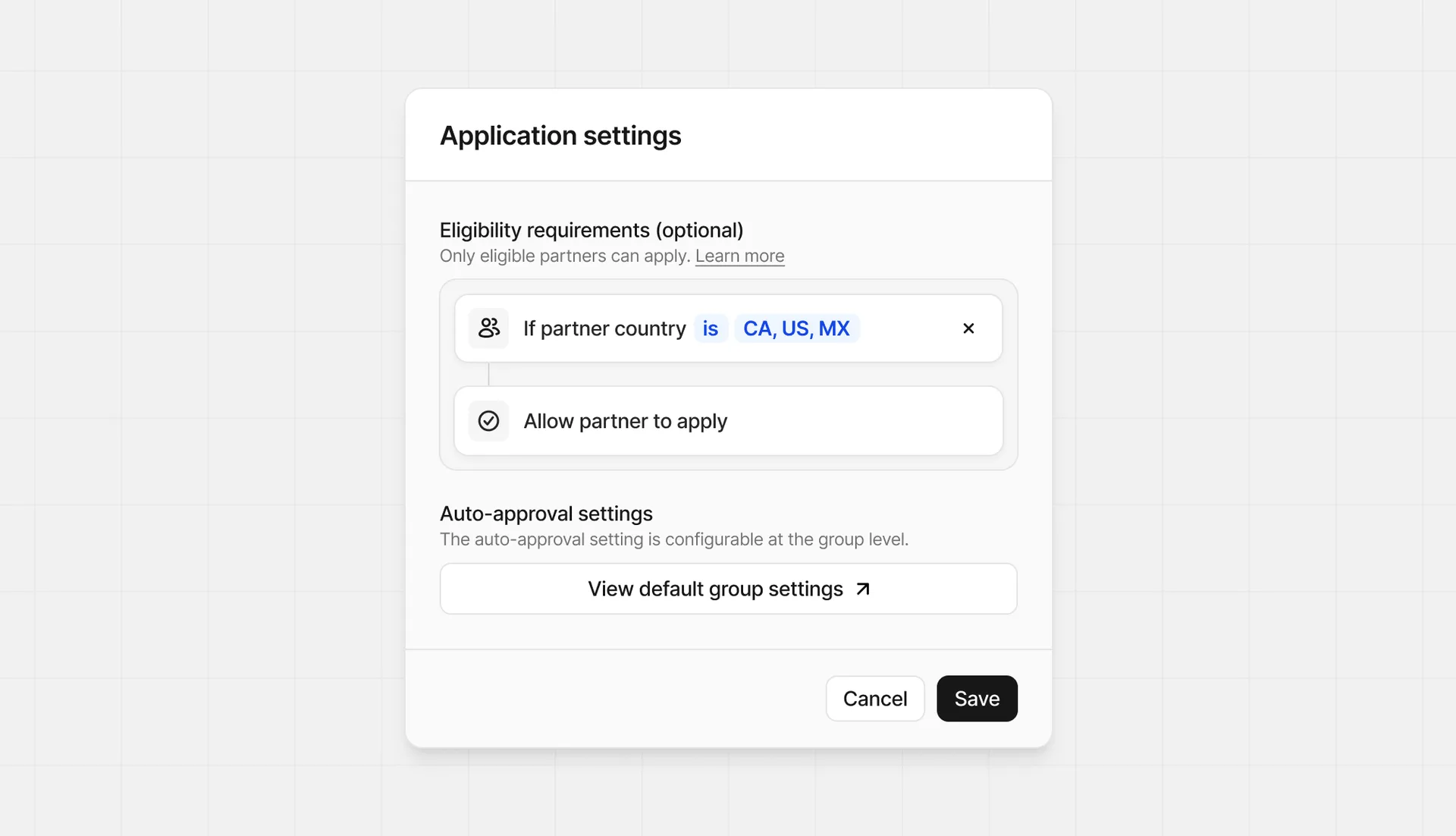
In the example above, the applicant must be from Canada, United States, or Mexico to apply. If they're from any country other than these, they won't be able to apply.
| Logic | Description |
|---|---|
| Condition | Select from is or is not |
| Country | Select any number of countries |
Marketplace settings#
If your program is listed in the Dub program marketplace, click the Marketplace toggle to access the marketplace settings. Here you can set the description that's shown to partners, and categories to help find your program more easily.
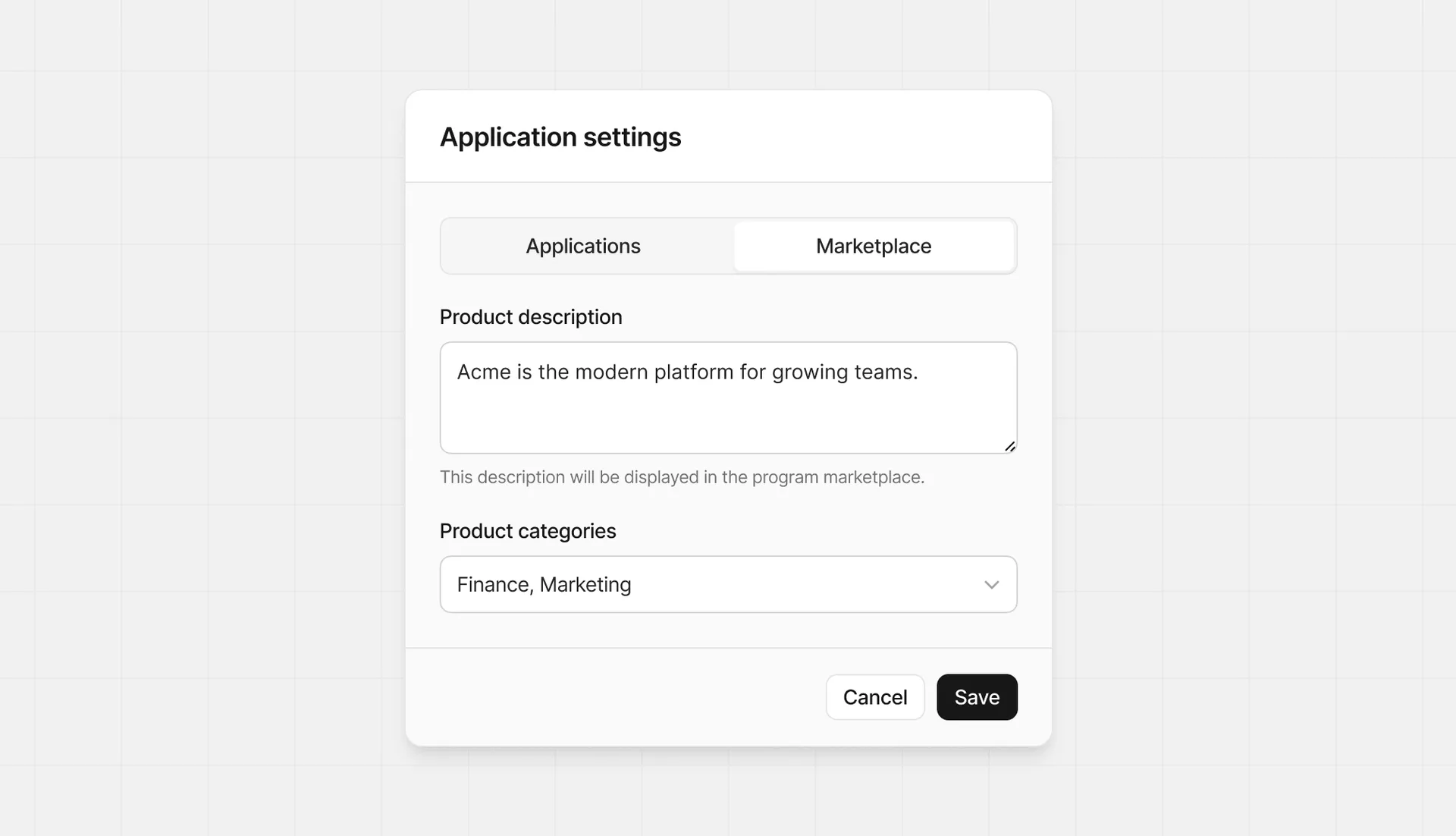
For product categories, you can select from the following options:
- Finance
- Marketing
- AI
- Development
- Design
- Productivity
- Ecommerce
- Security
- Education
- Health
- Consumer
Partner application#
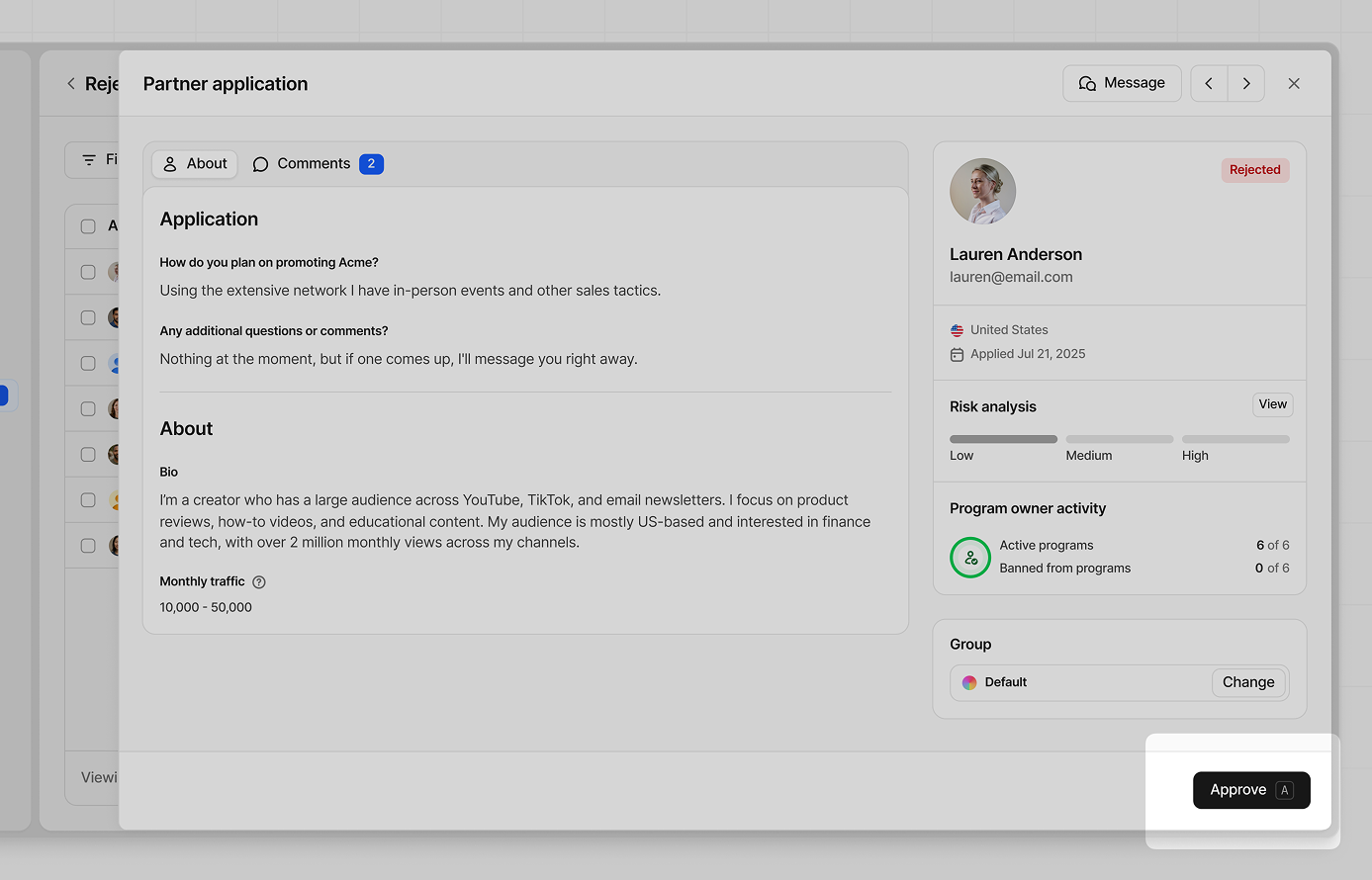
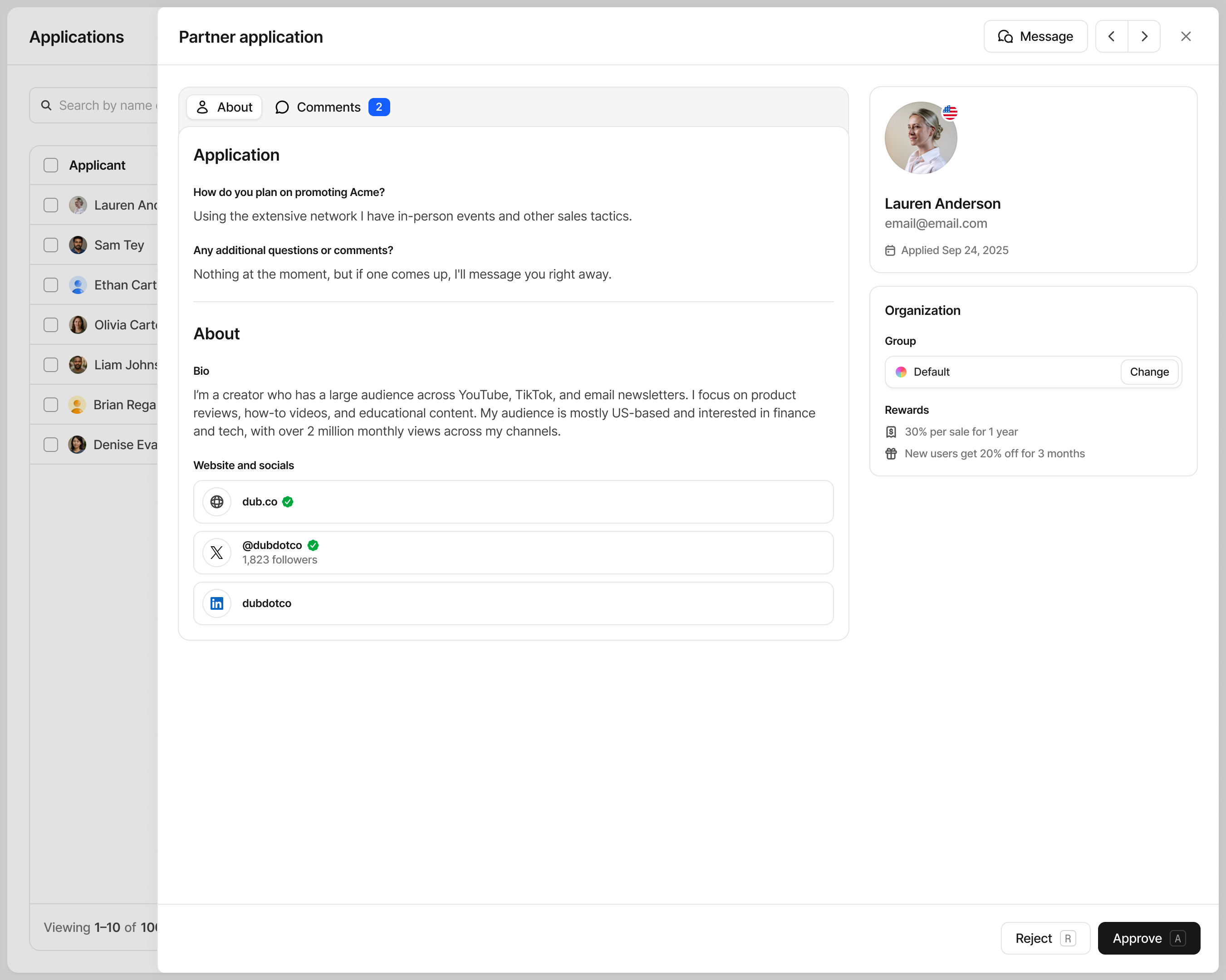
When the application is open, we show additional information collected during the application process and their account creation. This is a good opportunity to get to know more about this partner and their background if they've provided it.
Online presence#
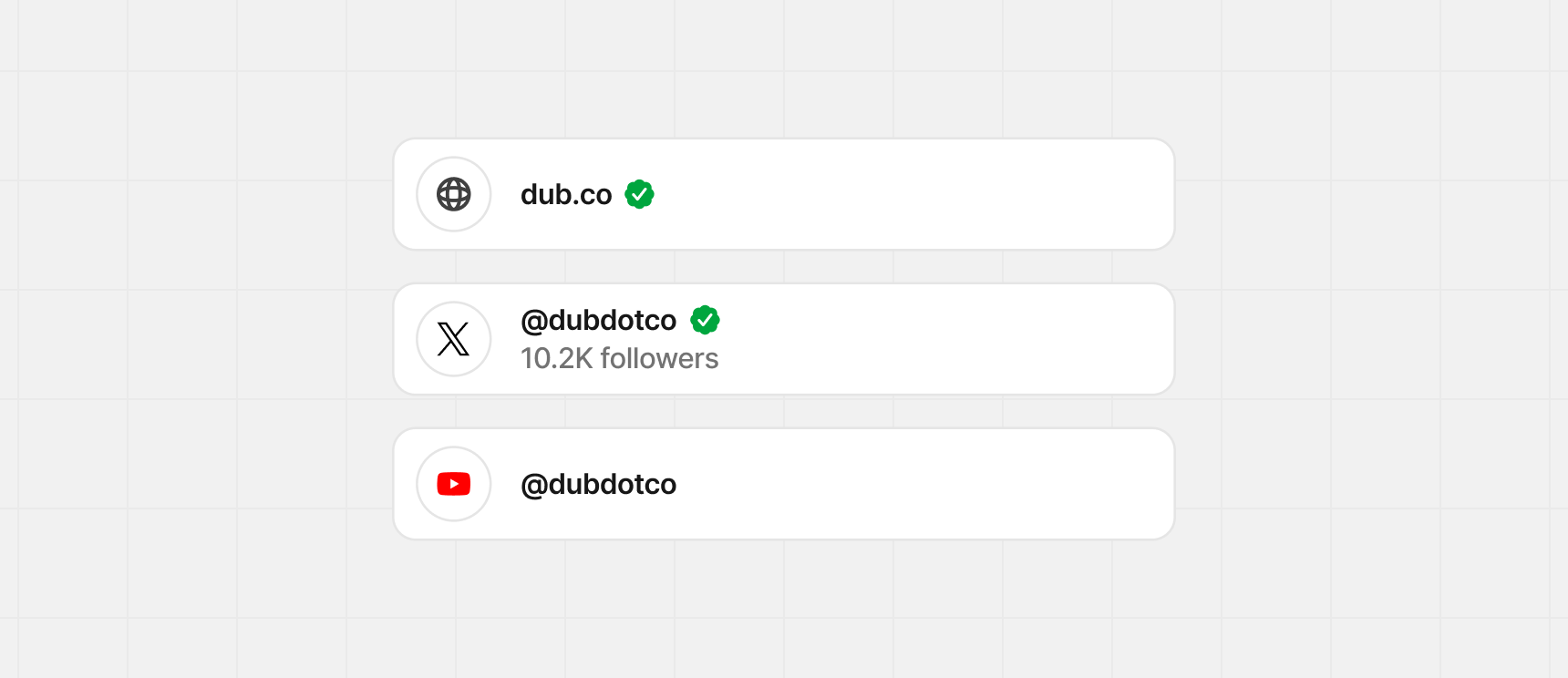
During account creation, we allow the partners to provide their website and any social media accounts. As part of this, we also allow partners to verify each of these items to increase trust with their application.
Verification isn't required, but encouraged as it reduces the time it takes to review applications.
Verified badge#
If a partner has verified their website or social media accounts, a green check mark badge will be shown beside the item. In some scenarios, it will also show statistics from that verified account.
Additional information#
The partner card will provide additional information about the partner, helping you understand how their profile is set up, and optional details they've provided.
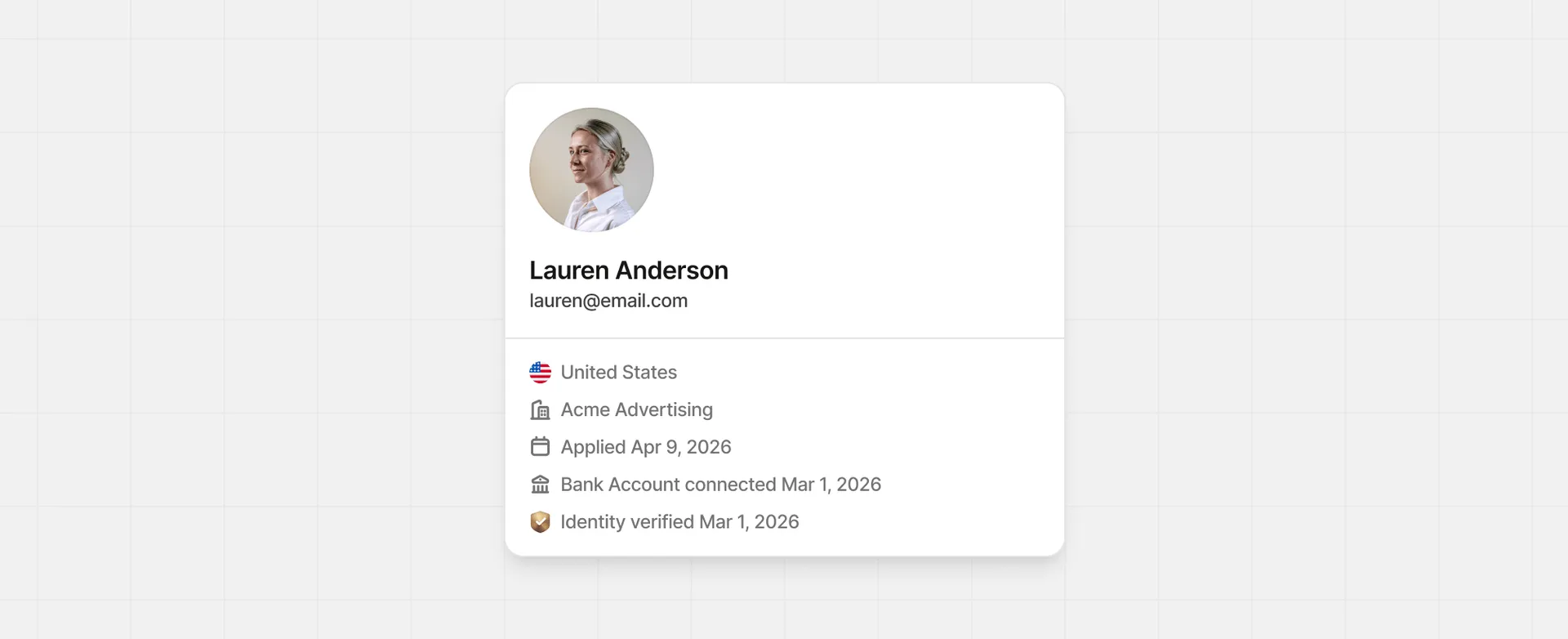
| Item | Description |
|---|---|
| Location | Declared country of residence |
| Company name (optional) | Partner's company name, if they've chosen to have a company profile |
| Application date | Date of application submission |
| Payout method connected | Shown when the partner has connected a payout method, and what that type is |
| Verified identity (optional) | Whether the partner has verified their identity by submitting a government-issued ID (Powered by Veriff) |
Application history#
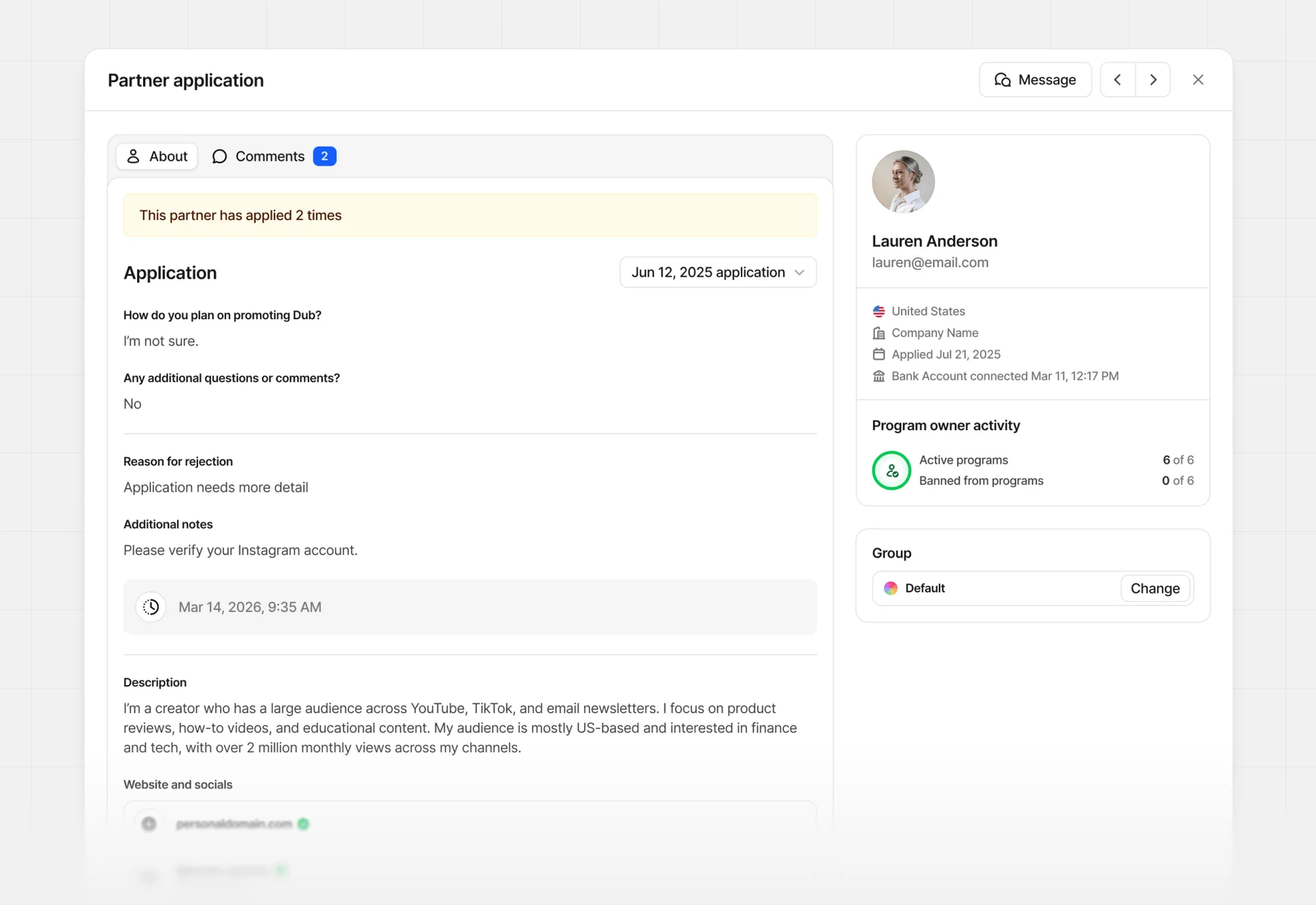
If a partner previously applied and was rejected, you can review their application history by clicking on the Application dropdown to select previous versions. This is helpful to see if the application has changed since the last time it was reviewed, and if feedback provided has been addressed.
When viewing historical applications, you can see the reason for rejection and additional notes if they were provided by your team.
Applicant risk flags#
We recommended that you review partners flagged for fraud and the information provided before making a final decision.
Occasionally, certain applications to your program might trigger a risk flag that you should review before approving them.
These signals are powered by our Risk Monitoring feature and are meant to protect your partner program from risk and potential fraud.
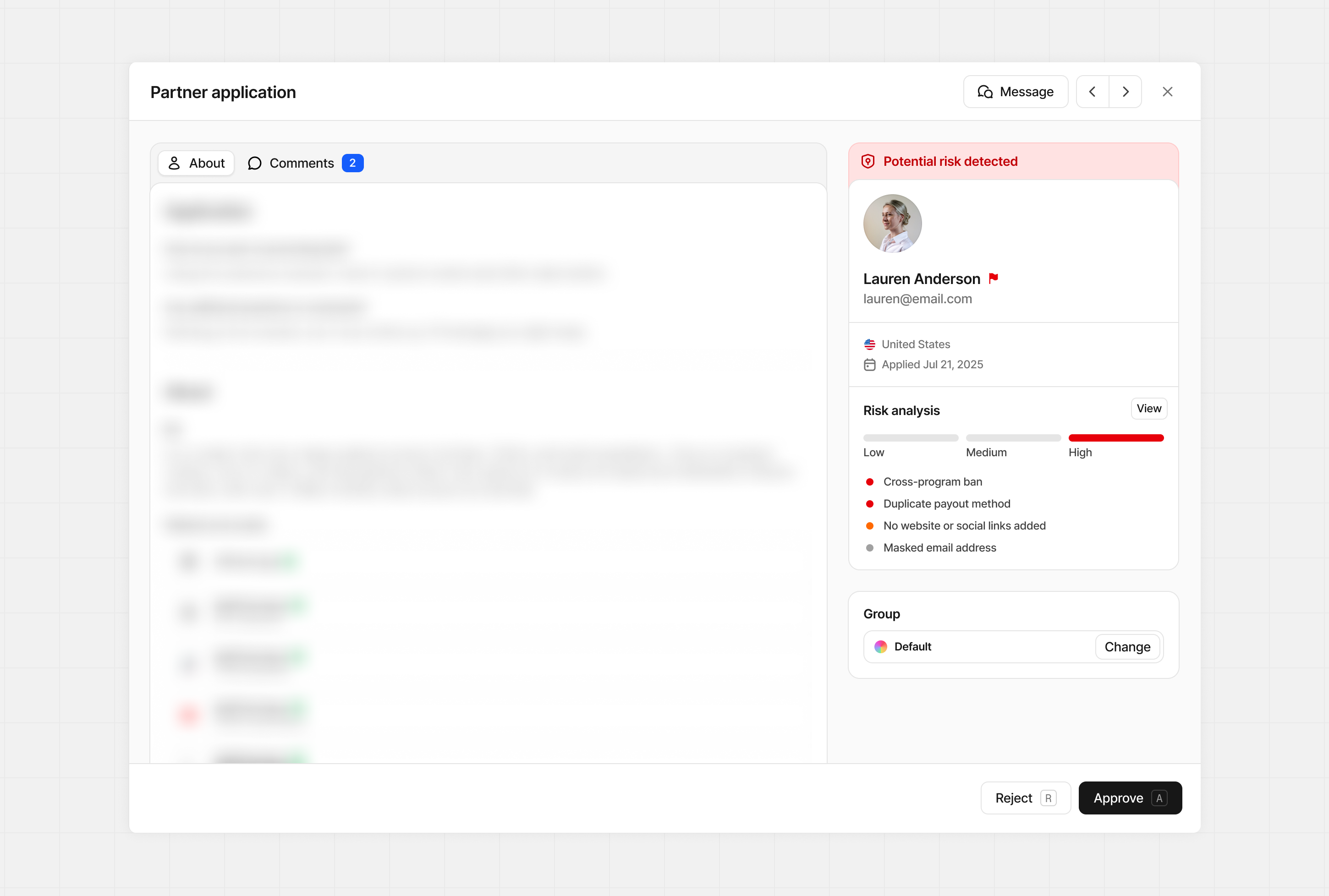
Here are the reasons an application will be flagged for review:
High risk#
Indicates strong signs of potential fraud or past issues. These applicants need careful review before you move forward.
| Flag | Description |
|---|---|
| Fraud report | This partner was reported for suspected fraud by another program. |
| Network-level ban | This partner was banned from another program on Dub. Our team reviewed this decision and confirmed the fraudulent behavior or terms of service violation. |
| Duplicate account detected | This partner was flagged by our system for having 2 or more Dub accounts. Please review to prevent abuse of program restrictions, caps, or bonuses. |
| Duplicate partner account | Multiple partner accounts originate from the same device, suggesting duplicate account creation or fraudulent behavior. |
Medium risk#
Generally signals missing or incomplete information. These applicants need a closer look before approving.
| Flag | Description |
|---|---|
| No website or social links added | This partner hasn't provided any social or web presence, making verification harder. |
| Geolocation mismatch | This partner's physical location doesn't match their profile country, which may indicate a location mismatch. |
Low risk#
These tend to be generally low risk and more common, but worth reviewing.
| Flag | Description |
|---|---|
| Email domain mismatch with website | The custom email domain doesn't match the website provided. |
| Masked email address | Uses a masked email address. Not harmful but harder to verify or contact directly. |
| No verified website or social links | Partner hasn't verified their website or any social presence, making verification harder. |
Learn more about how Risk Monitoring works on Dub.
Approving applicants#
There are 3 ways to approve pending applicants to your program:
Via the application form#
When the application form is open, click Approve at the bottom of the screen.
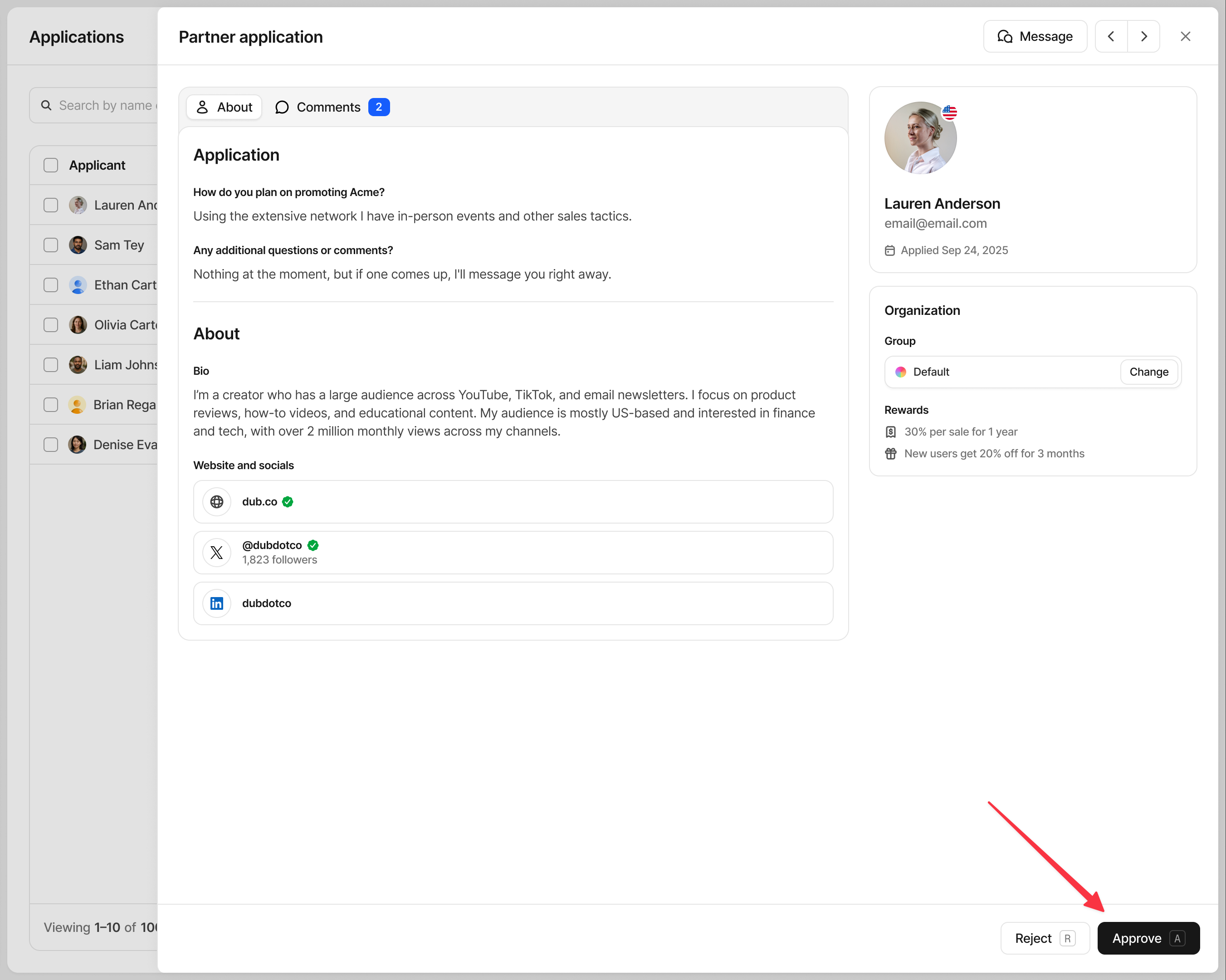
Once you're finished reviewing the application, click Approve, and the applicant is now part of your program.
Bulk approve#
If you have multiple applications, use the checkboxes to the left of each applicant to select any that are ready to be approved. You can also select all, by clicking the checkbox in the top left of the application table.
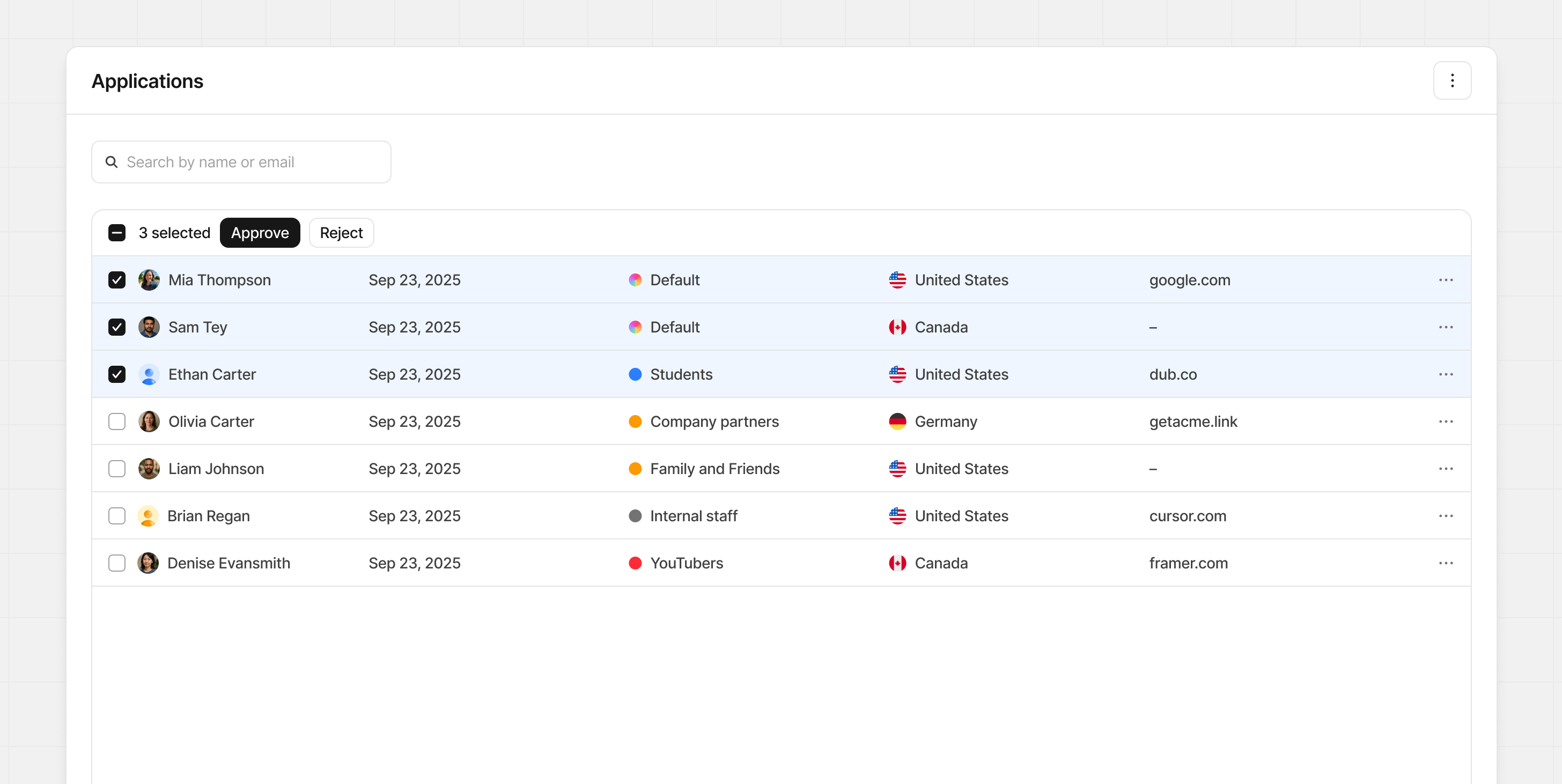
Once selected, click Approve to add them to your program instantly.
Auto-approve#
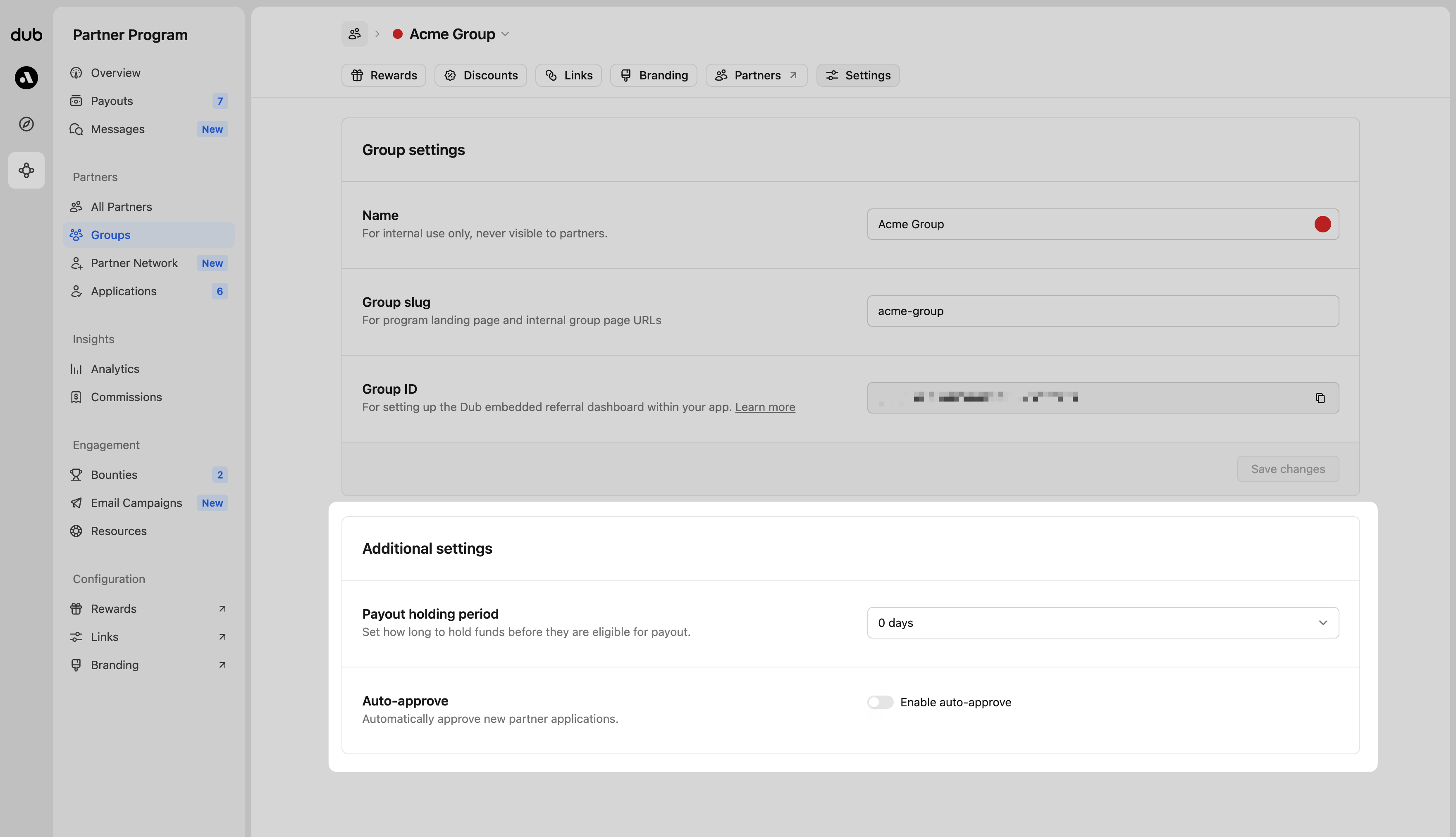
To auto-approve any new pending applications for your program, go to your individual groups and click on the Settings tab. Here you'll find the auto-approve toggle in the "Additional settings" group.
When you update the auto-approve options, you can apply the new setting to every group at once. Just select the box labelled Apply to all groups before confirming. The change will take effect right away.
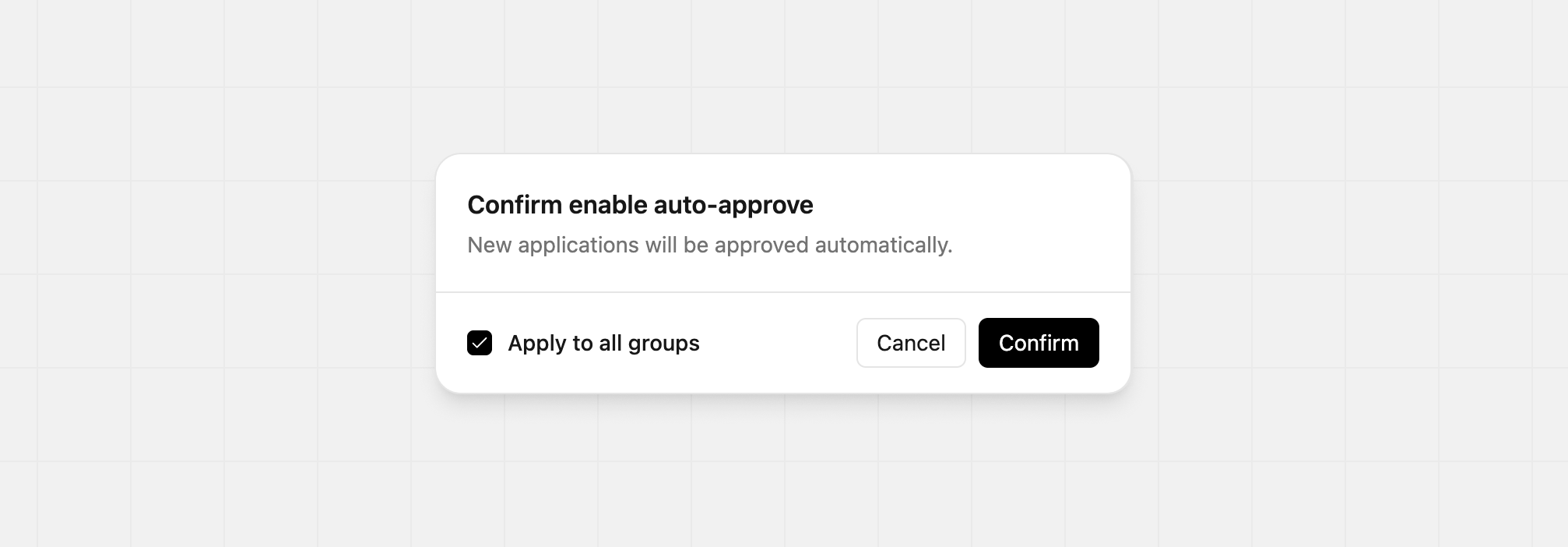
With auto-approve enabled, any new pending applications will be automatically approved for your program with no review period. Any existing pending applications will still need manual approval before being accepted.
Applications with a risk flag are never auto-approved and will always require manual review.
To disable auto-approve, click the toggle and confirm your choice. When confirming the change, you're able to apply to all groups as well.
Rejecting applicants#
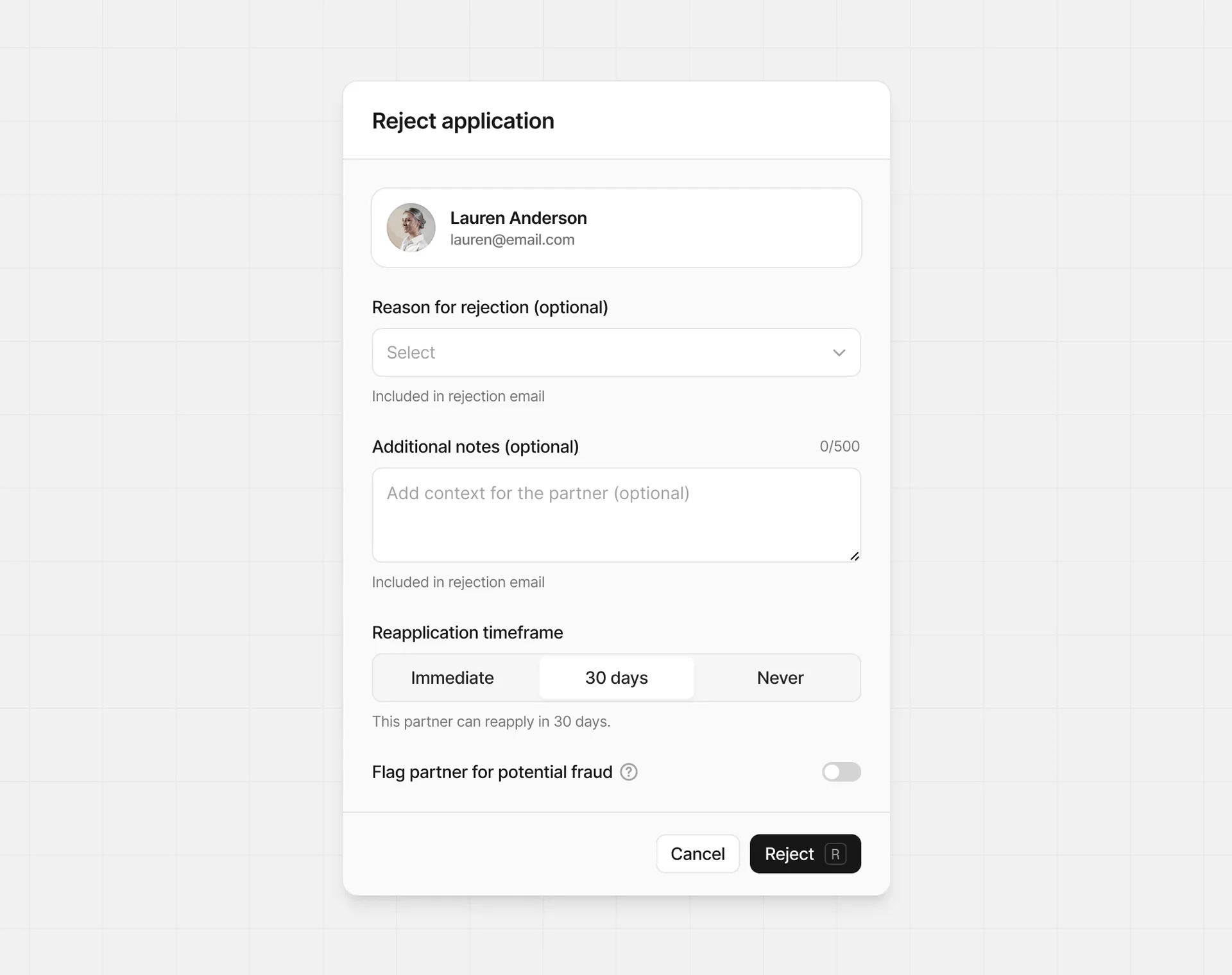
Similar to the approval process, you can reject an application from the applicant form or use bulk selection for more than one applicant at a time.
Optional fields#
When rejecting an applicant, optionally you can add:
- Reason for rejection - Select from a list of common reasons for the rejection.
- Add additional notes - Provide more context to the applicant about why they were rejected, and what they can do to improve their chances in the future.
Both fields are shared with the applicant if provided.
Reapplication timeframe#
By default, rejected applicants cannot reapply to your program for 30 days, but you can allow them to reapply immediately if you think they have potential and want to give them another chance, or set to Never to block them from reapplying at again.
Flagging for potential fraud#
If you have concerns about the legitimacy of an applicant, you can flag them for potential fraud. This will trigger a review by our team and may result in a ban from all programs on Dub if fraudulent behavior is confirmed. Please provide as much information as possible in the notes when flagging for fraud to help our team with the review.
Approving a previously rejected partner#
If you rejected a partner by mistake, or have changed your decision, you can approve them at any time. Open the ⋮ menu in the Applications view and select View rejected partners.
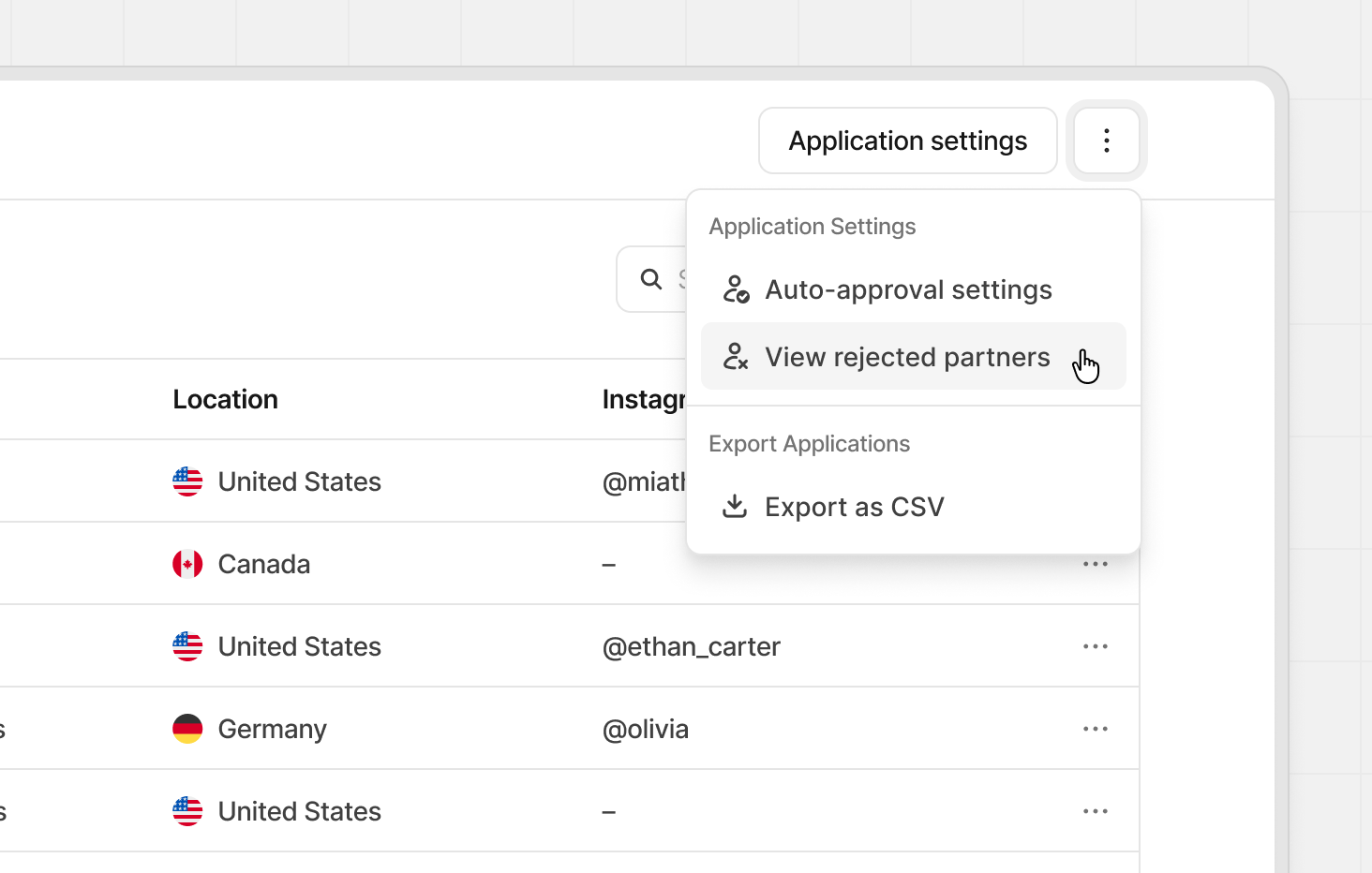
From the rejected partners table, find the application you’d like to revisit and click the row to open it.
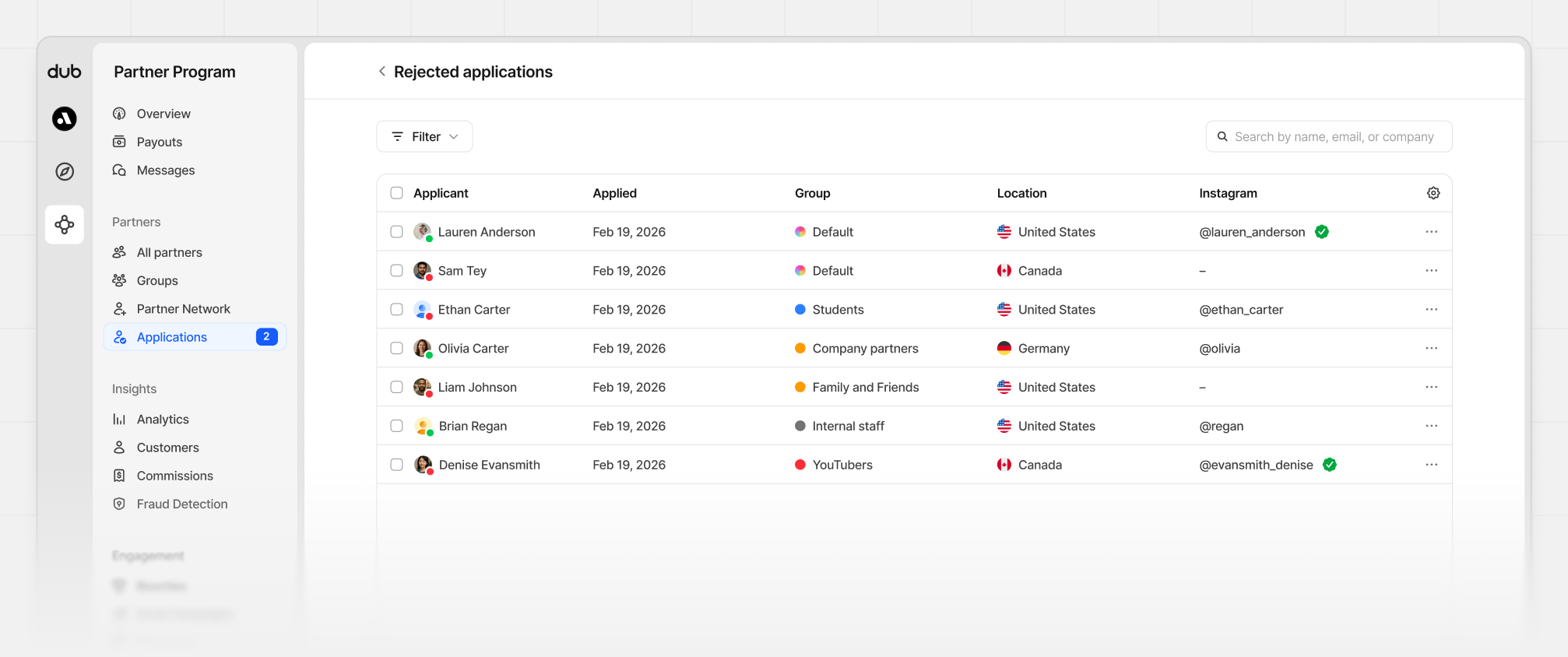
Once inside the application, click Approve. The partner will immediately be enrolled in your program.