

This feature is only available on Business plans and above.
In this guide, we will walk you through step-by-step how to set up your partner program on Dub Partners and start growing your affiliate revenue.
The flow at a glance#
Getting started
Set up your program name, logo, and referral link settings.
Configure rewards
Choose your primary reward type, structure, duration, and amount.
Invite partners
Help and support
Add support resources (support email, terms of service, help center) that partners see on their dashboard.
Overview
Migrating from another platform? Check out our migration guides or contact support.
Step 1: Getting started#
Goal: Set up your program name, logo, and referral link settings.
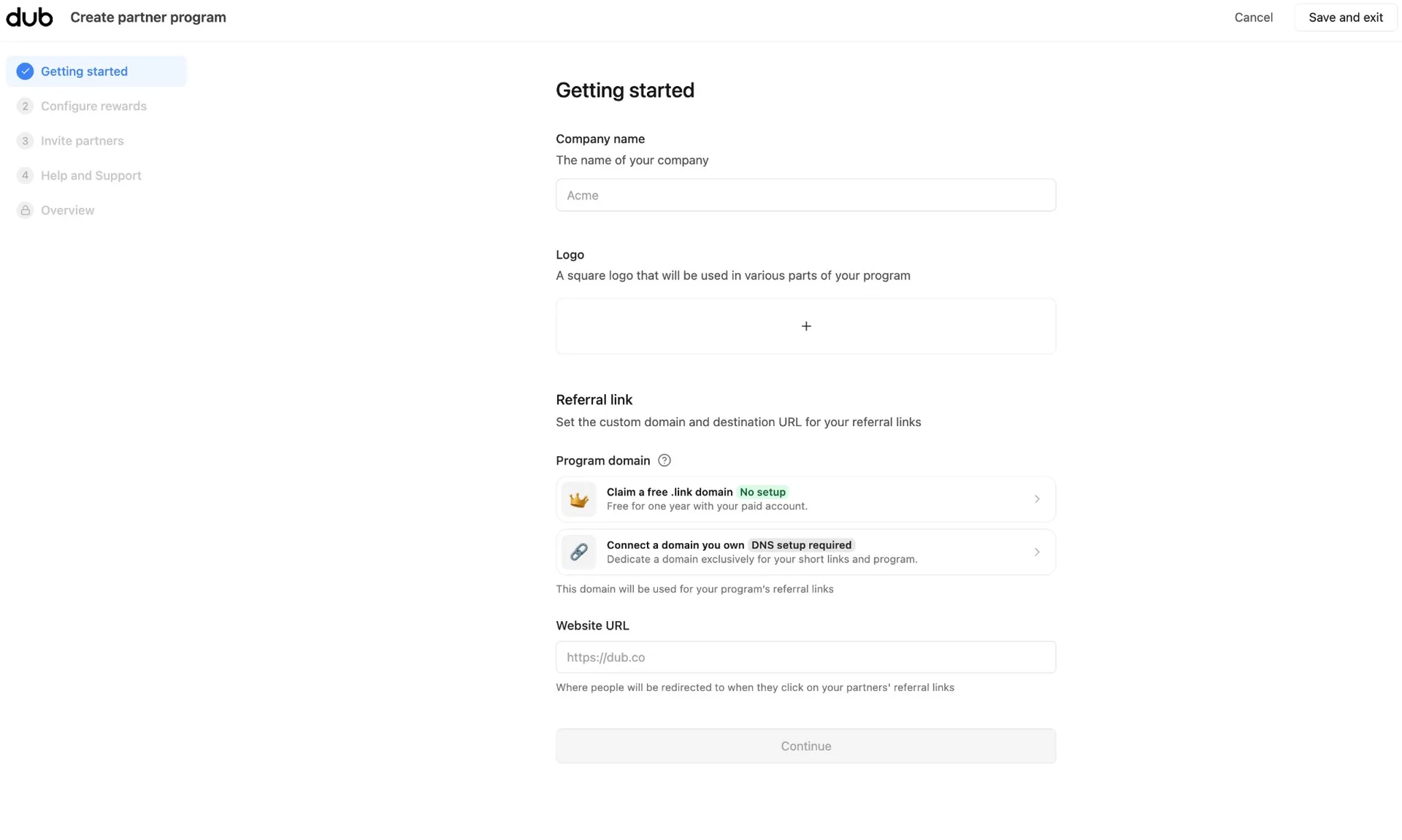
- Company name: The name of your company (e.g., "Acme").
- Logo: Upload a square logo. It appears on your program landing page and in partner materials.
- Referral link: Set the domain and destination for partner links:
- Program domain
- Claim a free .link domain: No setup. Free for one year with your paid account.
- Connect a domain you own DNS setup required. Use a domain dedicated to your program (e.g.,
refer.yourcompany.com).
- Website URL: Where visitors go when they click a partner's referral link (e.g.,
https://yourcompany.com).
- Program domain
Click Continue to go to the next step.
Step 2: Configure rewards#
Goal: Choose your primary reward type, structure, duration, and amount.
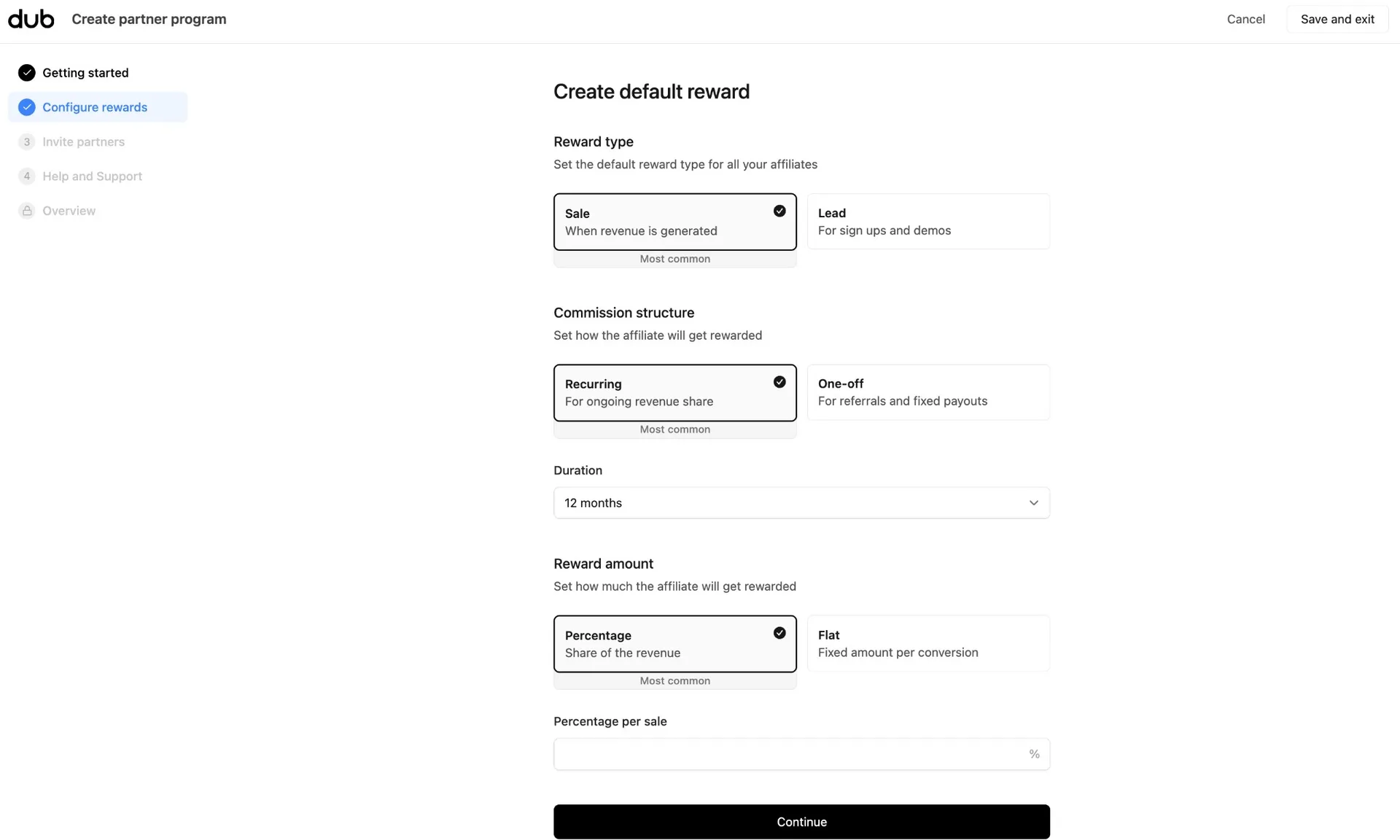
-
Reward type
- Sale: When customers subscribe to your product (most common for SaaS).
- Lead: For sign-ups and demos.
-
Commission structure (only for sale rewards)
- Recurring: Ongoing revenue share (e.g., 15% of each payment for 12 months)
- One-off: Fixed payout per conversion (e.g., $20 per sale)
-
Duration (only for recurring rewards): How long partners earn (e.g., 12 months)
-
Reward amount:
- Percentage: Share of revenue (e.g., 15% per sale)
- Flat: Fixed amount per conversion (e.g., $20 per lead)
Select your reward conditions and click Continue.
You can add more reward conditions and partner groups later in your program settings.
Step 3: Invite partners#
Goal: Invite your first partners to your program.
You can skip this step and invite partners later from the Partners tab.
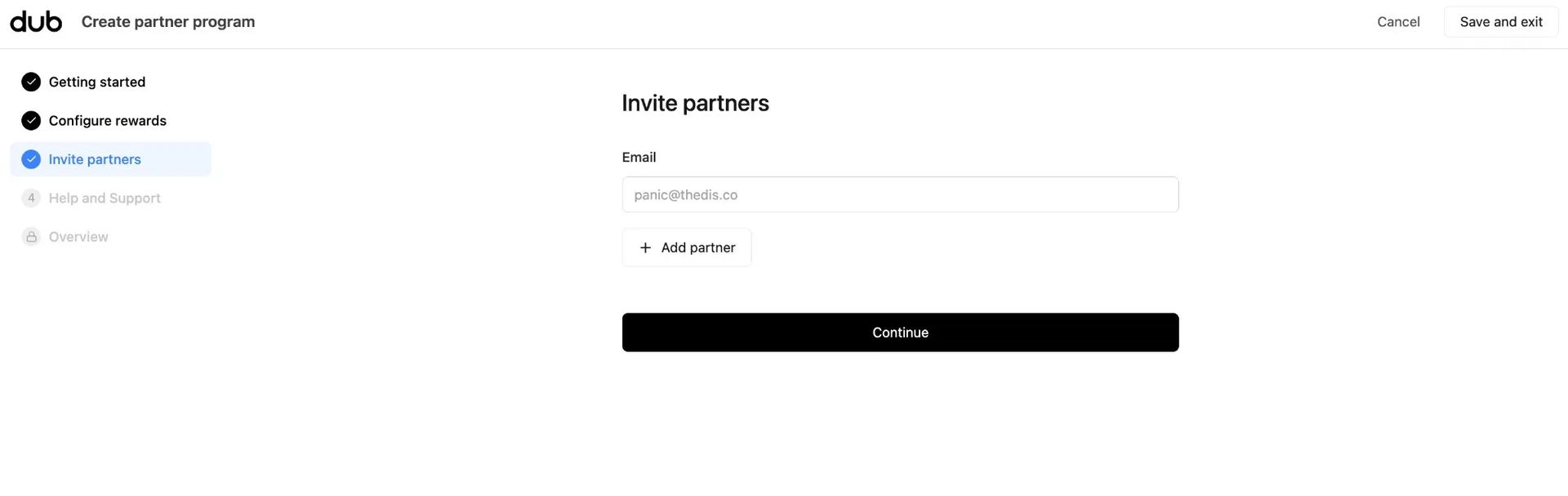
- Enter partner email addresses.
- Click + Add partner to add each one.
- Click Continue to proceed (you can also skip and invite later from the Partners tab).
Step 4: Help and Support#
Goal: Add support resources (support email, terms of service, help center) that partners see on their dashboard.
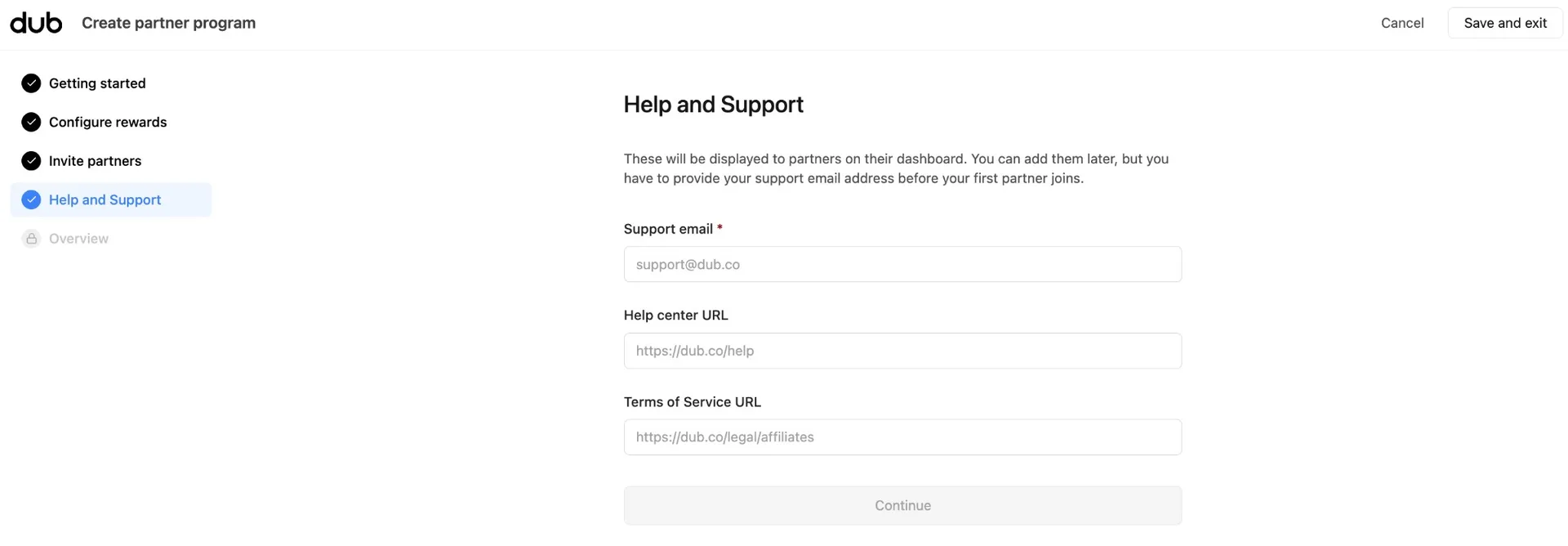
- Support email (required): Email partners can reach you for questions.
- Help center URL: Link to your help docs or FAQ (e.g.
https://yourcompany.com/help). - Terms of Service URL: Link to your affiliate/partner terms (e.g.
https://yourcompany.com/legal/affiliates).
These appear on the partner dashboard. You can add or update them later in your program resources tab.
Step 5: Overview#
Goal: Review your selection and create your program.
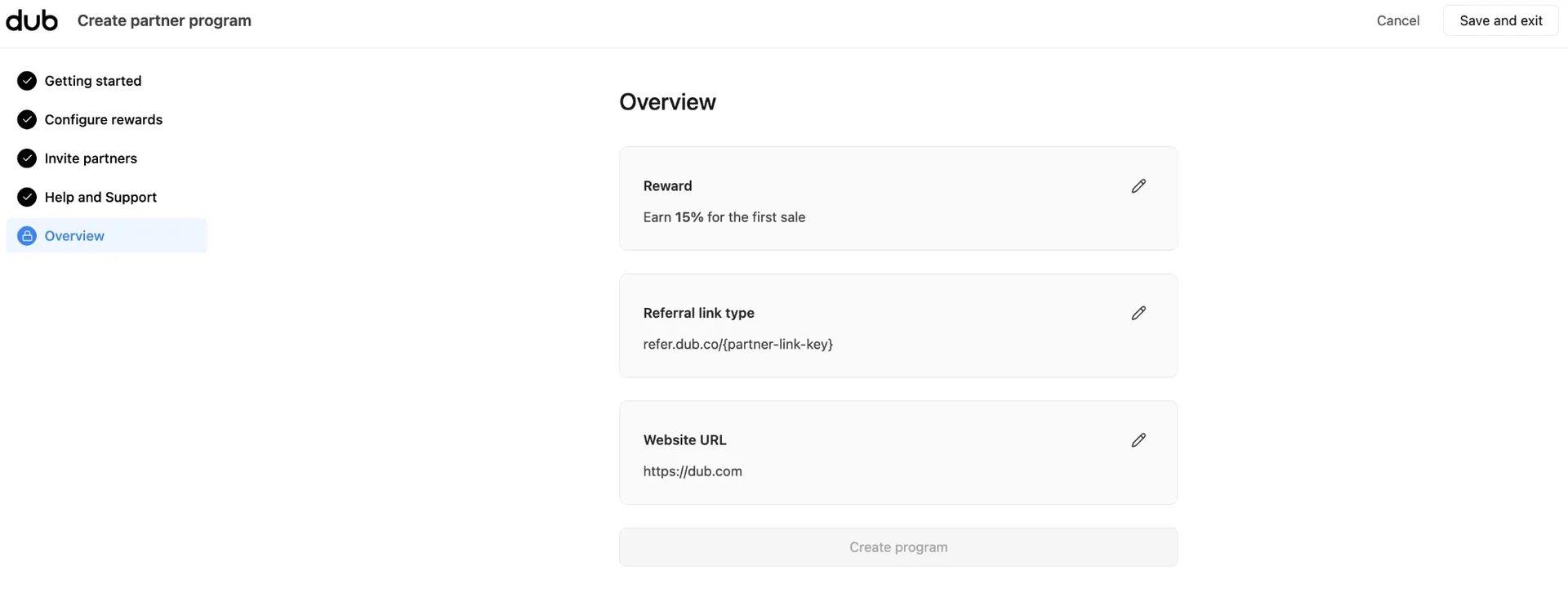
You'll see a summary of:
- Reward: e.g. "Earn 15% for the first sale"
- Referral link type: e.g.
refer.dub.co/{partner-link-key} - Website URL: Where partner links redirect
Use the pencil icon on each card to edit. When everything looks correct, click Create program.
What's next?#
Track conversions and attribute sign-ups and purchases
Set up a bank account for sending partner payouts
Segment partners by rewards, discounts, and performance
Add partners via dashboard, API, or application form
Create flexible reward structures for partners
Enroll partners directly from wihin your app