

On Dub, Partner teams let you share access to your Dub partner profile with the people you work with. This is useful for creators, agencies, or anyone who wants more than one person managing partner activity.
Where to manage your team#
To manage your partner team, select the Partner profile icon in the left sidebar, then navigate to the Members tab.
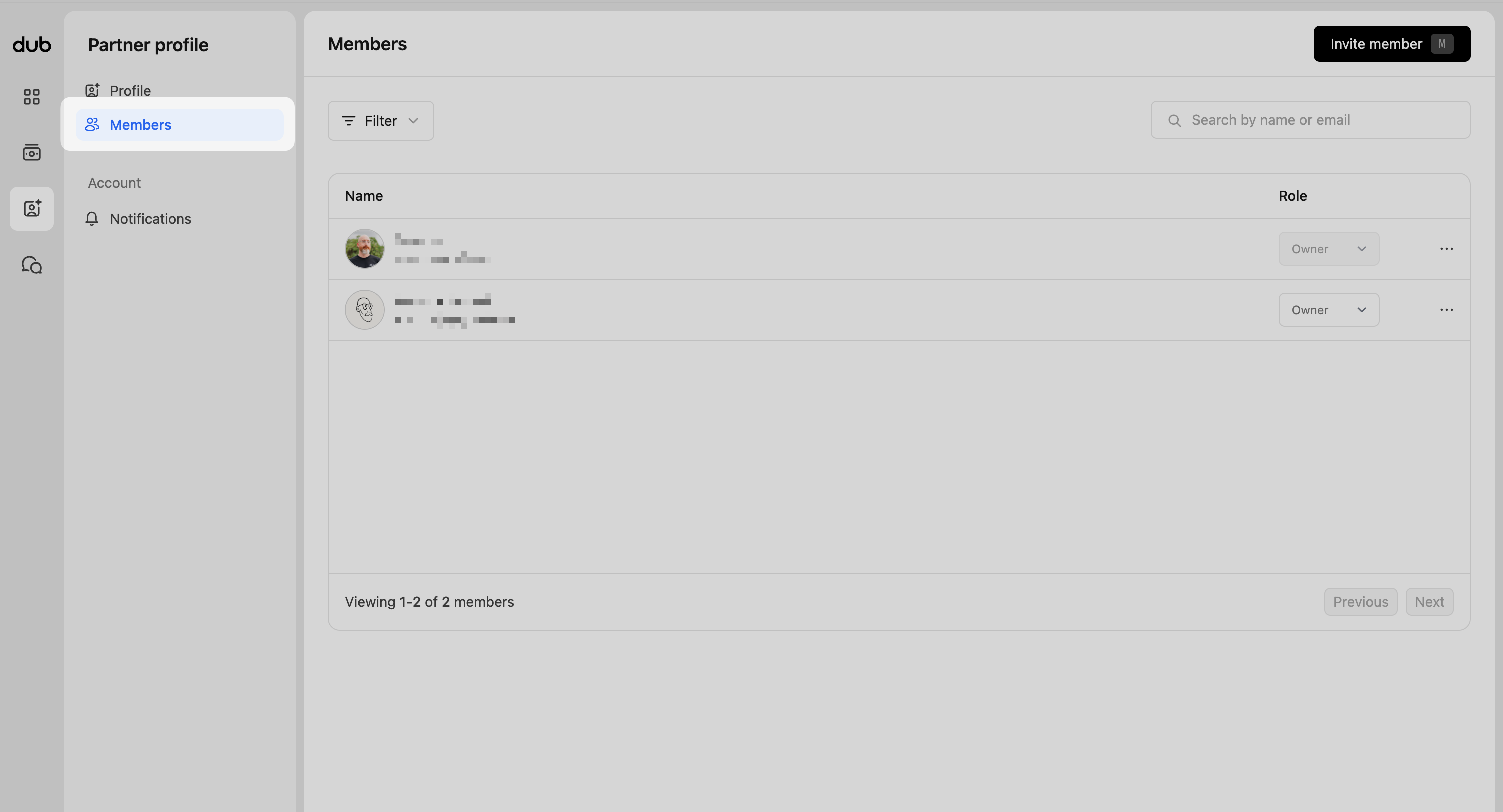
This view lists everyone with access, including their email and assigned role.
Roles and permissions#
Partner team members support two role types: owner and member.
Owner#
The Owner has full control of the partner account. This includes:
- Updating partner profile settings
- Managing team members (inviting and removing members)
- Managing payout details
Member#
Members have standard access. They can view and manage partner activity across all programs, but cannot manage team members or payout details.
Inviting a new member#
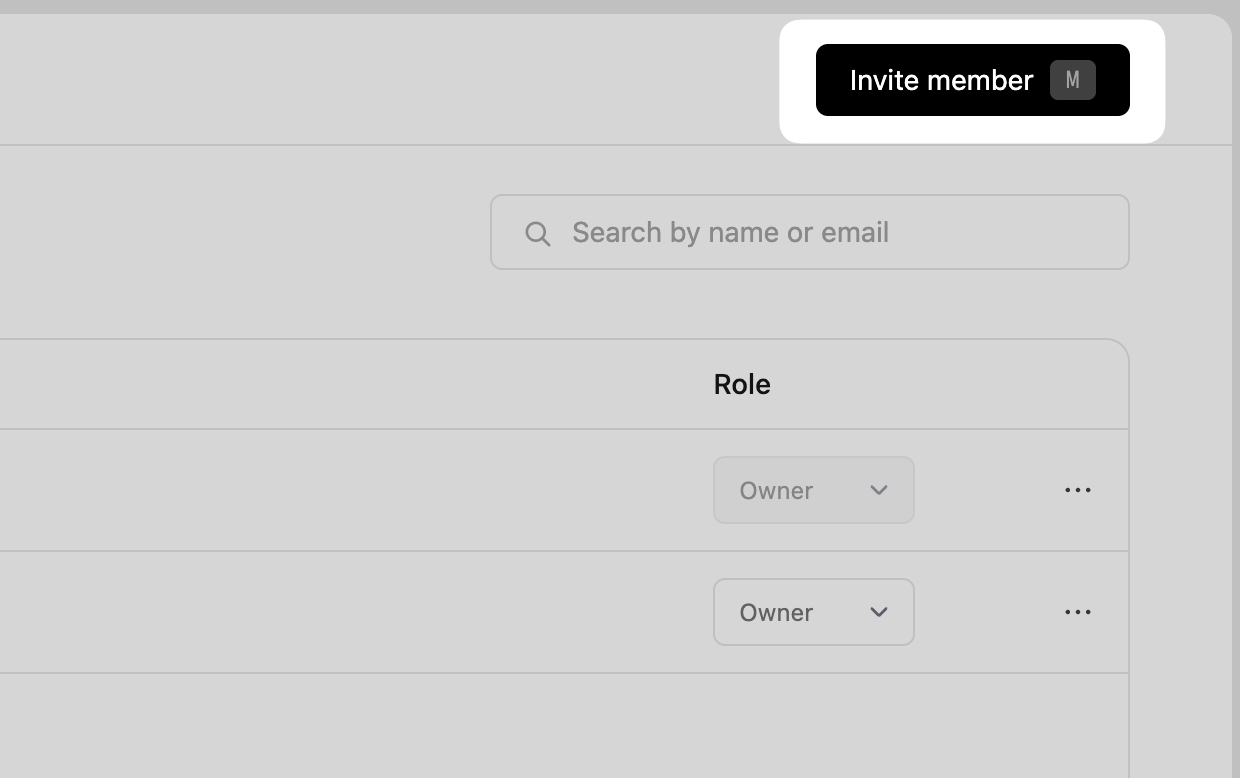
To invite a new member to your partner team, click the Invite member button in the top right.
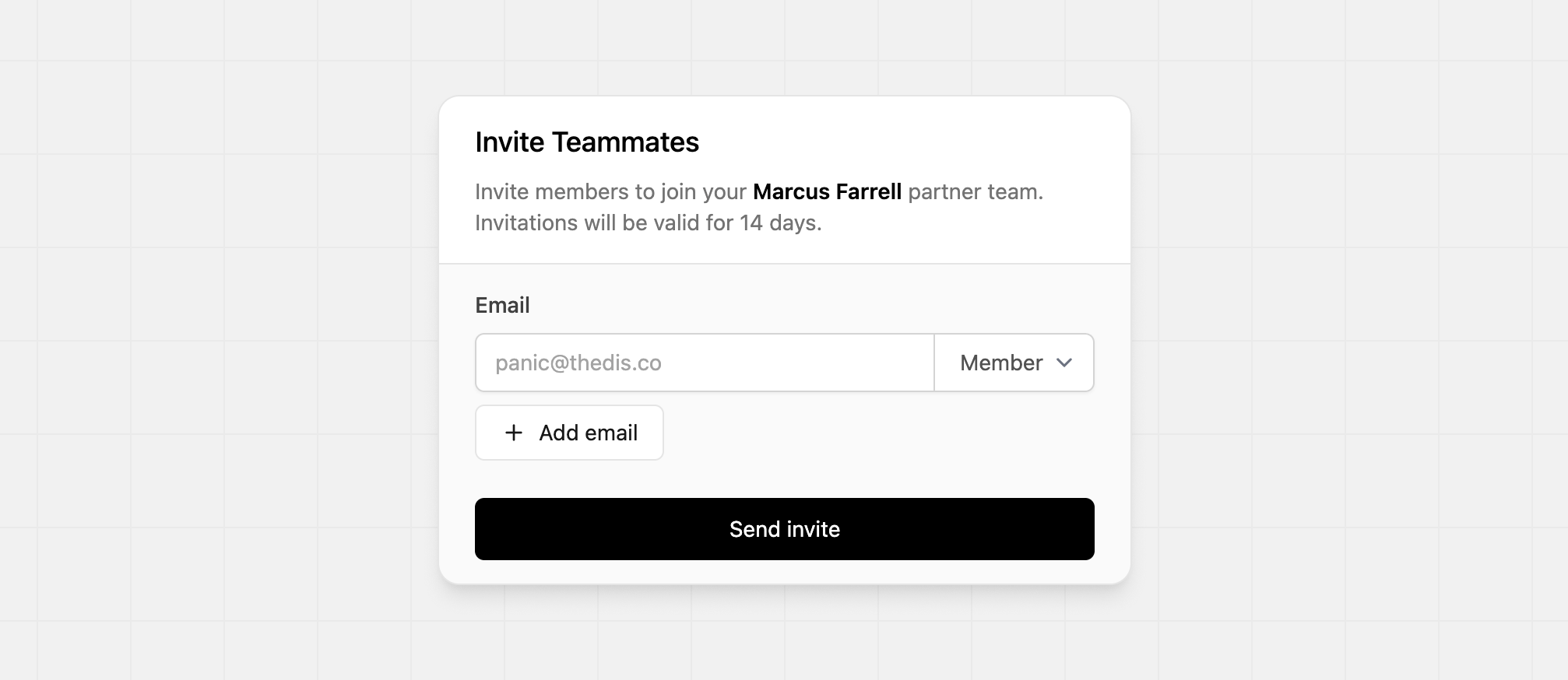
Enter the member's email address, and select their role. You can invite more than one member at a time, and they'll each receive their own invite email to accept membership.
Changing a role#
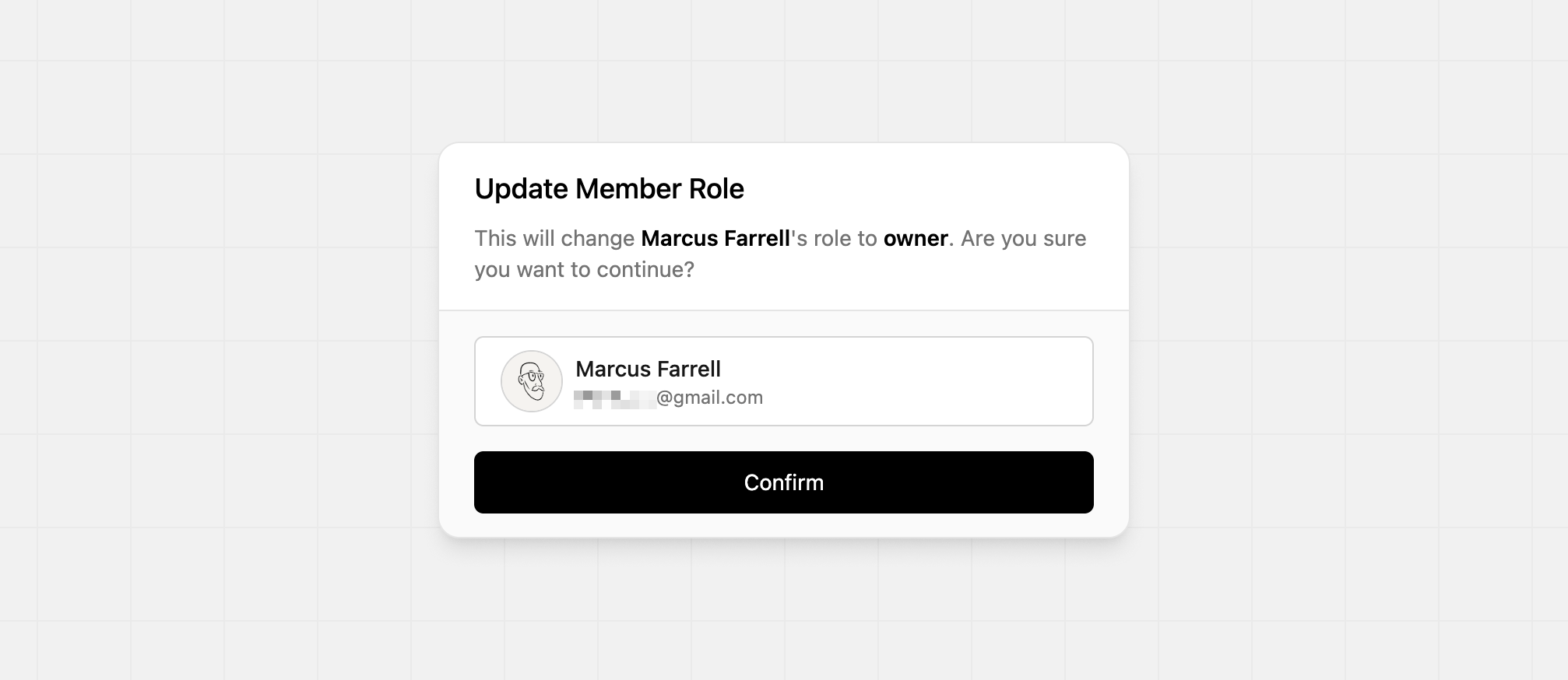
Only Owner-roled members in a partner team can change another member’s role. To change a member's role, click the role dropdown in the members table and select a new role.
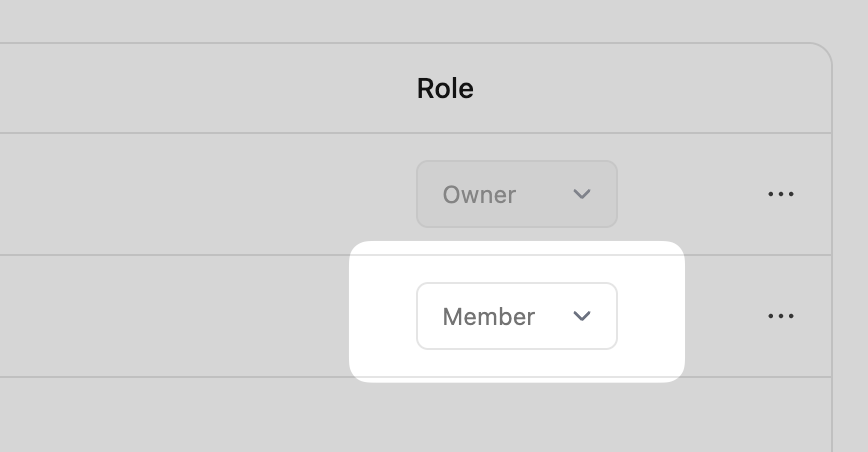
This will open the confirmation modal, where you can confirm the update:
Removing a member#
To remove a member from your team, click the ⋯ dropdown and select Remove member.
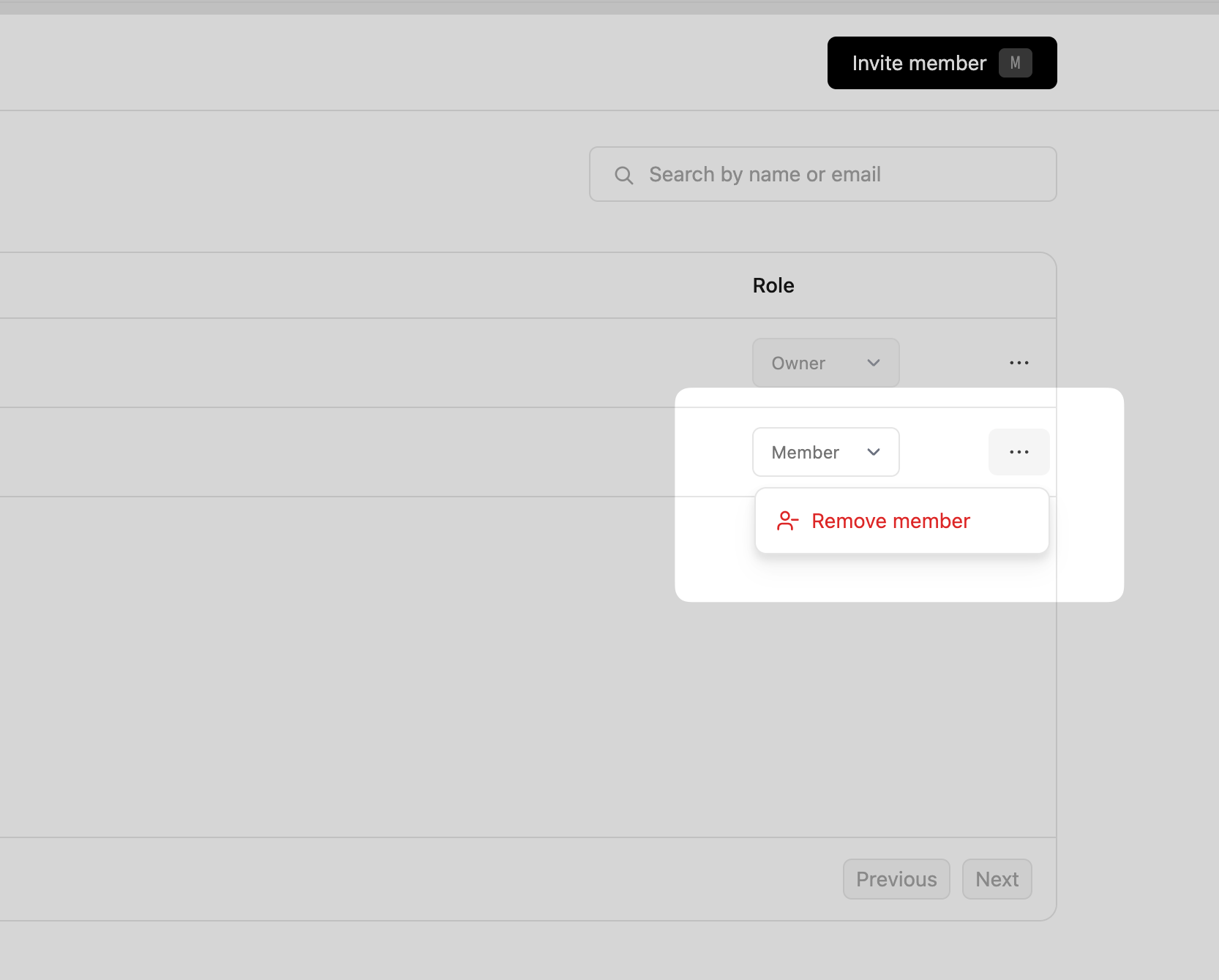
This deletes the team member, and the person can no longer sign in to your partner profile.