

How to view your joined programs#
From the All programs navigation, click Programs to view all the partner programs you've joined. If you haven't joined any programs, you'll see an empty state here.
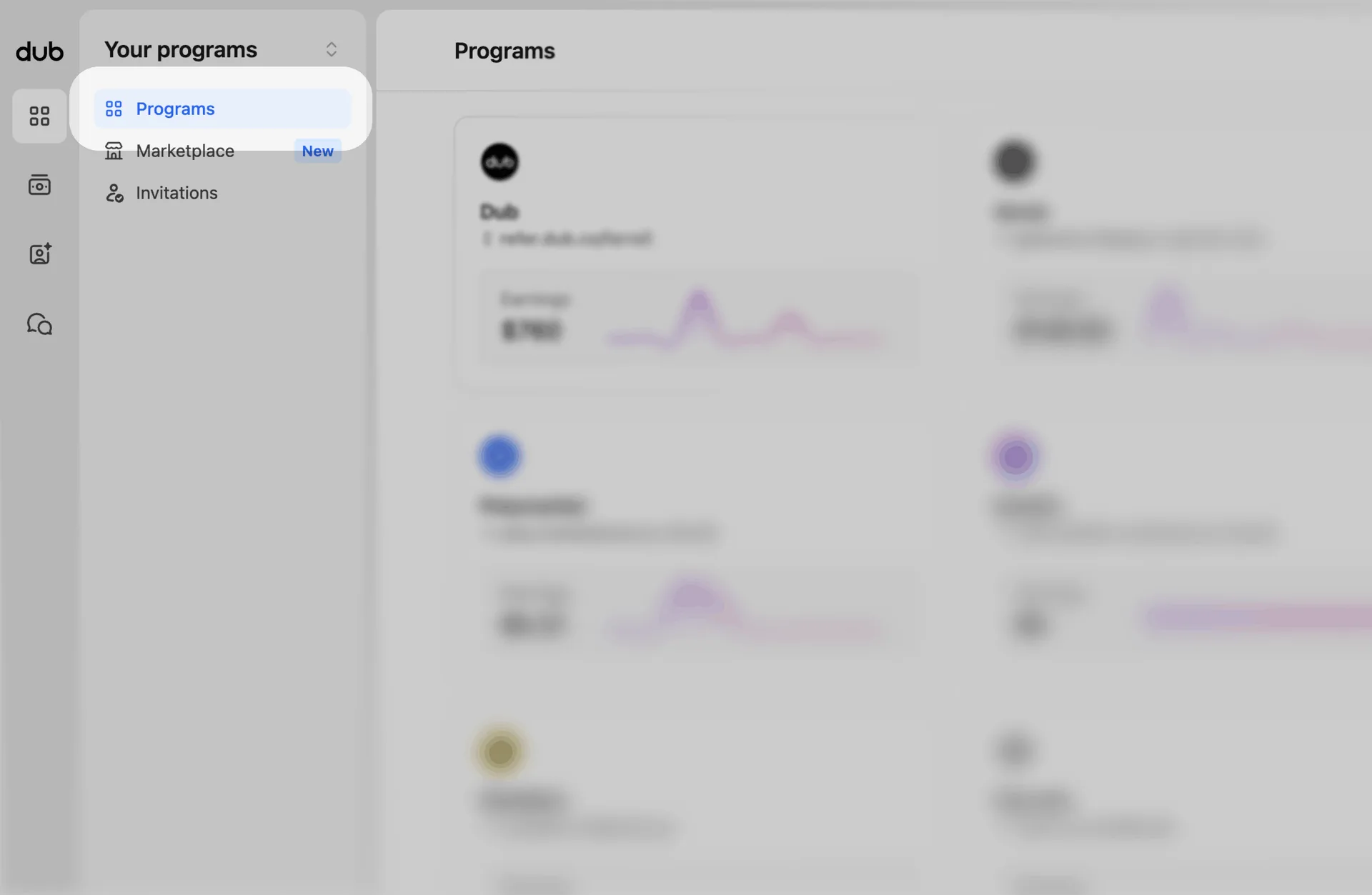
There are two ways to view all the pages related to a specific program:
Program grid
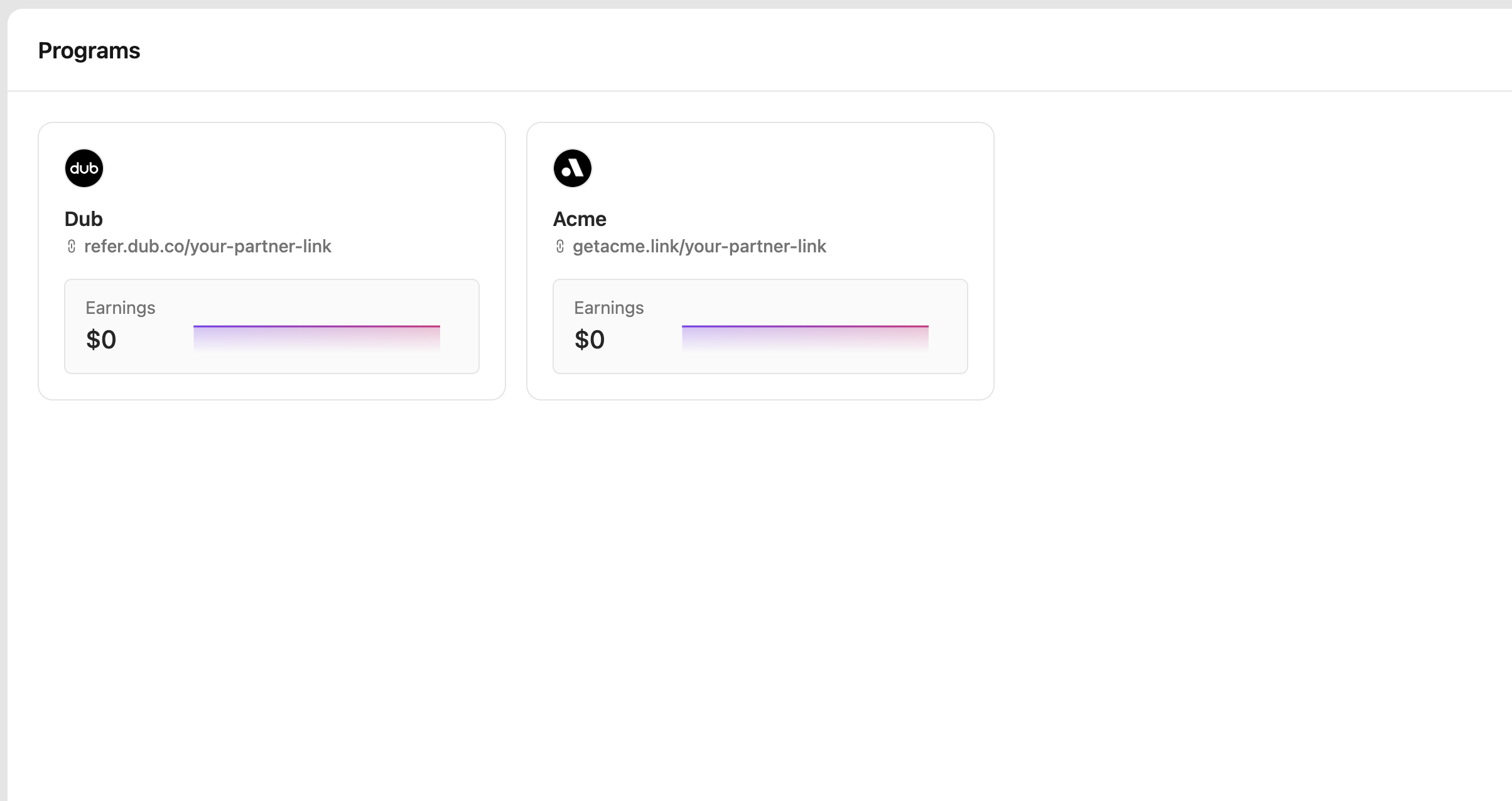
On the Programs page, we show you a grid of all the programs you've joined. We also show you your default referral link and your total earnings. Click on the card to view that program page.
All programs dropdown
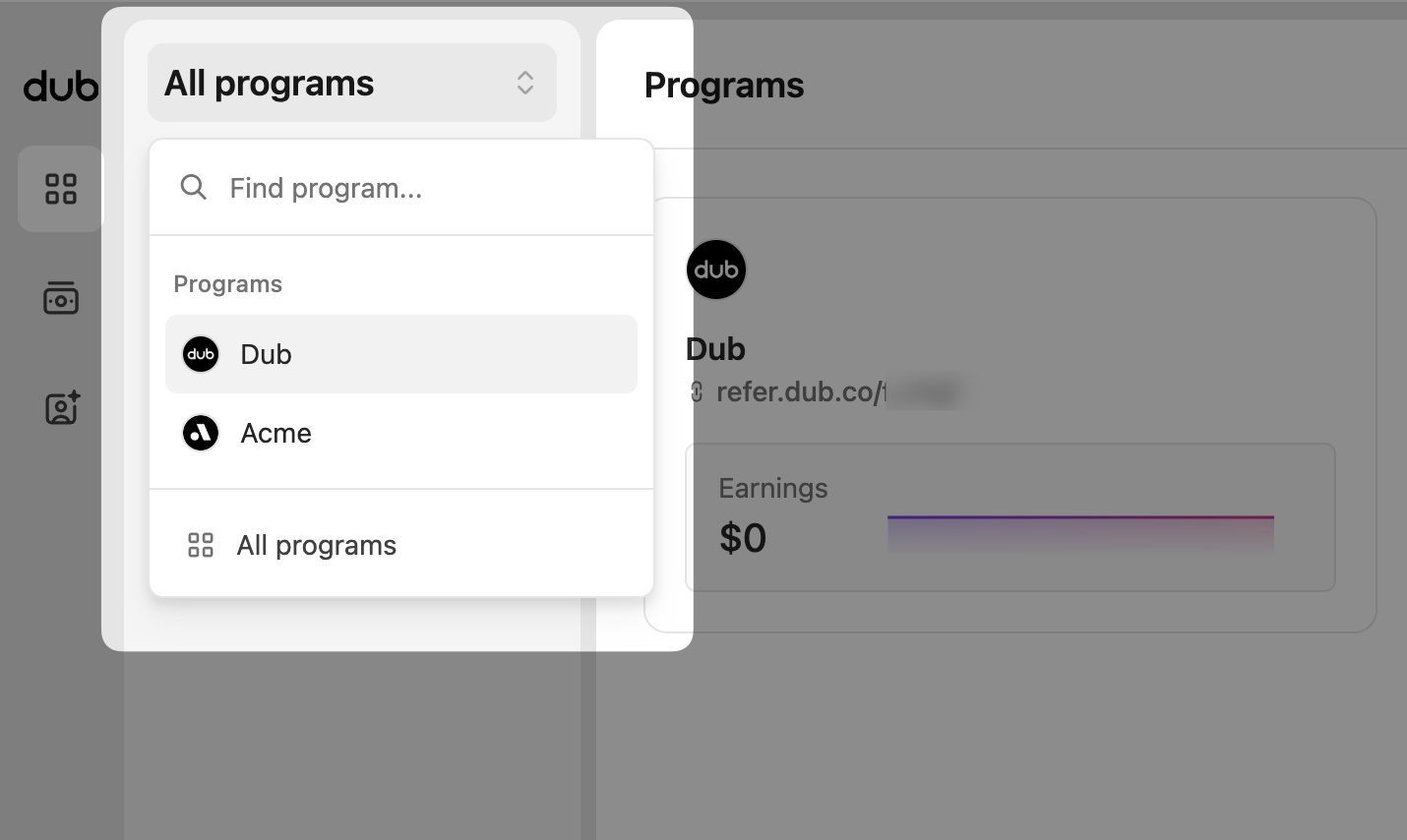
The other way you can navigate to your programs is to click All programs at the top of the sidebar, and that will open a dropdown. From here, you can search and click on any of the programs listed. You can also click on All programs in this dropdown, and that will take you back to the grid view anytime.
Program pages#
Overview#
This is your main program overview page, is the first page you'll want to check to see how your programs are performing.
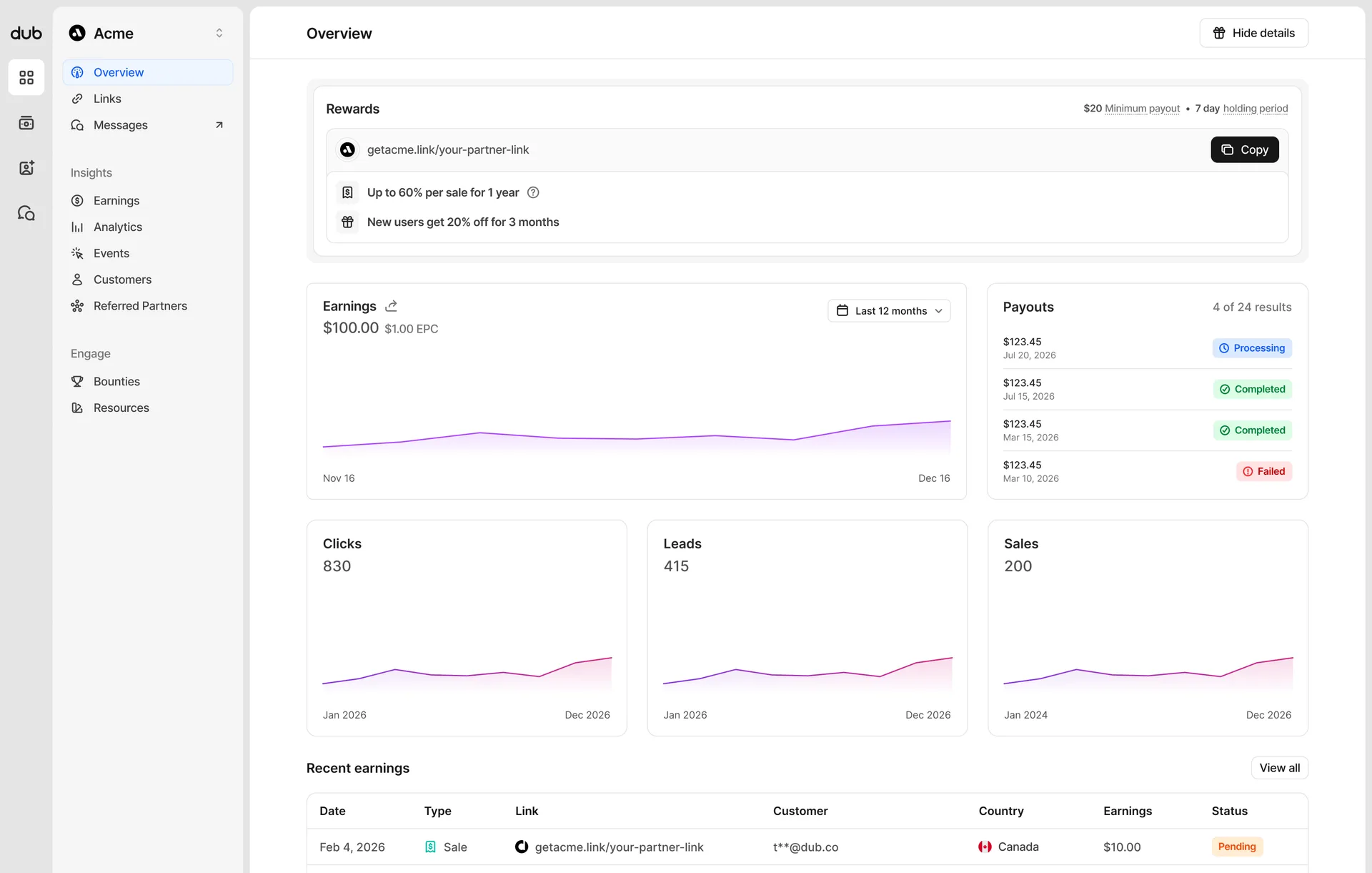
The page has the following sections:
- Program summary - find your default referral link and the rewards and discounts you are eligible for on this program. If you want to hide this section, click the Hide details button in the top right, and it won't show until you click the button again.
- Program earnings and payouts - see how much you've earned over time, and your most recent payouts. The earnings section also allows you to change the date range to view results from further in the past.
- Link analytics - View your clicks, leads and sales for this program, keep track of all their activity.
- Recent earnings - A detailed breakdown of your most recent earnings and their payout status.
Links#
You'll find all your program referral links on this page, including the clicks, leads, and sales for each.
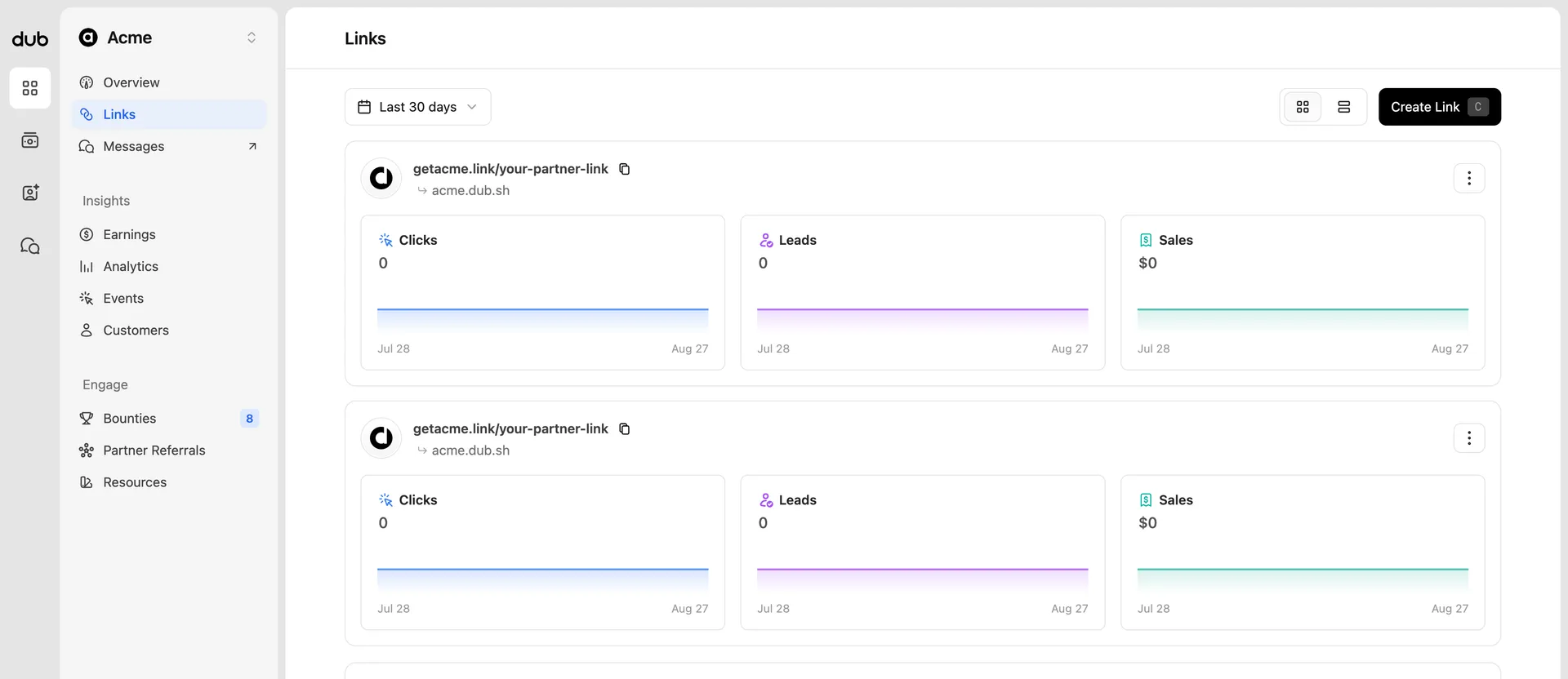
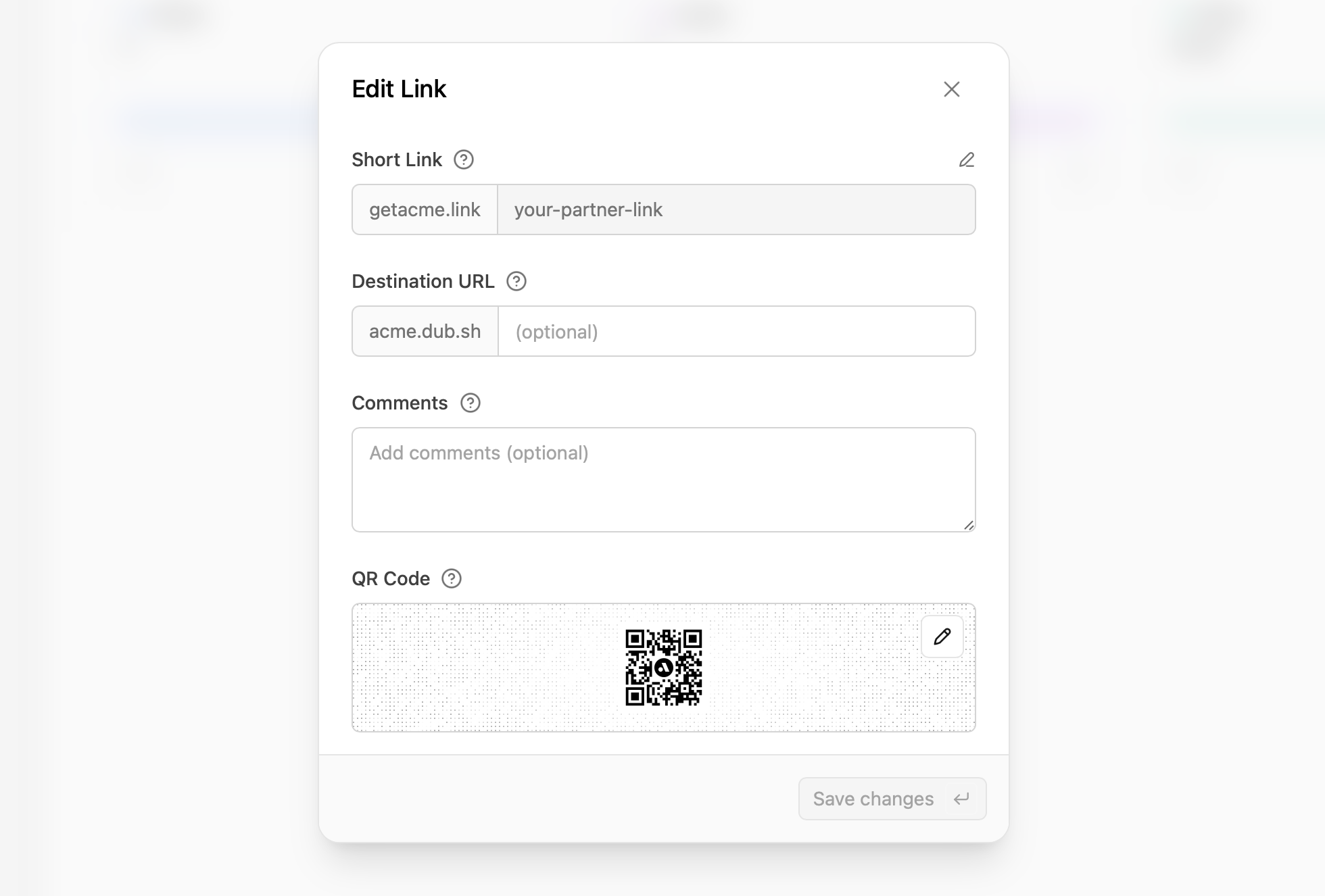
Clicking on the link card opens a dialog window that will allow you to edit the short link, destination URL, QR code, and add comments. If you change an existing short link, be sure to update it wherever it's being shared; otherwise, the previous short link will stop tracking, and you won't be able to earn any new rewards for that link.
From this page, you're also able to create new short links by clicking Create link in the top right of this page.
Earnings#
View your earnings performance over time and the details associated with each item.
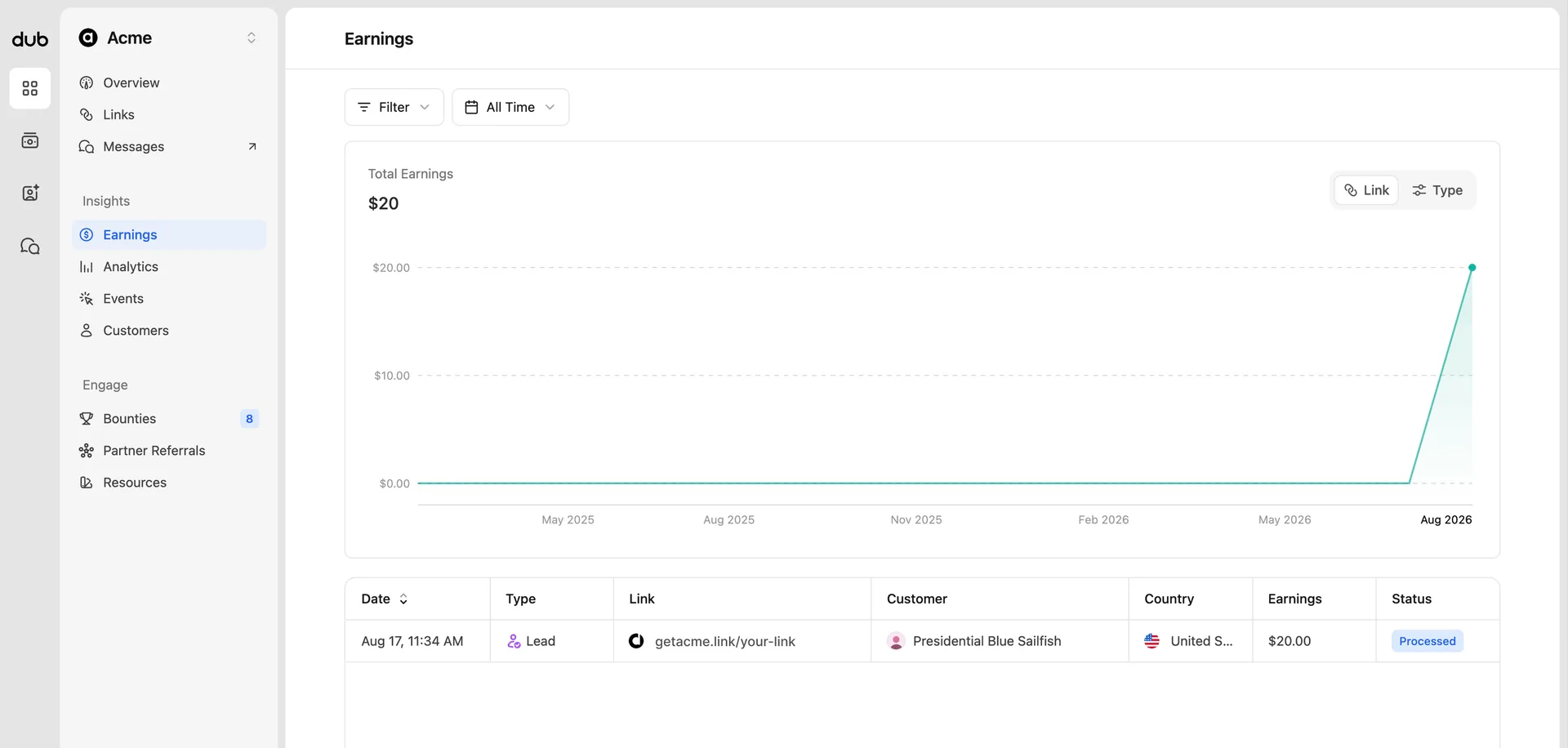
In the top section, you can change the view type by Link or Type, to be able to see which links are performing better, or which reward type has earned more (pending the program offers rewards for clicks, leads, and sales).
Analytics#
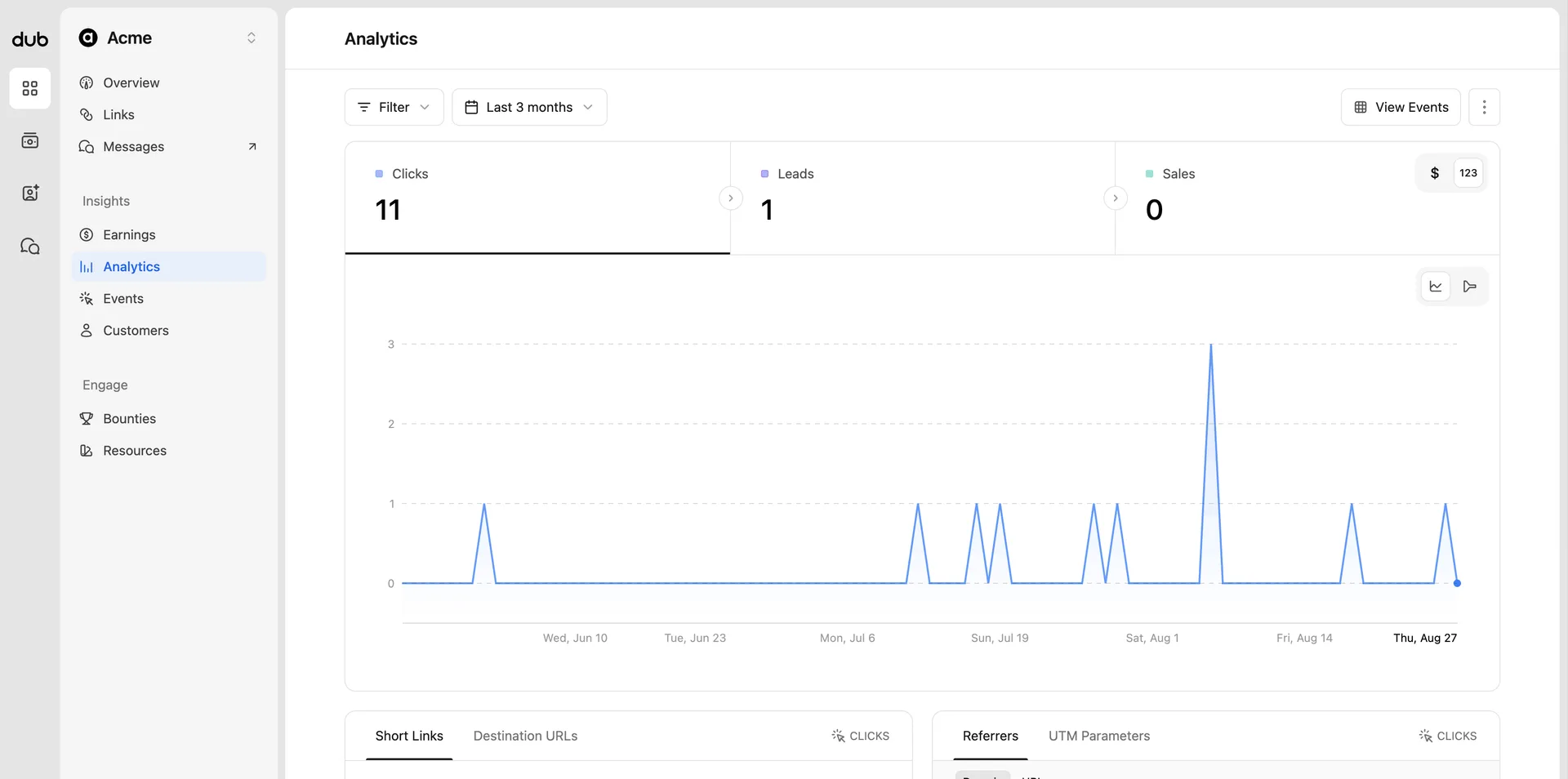
View your program performance analytics, and filter and organize by clicks, leads, and sales.
Data toggle#
You can change the data displayed by clicking the 123 | $ toggle in the top right of the data type section.
By default $ is selected, as it is related directly to your reward earnings. Switching to 123 will change any monetary values to their specific reward count. If the program you're on has other monetary rewards (clicks, leads, sales), their dollar amount will show as well.

Chart toggle#
You can change the chart type displayed by clicking the time-chart | conversion funnel toggle in the top right of the chart area.

When the chart type is switched to conversion funnel, you can view the percentage of customers that complete each stage of the sales conversion. In this example, 0.58% of clicks have resulted in a referral making a purchase.

Aggregated data for different facets (top views)#
These are more commonly known as the "Top Views" in Dub Analytics. These views show your top links, countries, cities, devices, and more.

Each section has their own tabs to select different data for you to explore your program data further. These are grouped by the following categories:
- Links - Short Links and Destination URLs
- Referrals - Referrers and UTM Parameters
- Location - Countries, Cities, Regions, and Continents
- Tech - Devices, Browser, OS, and Triggers
Events#
View your program events, and filter and organize by clicks, leads, and sales. Dub's real-time events stream is a detailed, real-time stream of events across each program you've joined.
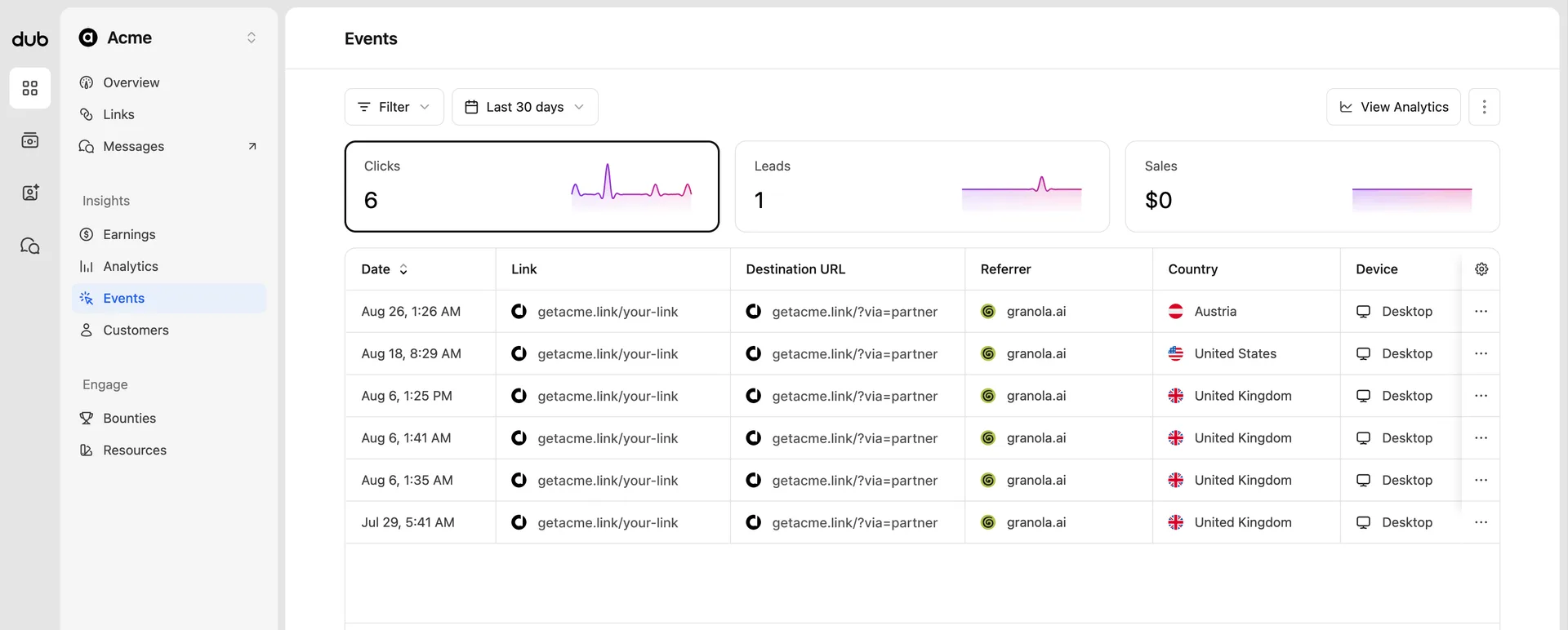
You can filter this data, select a different date range, and change the data shown by clicking on Clicks, Leads, and Sales in the top section.
Customers#
View all the customers you've referred to the program, and track their journey from first click to paid subscription.
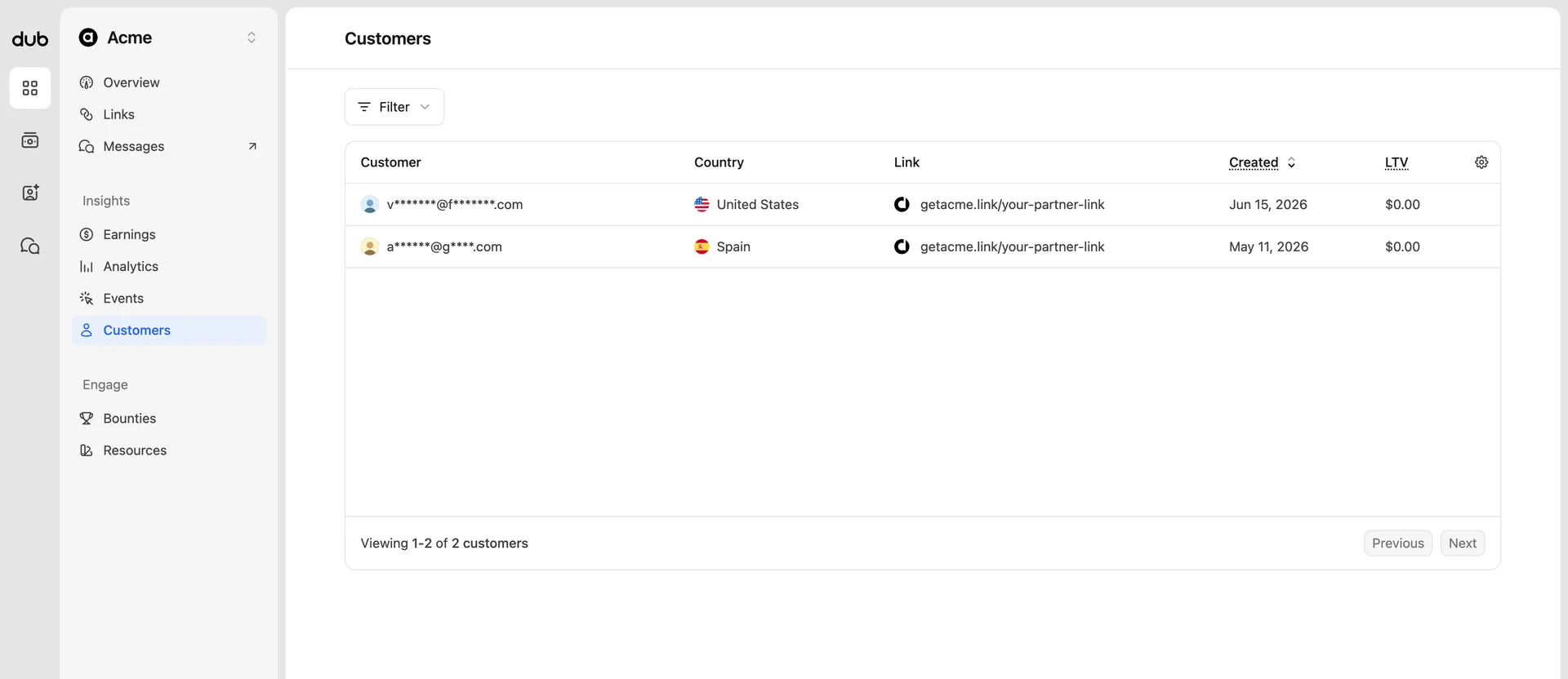
The table shows each customer's country, the referral link they converted through, the date they were created, their lifetime value (LTV), and the dates of their first sale and subscription cancellation (if any). You can filter the list by country or link, and sort by the date and LTV columns to find your most valuable referrals.
To protect customer privacy, customer emails are partially masked (e.g.
a*****@g****.com) by default. If the program has enabled customer data
sharing, you'll see full customer emails and names, and be able to search for
specific customers as well.
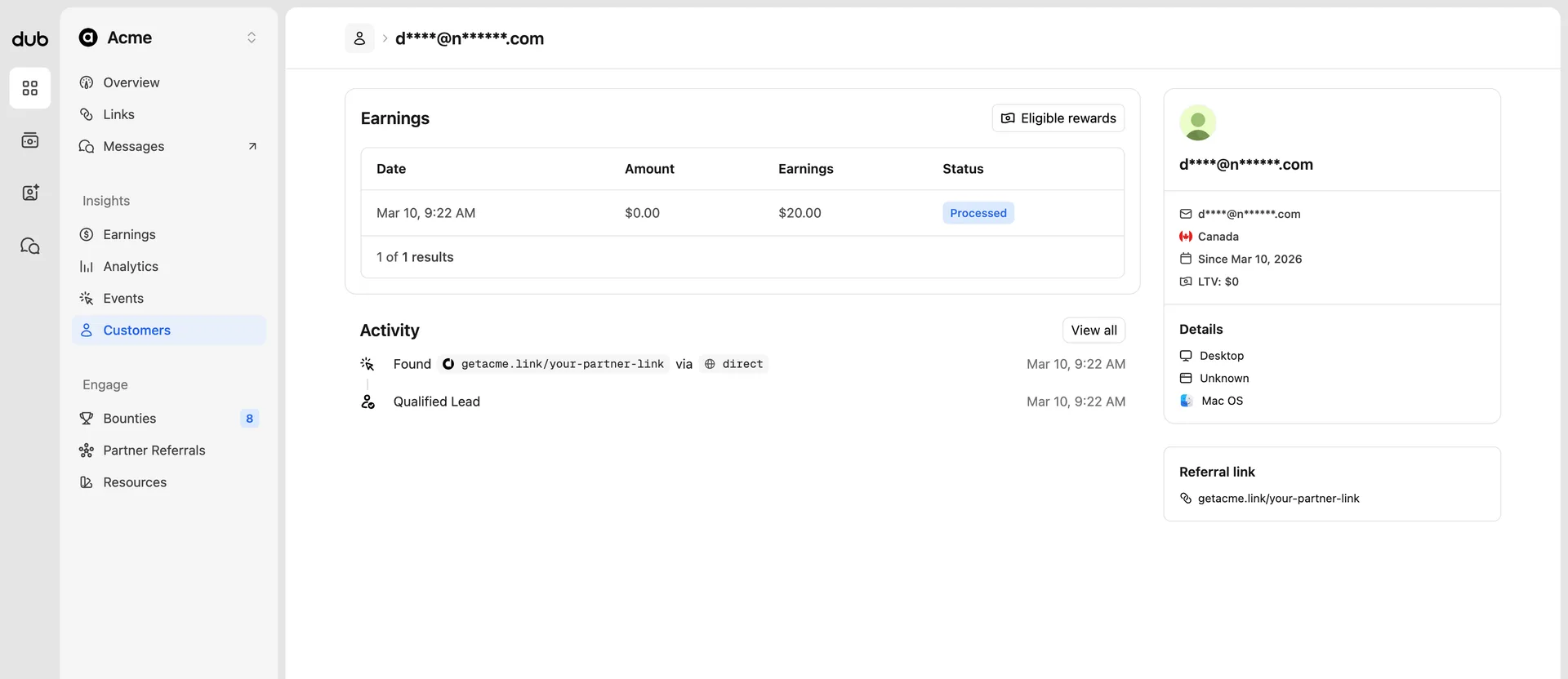
Clicking on a customer row opens their details page, which includes:
- Earnings - every sale recorded for that customer, along with your earnings and their payout status. A warning will show here if the customer's earning period has ended (for programs with a limited reward duration).
- Activity - a real-time timeline of the customer's journey, from their first click (including the referrer they came from), to lead and sale events.
- Customer details - their country, creation date, lifetime value, device details, and the referral link that brought them to the program.
Bounties#
Bounties are opportunities to earn additional rewards from a program – like a cash bonus for reaching a sales milestone or creating content about their product. If a program has active bounties available, you'll see a count badge next to Bounties in the program navigation.
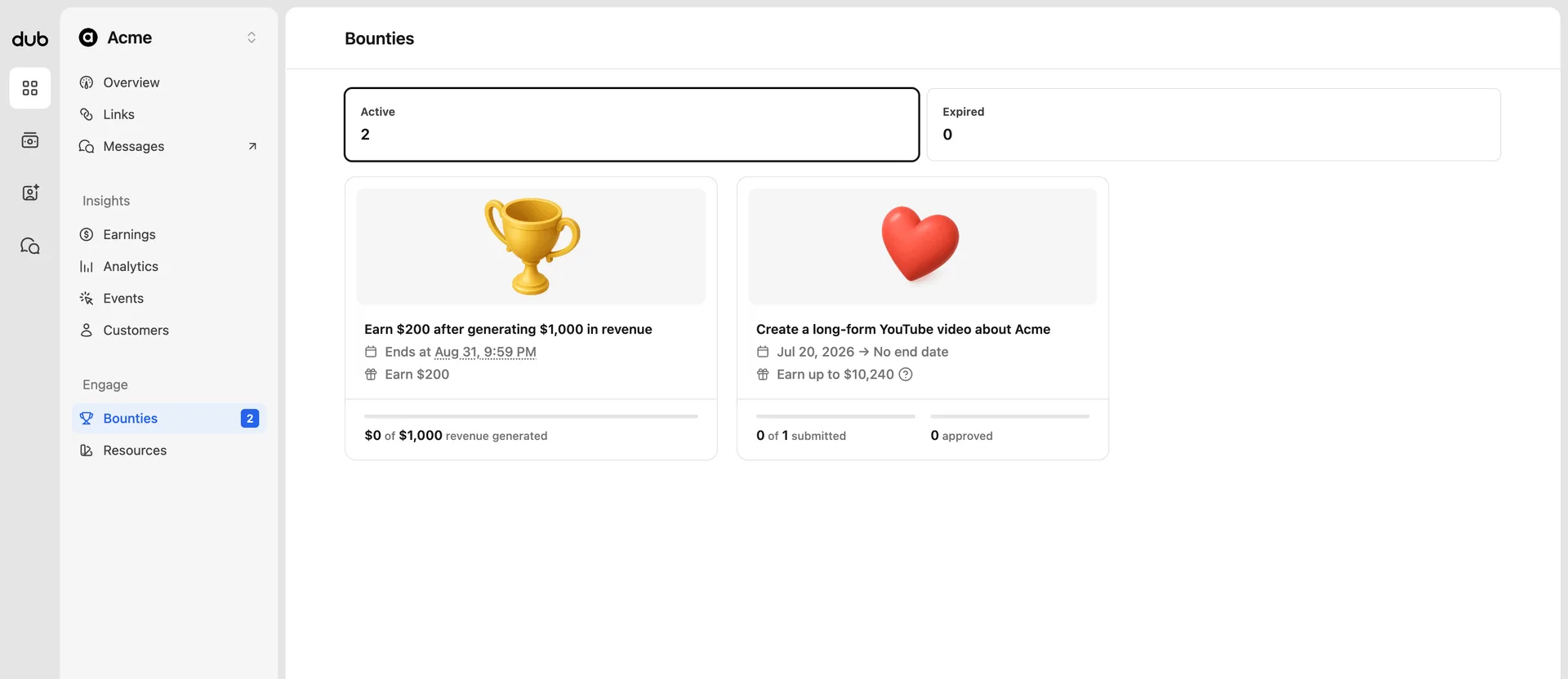
The page is split into Active and Expired tabs. Each bounty card shows the reward you can earn, the bounty's end date (if it has one), and your current progress toward completing it.
There are two types of bounties you'll come across:
- Performance bounties - reward you for reaching a measurable milestone, like a number of leads, conversions, revenue, or commissions generated. Your progress is tracked automatically, and the reward is earned as soon as you hit the target – no submission needed.
- Submission bounties - reward you for completing an activity that requires review, like publishing a video, writing a blog post, or sharing a social post. You'll submit proof of completion, which the program will review before approving the reward.
Clicking on a bounty card opens the bounty details page, where you can view your progress, the submission requirements, the reward criteria, and any additional details the program has provided.
Submitting a bounty#
For submission bounties, click Submit on the bounty details page to open the submission form. Depending on the bounty's requirements, you'll be asked to provide images, URLs, or a link to a social post as proof of completion, along with any additional details you want to share.
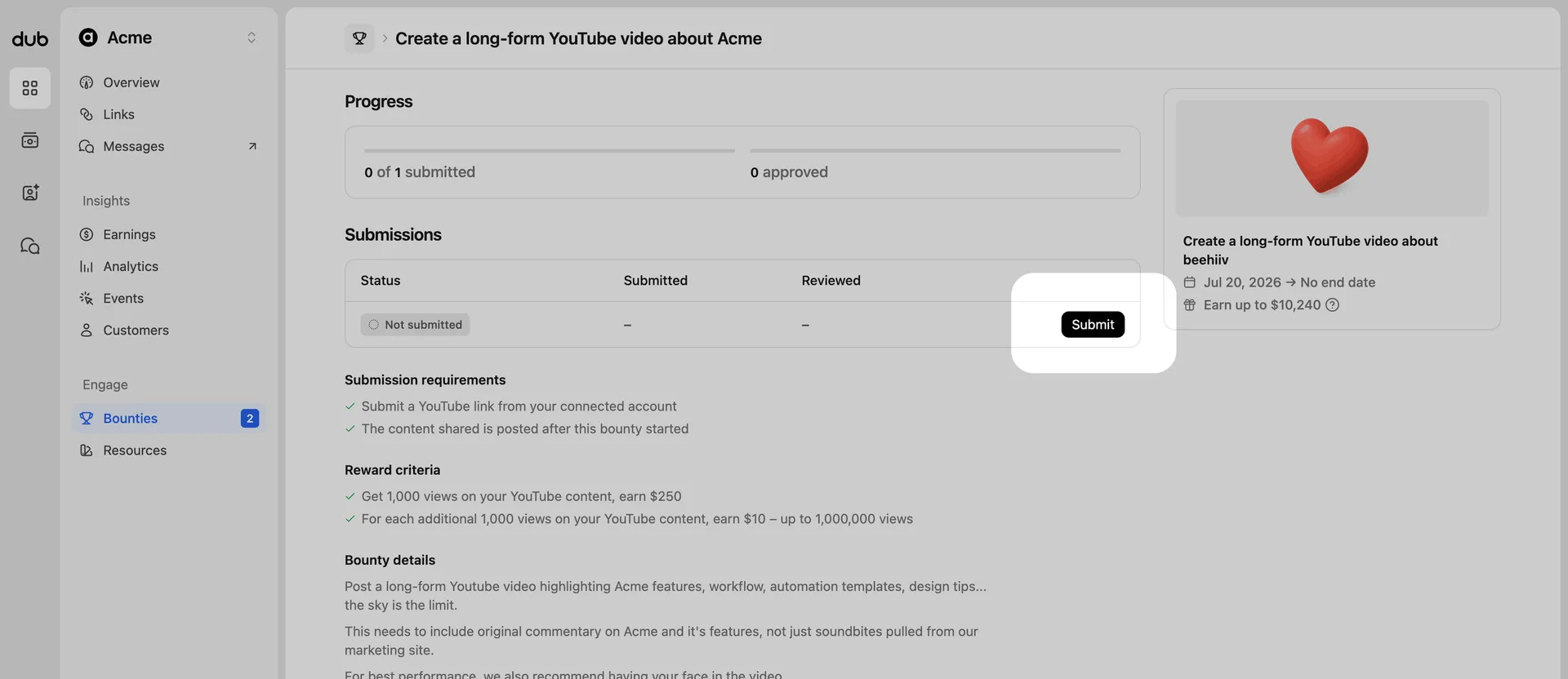
You can click Save progress at any time to save your submission as a draft and finish it later. When you're ready, click Submit – once submitted, you won't be able to make any further changes.
Each submission moves through the following statuses:
- In progress - you've saved a draft, but haven't submitted it yet.
- Pending review - your submission is waiting to be reviewed by the program.
- Approved - your submission was approved, and a commission has been created for the reward. You can track it on your Earnings page.
- Rejected - your submission was rejected. You can view the rejection reason and any notes from the program in the submission details.
Some bounties reward you based on the performance of a social post (e.g. views or likes). These require a link posted from a verified social account on your partner profile, and the post must be created after the bounty has started.
Partner Referrals#
Some programs reward you for referring other partners to join their program. If a program offers a partner referral reward, you'll see a Partner Referrals page in the program navigation.
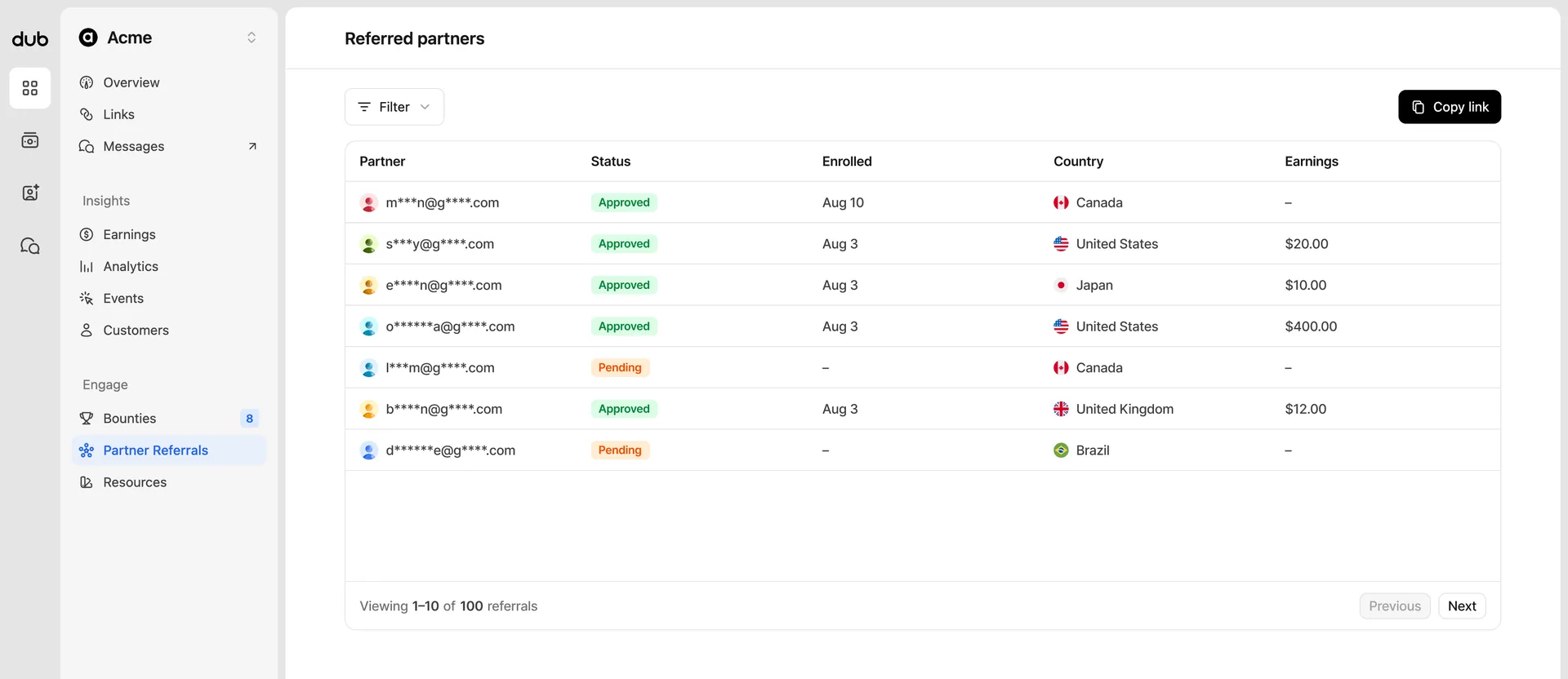
Click Copy link in the top right to copy your partner referral link. When another partner applies to the program through your link, they'll be attributed to you and appear in the table below, where you can track:
- Partner - the referred partner's email address. Like the Customers page, emails are partially masked unless the program has enabled data sharing.
- Status - their current enrollment status in the program (e.g. pending or approved).
- Enrolled - the date they applied to the program.
- Country - the country they're based in.
- Earnings - the total referral commissions you've earned from that partner.
You can filter the table by country or status to keep track of your referred partners as they move through the program's approval process.
Depending on the program's reward conditions, you'll earn a referral commission when your referred partner is approved to the program, or once they earn a certain amount in commissions. Learn more about how partner referrals work.
Resources#
Quite often, programs will provide additional assets and resources to help their partners when sharing their referral links.
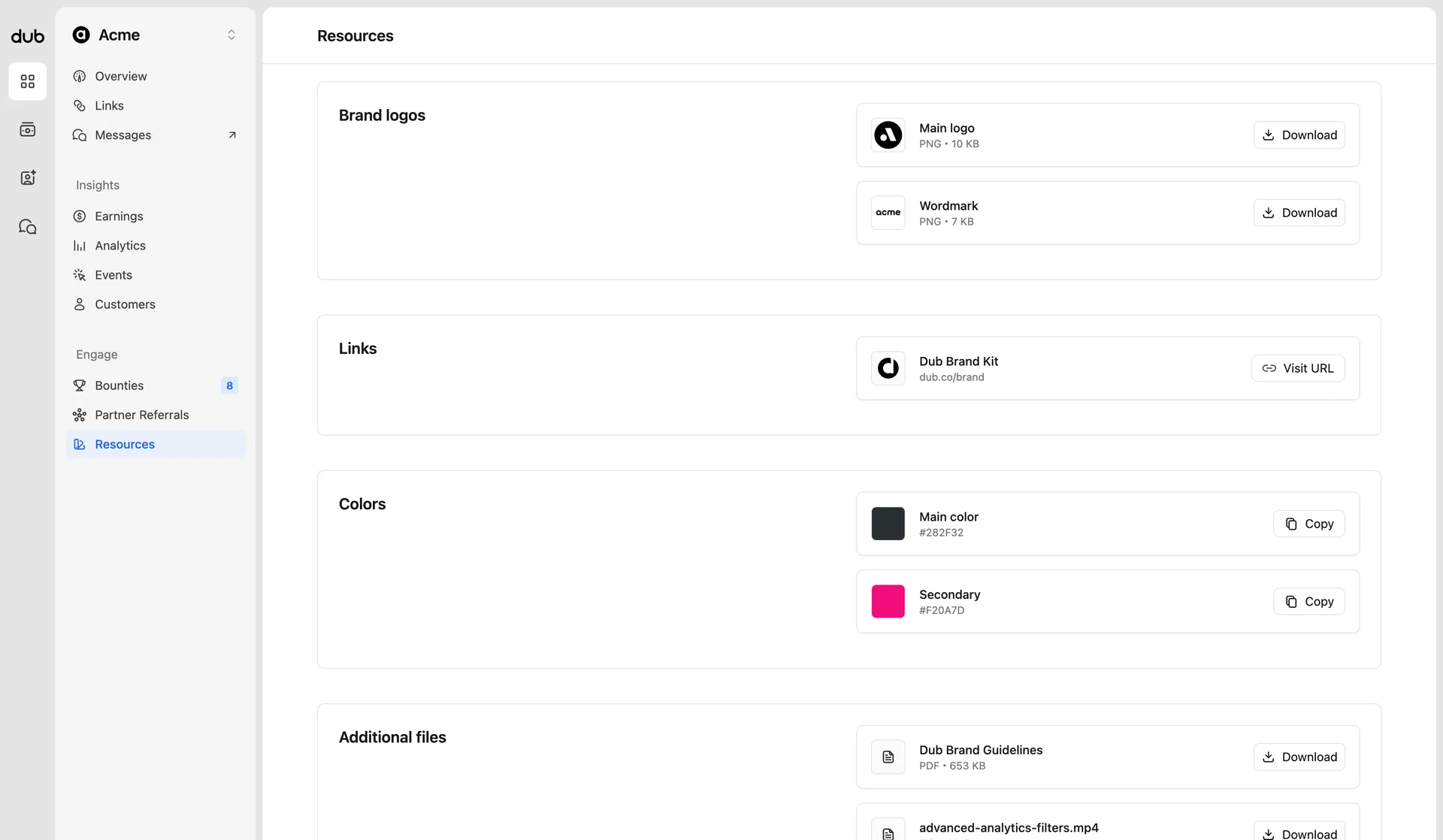
The resources are split into four sections:
- Brand logos - These are the official logo and brand files from the program, available to download.
- Links - Helpful links shared by the program, like landing pages, media kits, or contact emails.
- Colors - Make sure you're using the correct hex values in your campaigns or other marketing assets. Click Copy to copy the hex value to your clipboard.
- Additional files - This is for anything else that may fall outside of the brand logos and colors. It could be additional marketing images, documents to read, or campaign examples. If anything is missing that you'll need to be successful, make sure to contact the program's support at the bottom of the program navigation.
Each section only appears if the program has added resources of that type.
Program help and support#
Every program provides email support for its partners and the questions you have that are specific to the program. Optionally, a program may also provide a link to the help documentation and up-to-date terms of service.
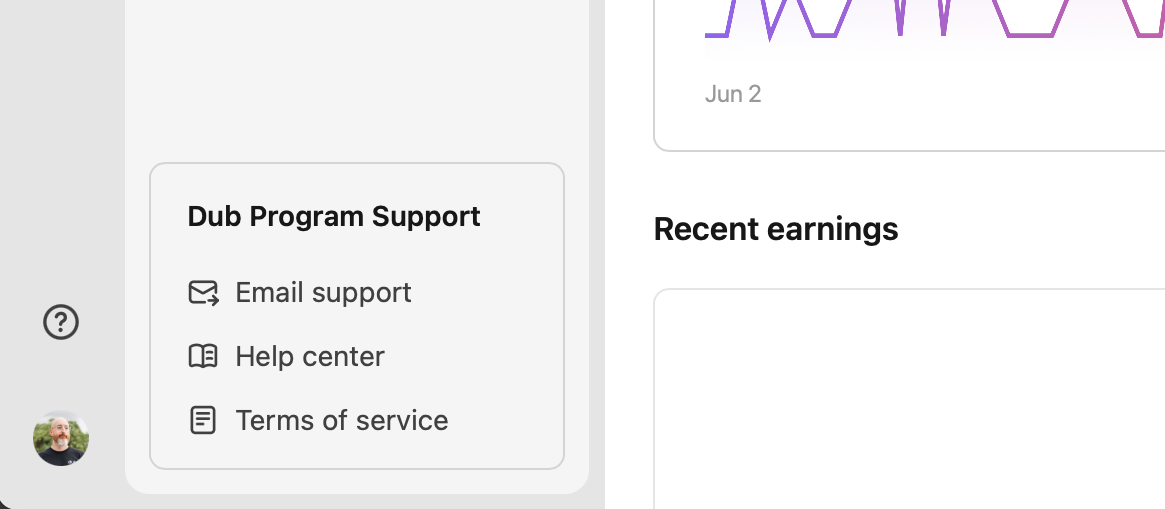
The section is always located at the bottom of the program page navigation to make it easy to find, so you know where to access support at the right moment.
For Dub platform support, reporting bugs, or other partner-related issues, reach out to us anytime.