This feature is only available on Advanced plans and above.
On Dub, you can use the Messaging Center to communicate directly with the partners in your program. Partners get notified via email and can respond to your messages in real-time.
Messages location#
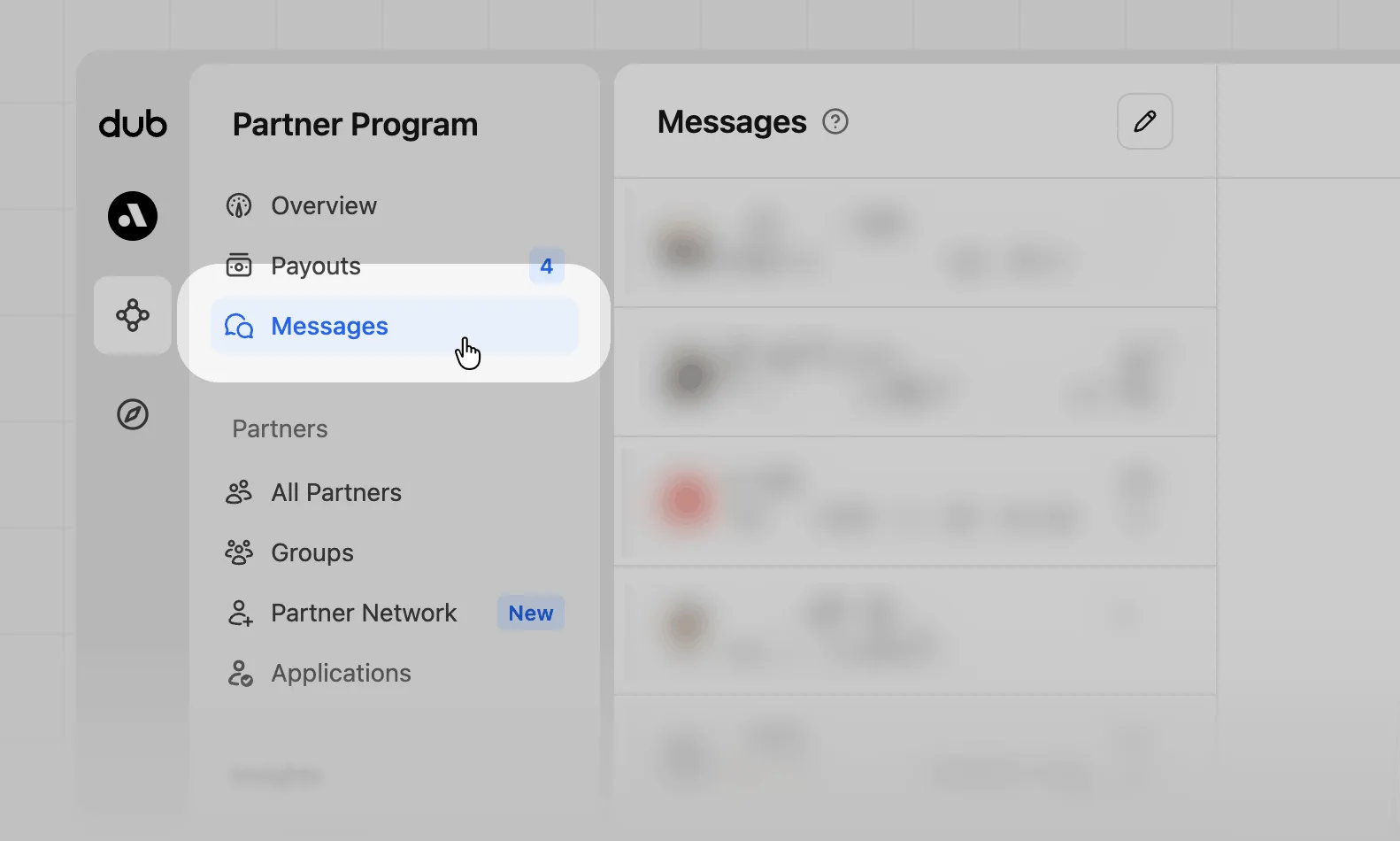
In your program navigation, click Messages to see your inbox and compose new messages.
Messages overview#
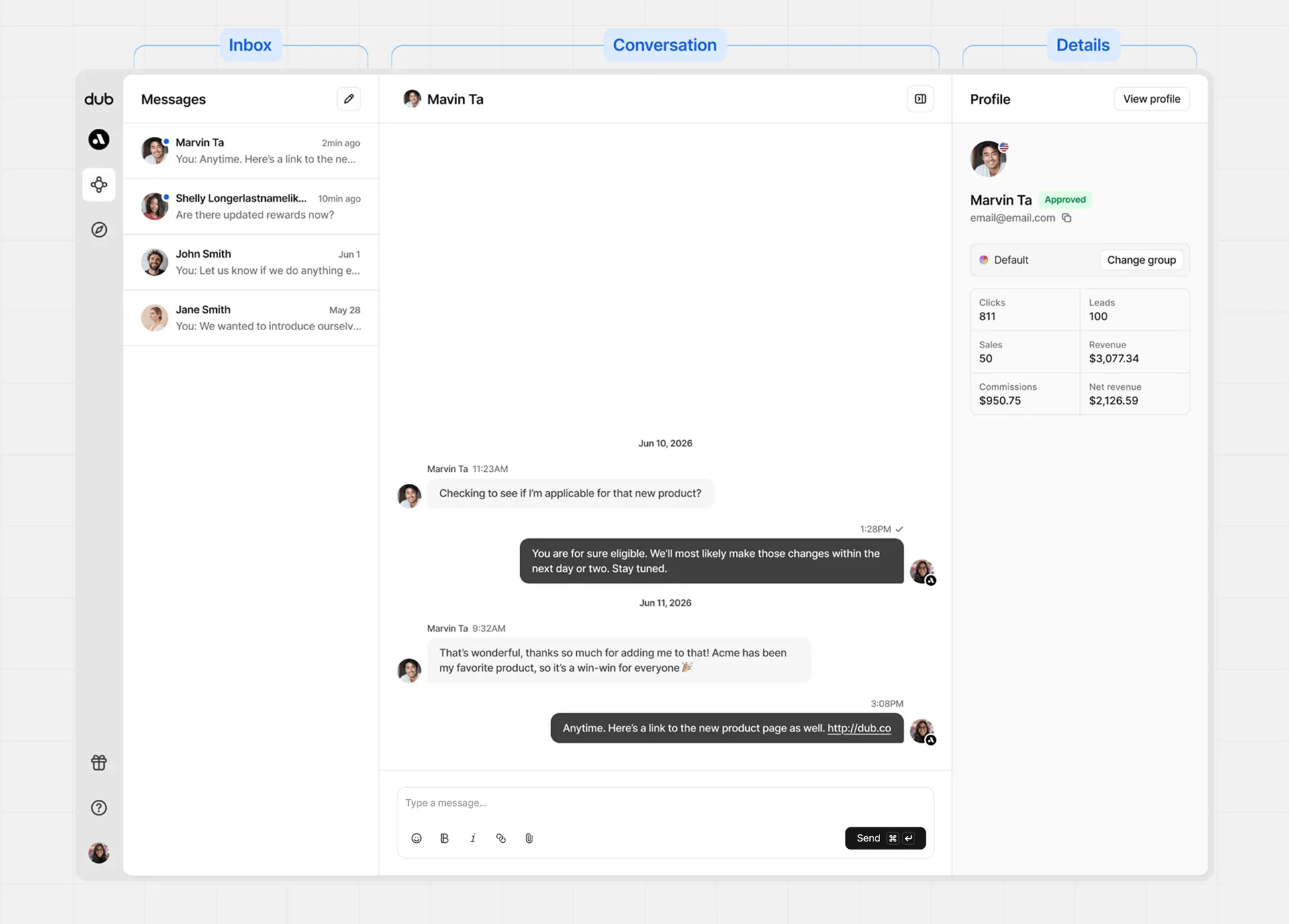
The messaging center has three panels:
| Panel | Content |
|---|---|
| Inbox | All your conversations in one place. |
| Conversation | The full thread with your selected partner. |
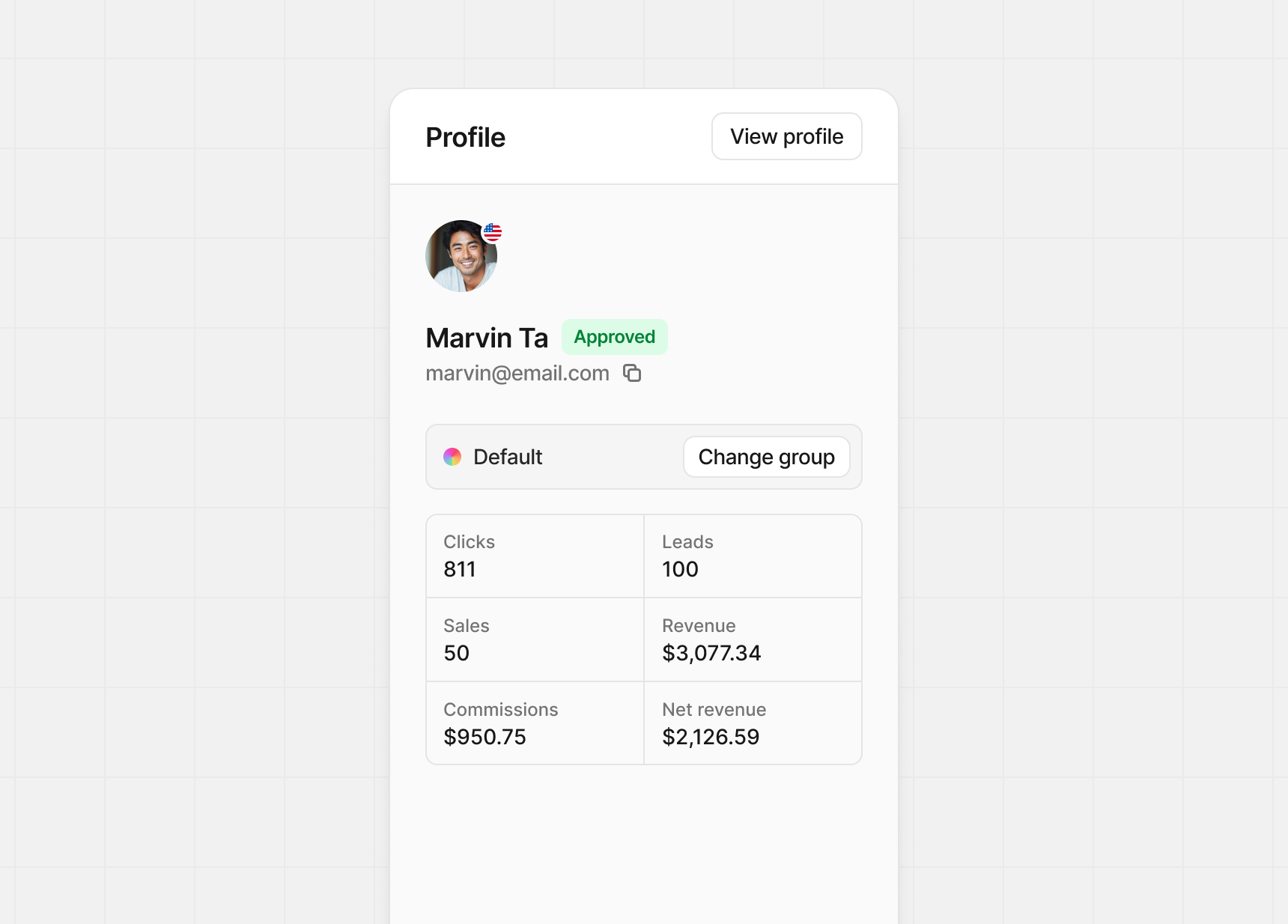
| Details | Key info and performance stats for the partner. |
Inbox panel#
Your Inbox lists every conversation with your partners. Select one to pick up where you left off, or click the Pencil button in the top right to compose something new.
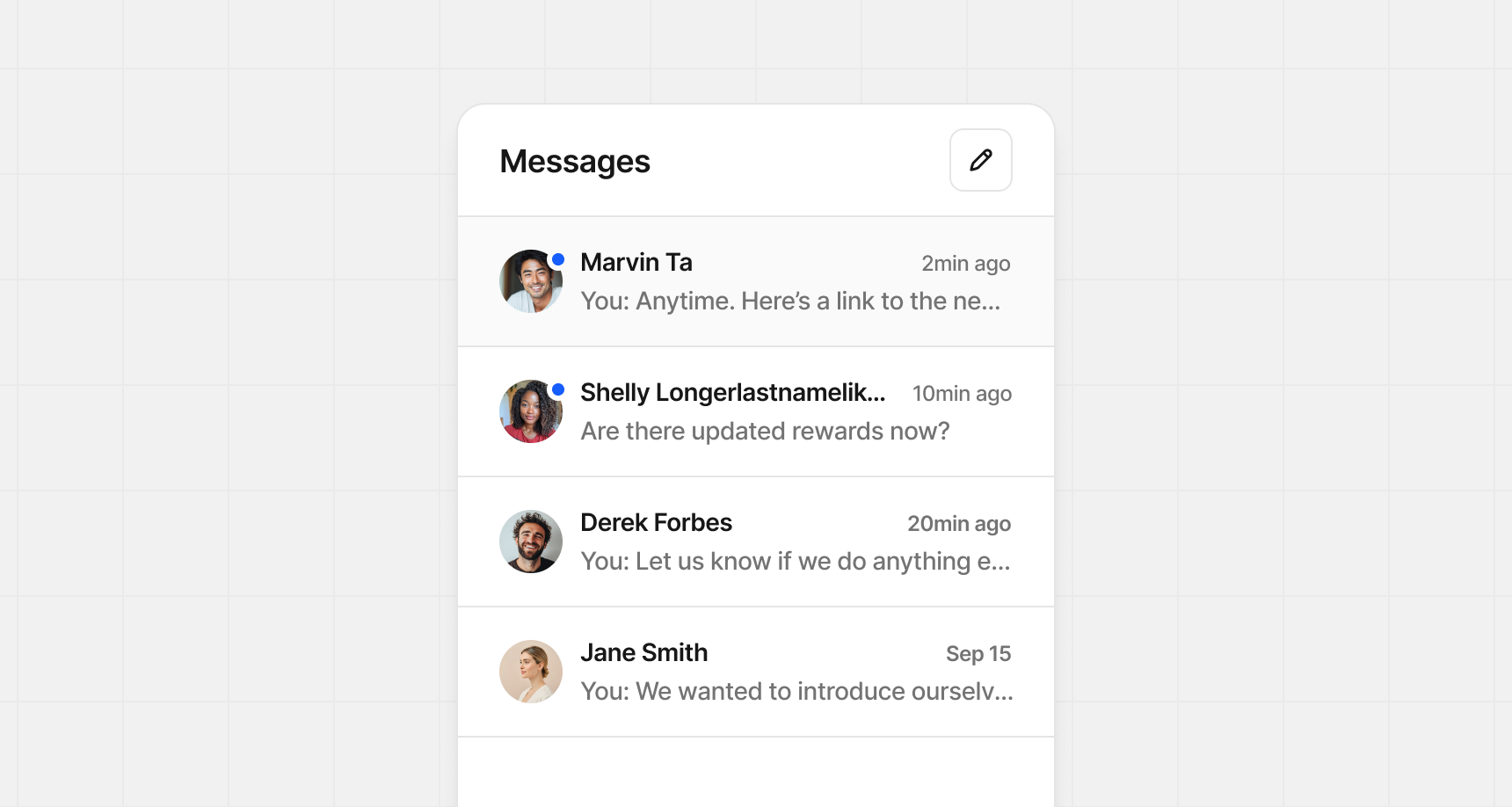
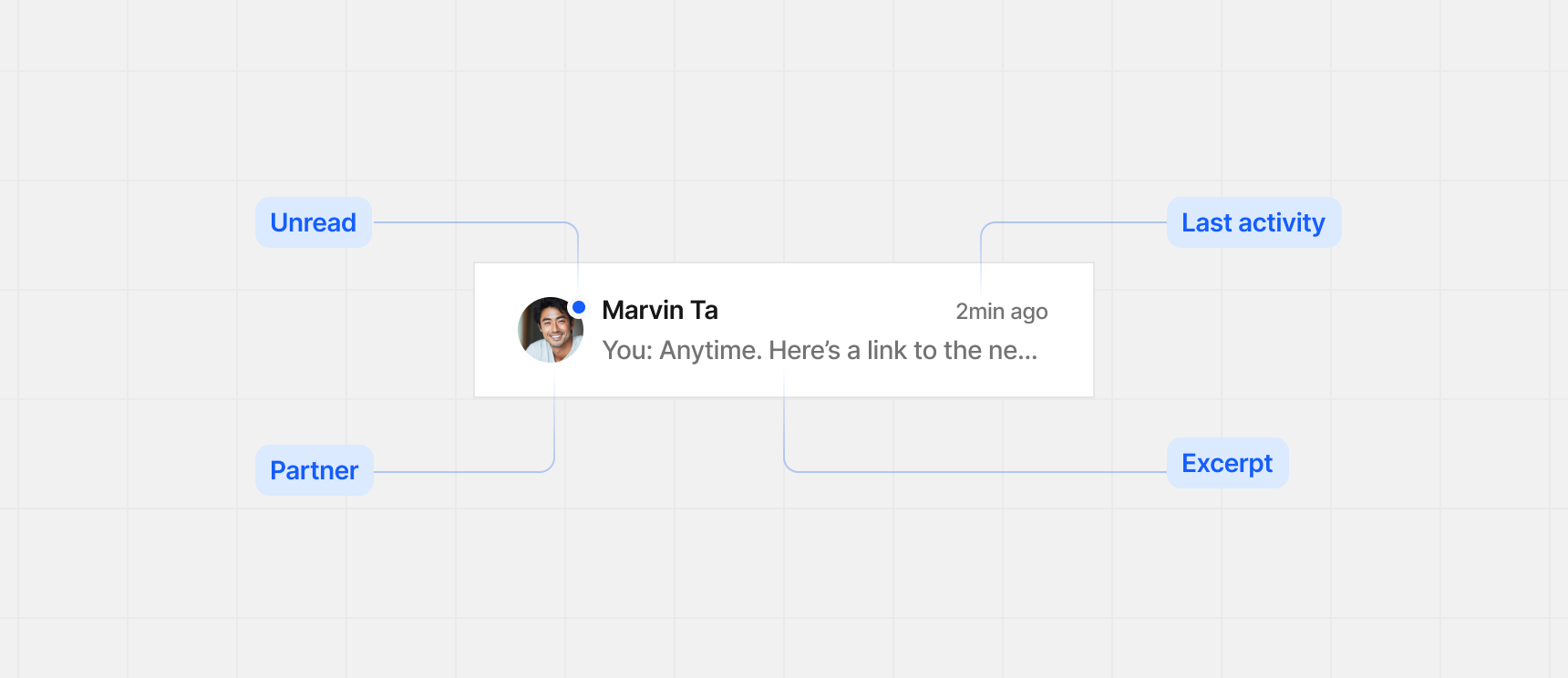
Each conversation row shows:
- Unread indicator – shows if you've read the message
- Partner – partner's name and profile image
- Last activity – most recent message from you or the partner
- Excerpt – short preview of the latest message
Conversation panel#
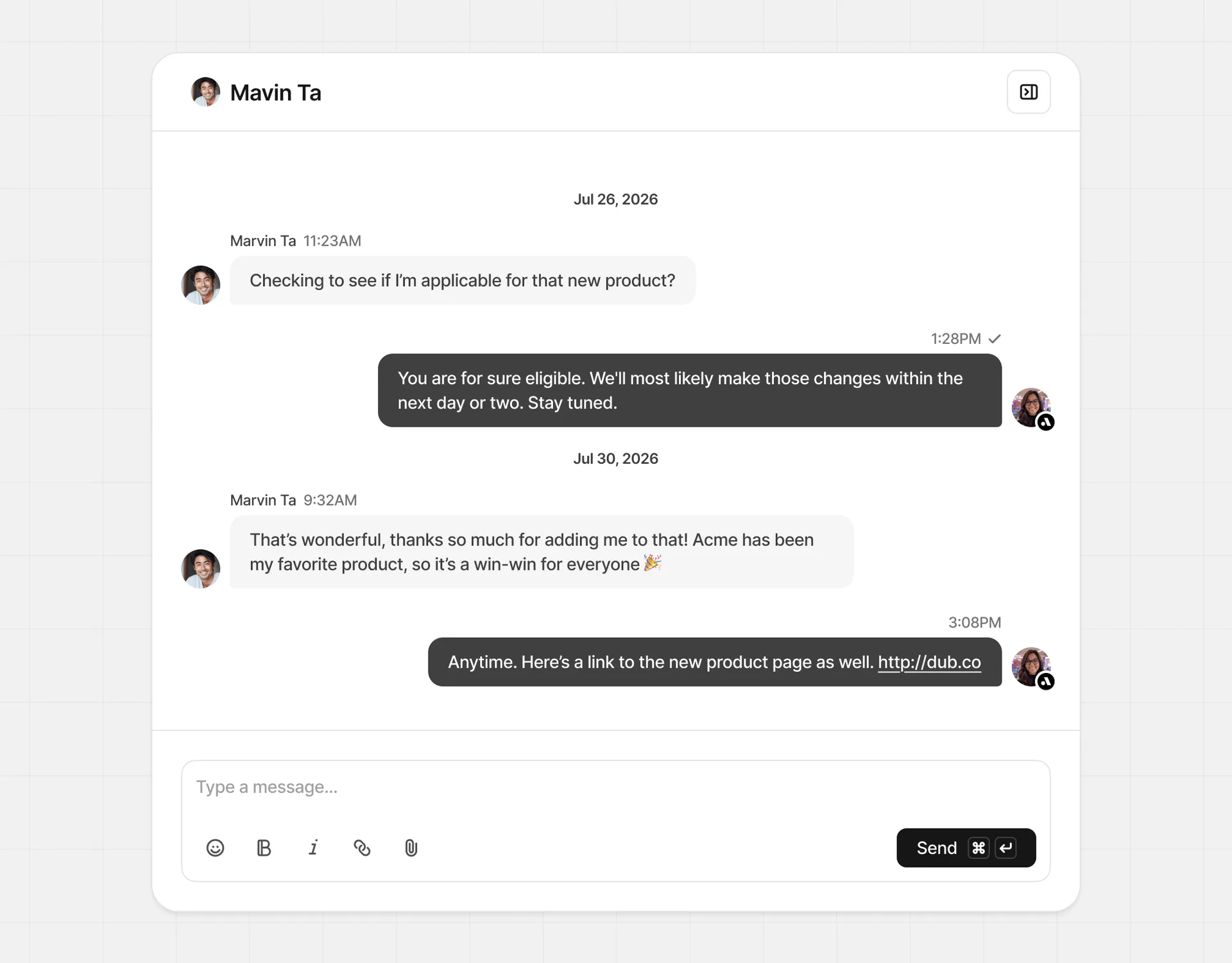
In the Conversation panel, you’ll see the full thread with your partner. Workspace members can reply too, with their profile images shown beside each message.
Message attachments#
Messages can also include file attachments. This is helpful for sharing things like contracts, guidelines, or promotional materials.
To add attachments, click the paper clip button in the message composer or drag and drop files into the message area.
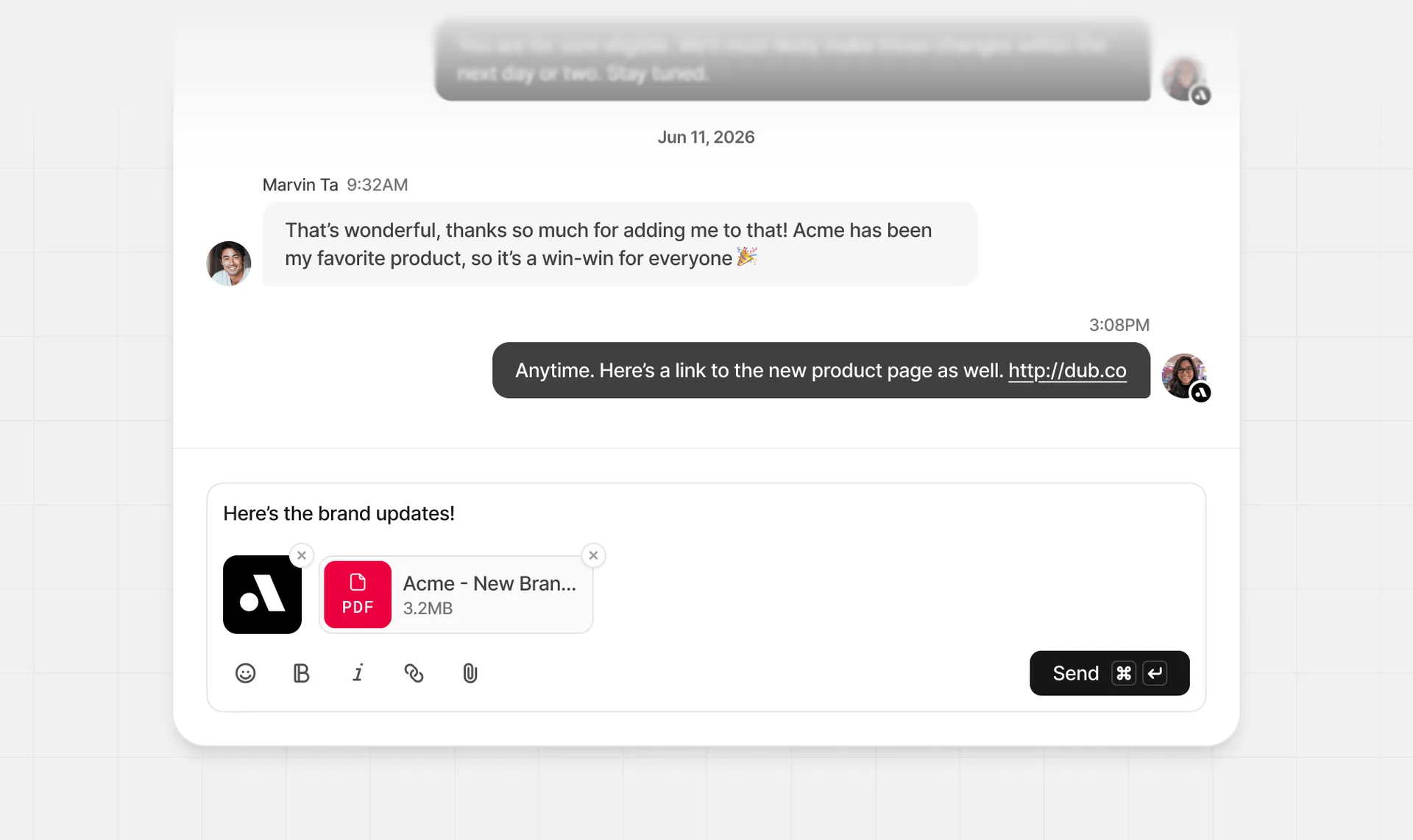
Supported attachment types are PNG, JPG/JPEG, WEBP, and PDF files. Each attachment can be up to 10 MB, and you can send up to 5 attachments per message.
Message status#
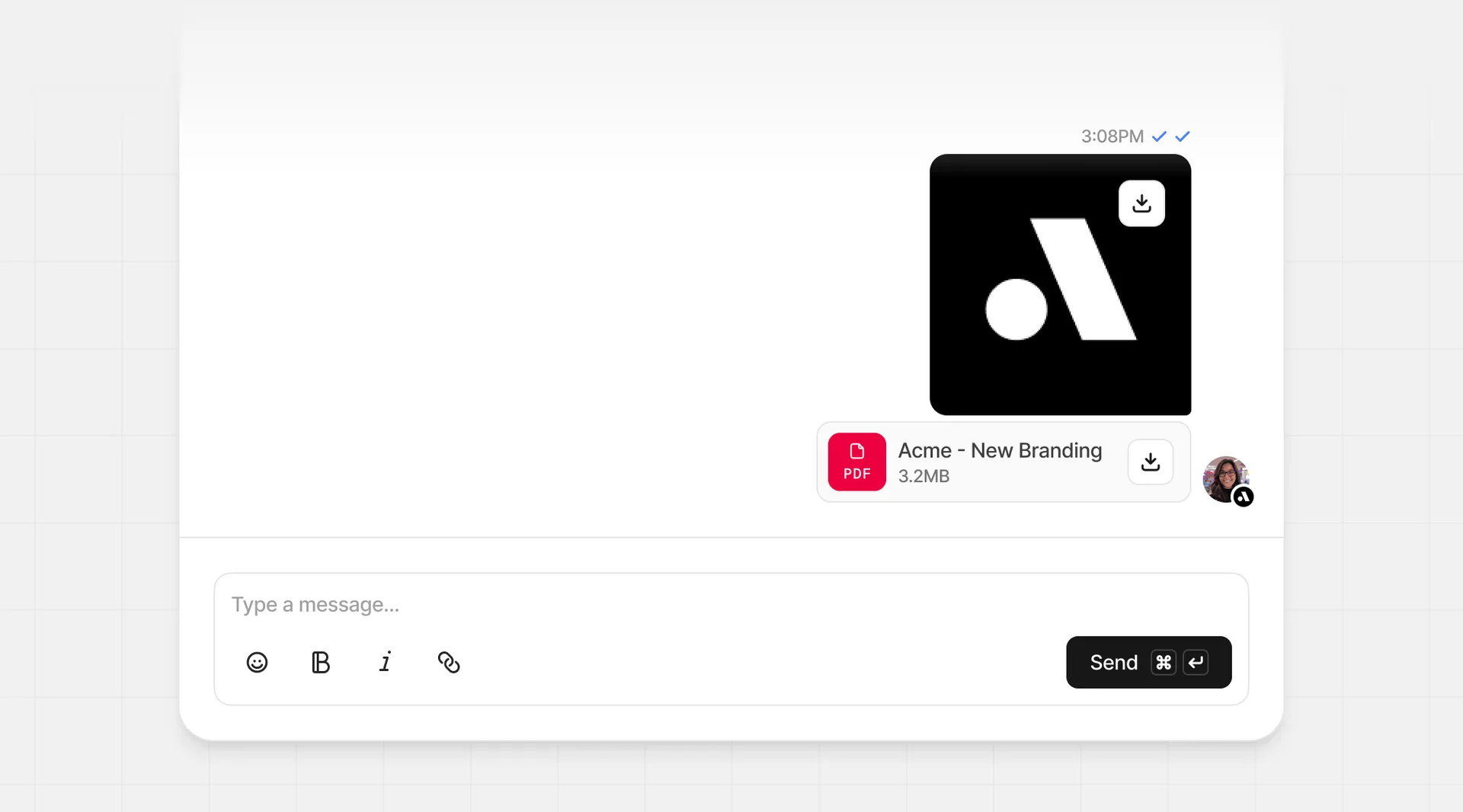
Each message sent has a check mark next to the send time:
-
Single check mark – delivered
-
Double check marks – delivered and read (either in email or in the app)
Details panel#
The details panel is collapsible and shows partner information and performance stats. You can also change their program group here.
Disabling messaging#
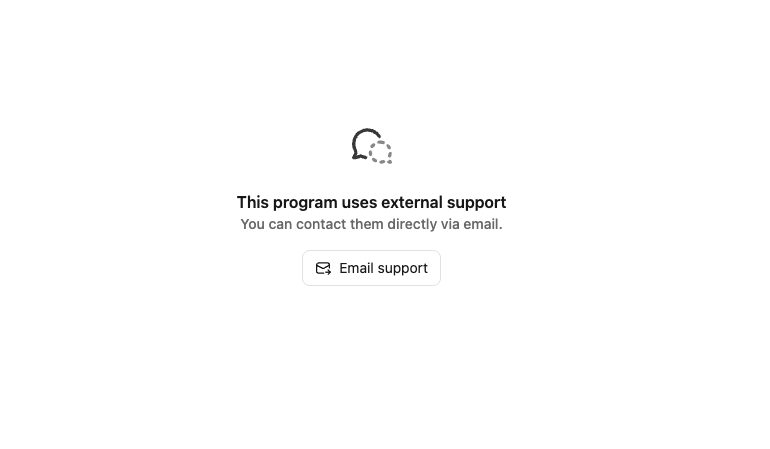
If you prefer to handle support outside Dub, you can disable partner messaging.
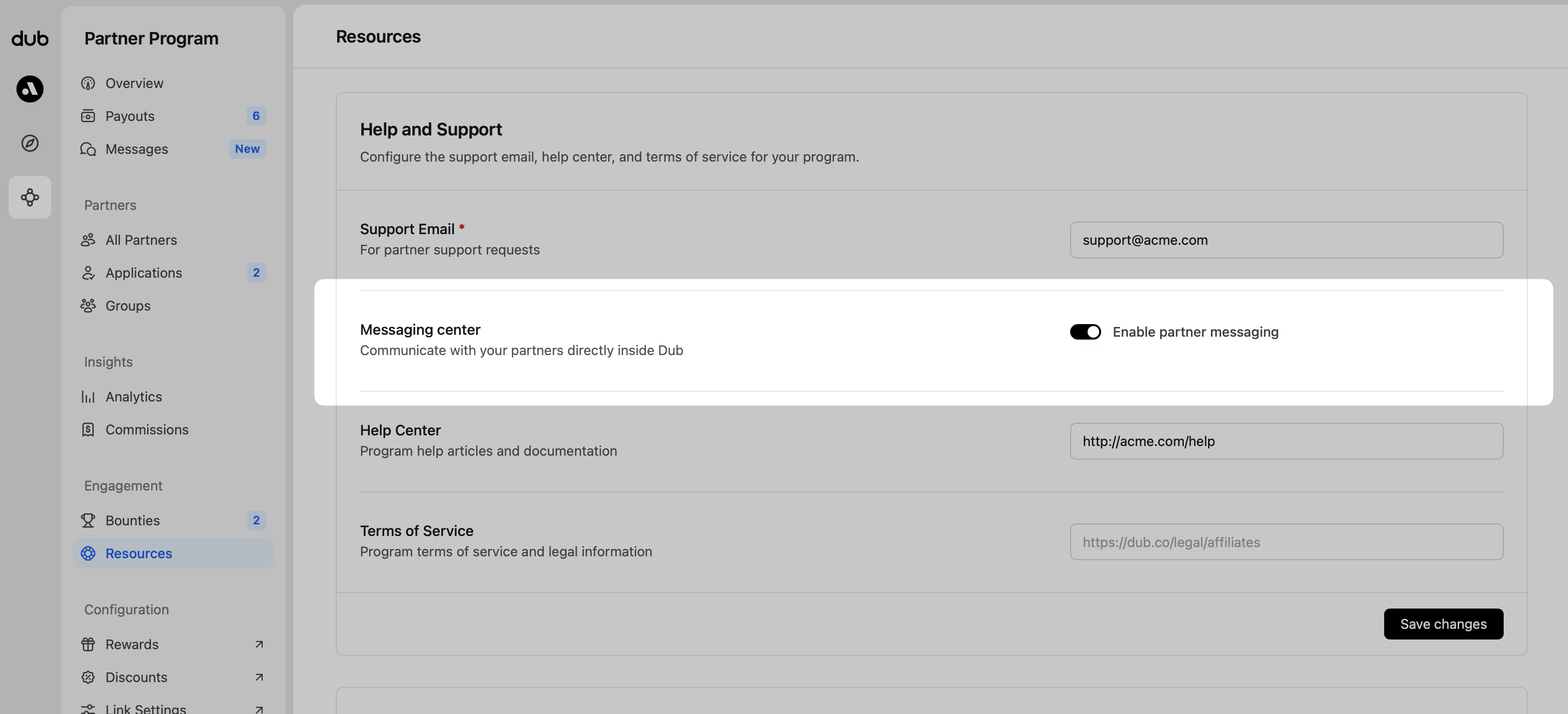
To disable messaging, head to your program Resources and in the Help and Support section, click the switch to off to disable partner messaging.
When messaging is disabled, partners who try to message you will see your support email address instead: